Knowledge Base Article
How to Email the People Who Did Not Open Your Last Email
When you send an email to a list, some people open it and some do not. Argenta records which is which, so you can go back to the people the email reached and who have not opened it, and send to them again.
Who can do this. The Email Batches page is limited to users who are a Master Admin or an Email System User. If you are neither, Argenta shows an access-denied page when you open it, and someone with one of those permissions has to pull the list for you.
The quickest way: the email's Report
- Choose Communication > Email Batches and click the open icon on the batch, then click Report in the workspace menu.
- In the People card, click Did Not Open. The list shows everyone the email reached with no open of any kind.
- Click Save As A Mail Room List, give the list a name, and click Save List. Anyone with no usable email address is left off.
- Send to that list from Communication > Mail Room, as in the last steps below.
Save As A Mail Room List is there for Master Admins and Mail Room Managers who are not View Only. Someone whose mail app opened the email automatically, such as Apple Mail loading its images, counts as opened and is not in Did Not Open. For everything else on the Report tab, see How to Read an Email's Report: Opens, Clicks, Gifts and Sharing.
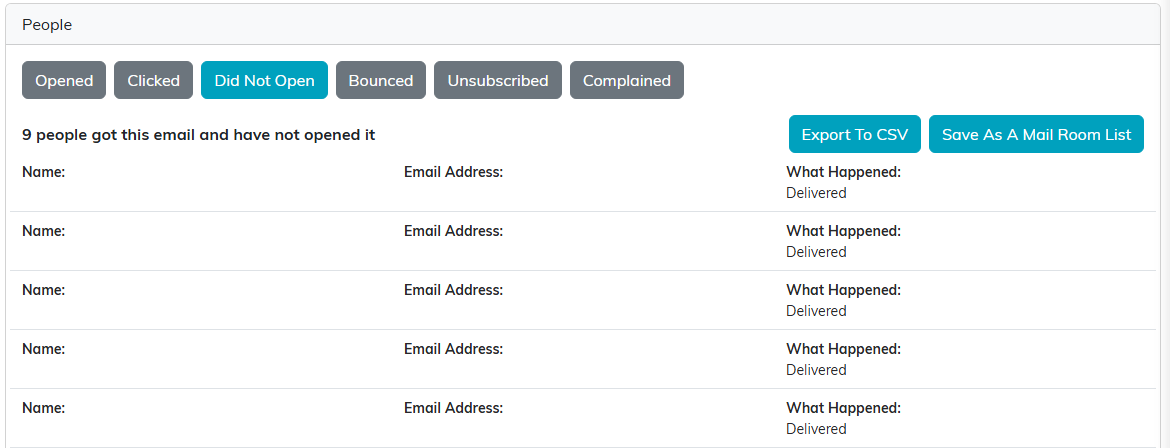
Did Not Open on the Report tab. Names and addresses are hidden in this picture.
Or find them on the Emails tab
- Choose Communication > Email Batches.
- Click the batch you want to follow up on. Each send you make is its own batch.
- Go to the Emails page of that batch.
- Set Filter by Status to Sent. The list narrows to the people this email reached who have not opened it.
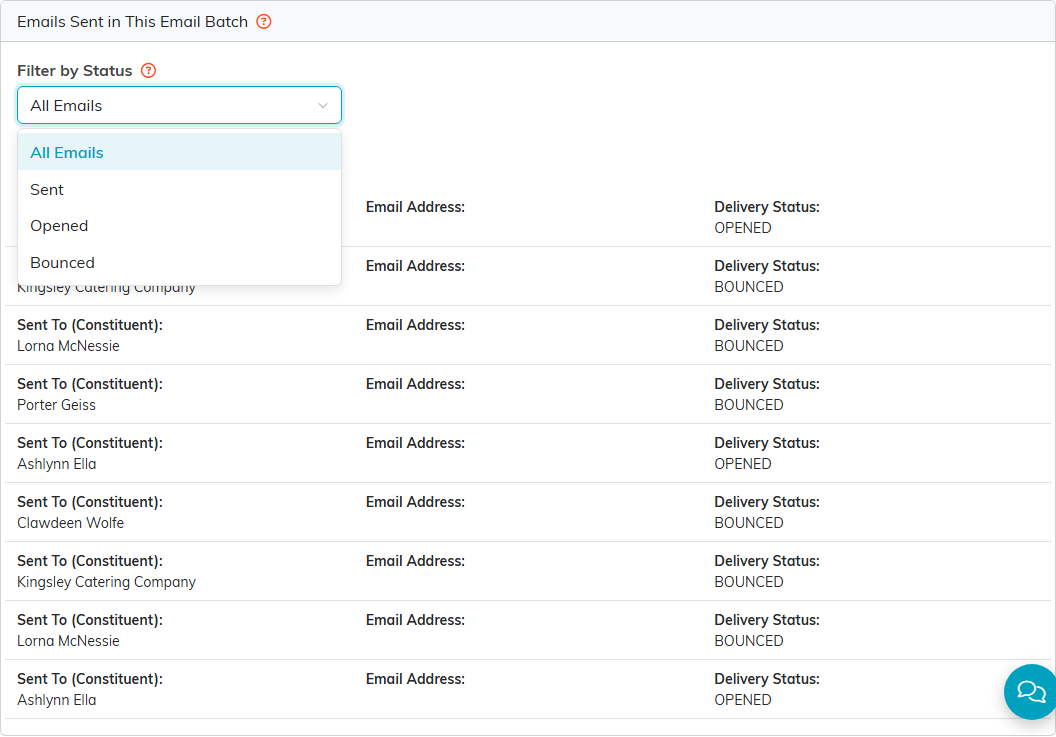
Filter by Status offers All Emails, Sent, Opened and Bounced.
What Sent means here
Sent means the email reached the person, they have not opened it, and it did not bounce. Each email carries one status at a time, so a person who opened the email is under Opened and a person whose address failed is under Bounced. Neither of them appears under Sent.
That is what makes this the right list to follow up on. A bounced address did not reach anybody, so sending to it again achieves nothing, and Argenta keeps those people out of the Sent view for you.
The tally of Sent, Opened and Bounced under the list counts what is on screen, not the whole batch. To compare the three numbers, set Filter by Status to All Emails and read them there.
Send to them again
Argenta does not resend a batch to part of itself. You build a list from the people you found, then send to that list.
- Note the names in the Sent view.
- Choose Constituents (CRM) > Constituent List.
- Select the records for those people.
- Open Choose Bulk Action, select Create A New Mailroom List With Selected Records, then click Run Bulk Action. Give the list a name you will recognise later, such as the original subject line plus
- no open. These Mail Room actions only appear for users with the Mail Room Manager permission, and for Master Admins. - Choose Communication > Mail Room.
- Click Send Email. Under Send To, choose A Mail Room List.
- Select the list you created, work through the other steps, and send. See How to Send an Email From the Mail Room.
Write the second email as its own message rather than repeating the first one word for word. The people receiving it did not open the first one, so a different subject line is the part most likely to change the outcome. It is also required: Argenta sends a subject line to a person only once, and everyone on this list already received the first one, so the same subject would reach nobody.
Why this cannot be automated
An Email Automation cannot do this. Automations start from a trigger, and the triggers are things like a constituent being added, a donation arriving, or somebody joining an email list. None of them starts from an email being opened or not opened, so there is no automation that watches a batch and follows up on your behalf. Following up on non-openers is a manual pass, done when you decide to make it.
