Knowledge Base Article
How the Public Session Sign-Up Form Works
The public session sign-up form lets people choose a session from one of your events and sign themselves up, without a login. Sign-ups land on the session's participant list in Argenta and the person is emailed a confirmation straight away.
What a Visitor Sees
The form opens on the event and lists the sessions that are open for sign up, each with a Sign Up button. A search box appears above the list once there are more than four sessions to show, so a small event does not get one. Use Open Event Session Sign Up or Copy Event Session Sign Up Link on the Event Sessions page while no single event is chosen, and you get a team-wide version instead: every open session across all your events, each showing its event's name, and the search matches event names as well as session names and locations. The sign-up itself asks for their details, and there is a toggle for signing up as an individual or as an organization.
Where nothing is open, the page says No sessions are open for sign up right now rather than showing an empty list.
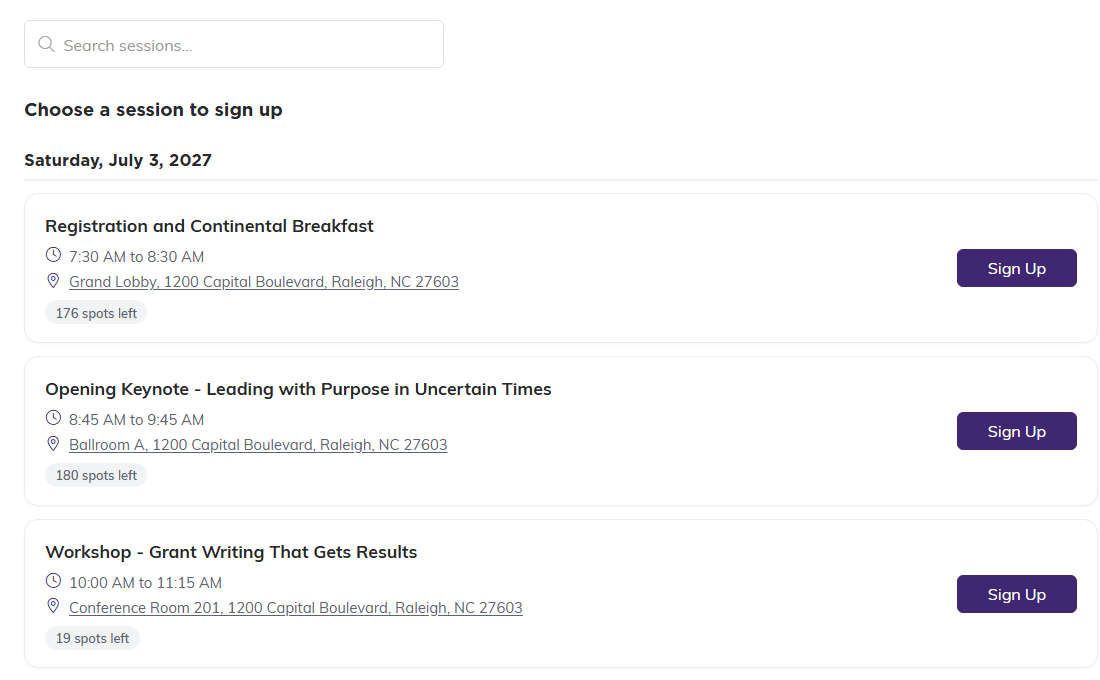
Each session open for sign up gets its own row and its own Sign Up button. A search box appears above the list once there are more than four.
What Puts a Session on the Form
A session appears only when all of these are true:
- It is set to Public rather than private.
- Its status is Registration Open.
- It has not been cancelled. Cancelling is recorded separately from the status, so a session can read Registration Open and still be cancelled, and a cancelled one is kept off the form either way.
- It has not started yet. A session whose start date and time have passed drops off the form, even with everything else set correctly.
- It is not full. Once the seats taken reach the session's Max Number of Participants it stops being listed.
The last two are worth checking first when a session you expected is missing, because the Public setting and the status are the two people look at and they are usually already right.
Anything else keeps it off. If somebody follows a direct link to a session that is not open, the form tells them This session isn't open for sign up instead of taking the booking, so a link shared earlier cannot be used to get around the setting.
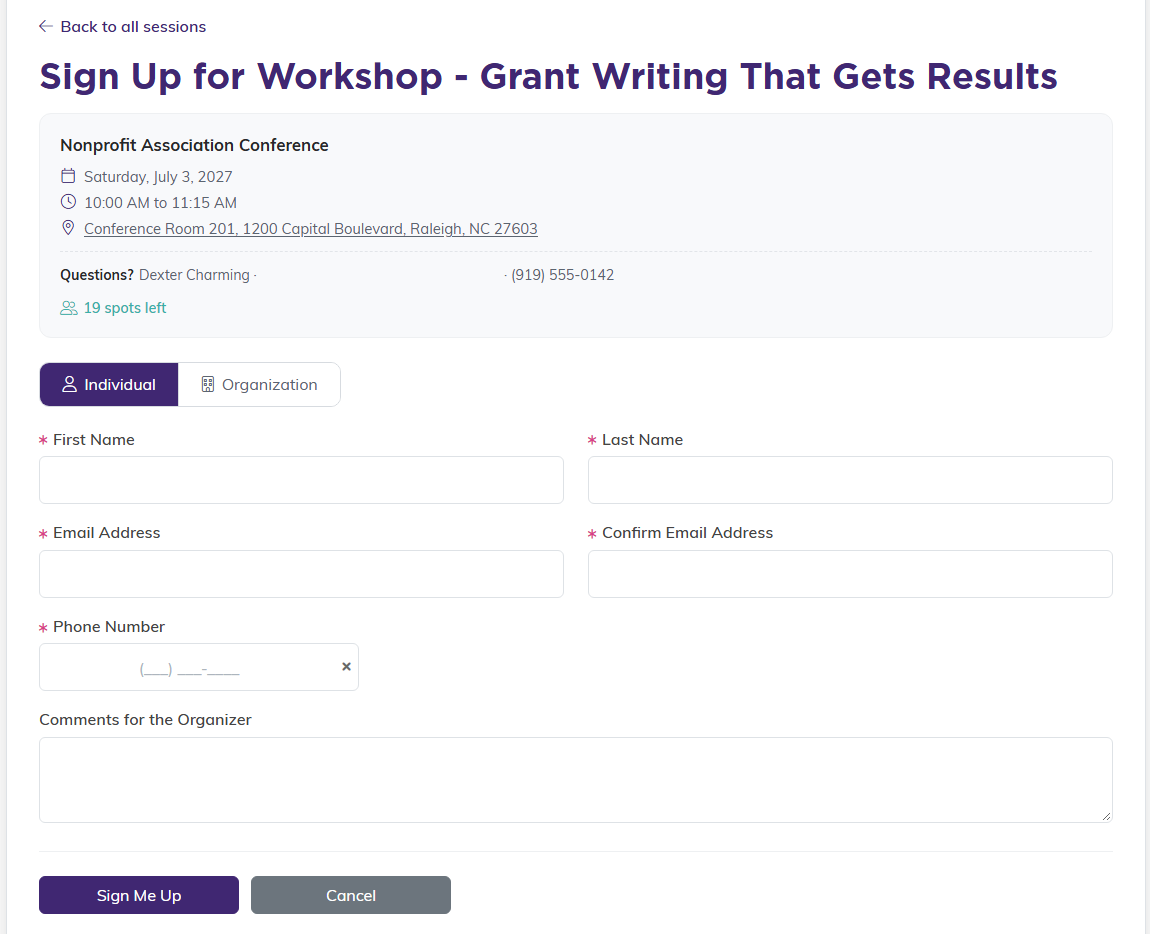
The sign-up form itself. The Individual and Organization toggle sits above the details.
The Other Messages People Can Hit
- This session is full when the session has reached its Max Number of Participants.
- You're already signed up when that person already holds a spot, rather than giving them a second one.
Both offer a way back to choose another session.
Closing Registration
To close sign-ups by hand, change the session's status from Registration Open to Registration Closed.
Argenta can also close it for you a set number of hours before the session starts. That is switched on per event, with the lead time in hours, so it does nothing at all until somebody turns it on for that event. When the cutoff arrives the session moves from Registration Open to Registration Closed, which is the same thing that stops new sign-ups when you do it by hand. Sessions that are already closed or cancelled are left alone.
Where the Sign-Ups Land
Each sign-up is added to that session's Session Participants page, so it sits alongside anybody your staff booked in. For working that list afterwards, see How to Manage Session Participants and the Waitlist.
