Knowledge Base Article
How to Use the Session Team
The Session Team page is where you say who is running a session: the staff and volunteers working it, as against the participants attending it. The same person can appear on both. For the roster of who is attending, see How to Manage Session Participants and the Waitlist.
Adding Somebody
Search for the name and click Connect. Staff and volunteers each have their own list on the page.
Whoever you name as the Session Facilitator/Instructor is added to the team for you when you save, so there is no need to connect them a second time.
There is a separate Team Lead/Supervisor field beside it. It records who is supervising, and it does not hand out the Lead Facilitator/Instructor role. That role is a per-person setting on the rows below.
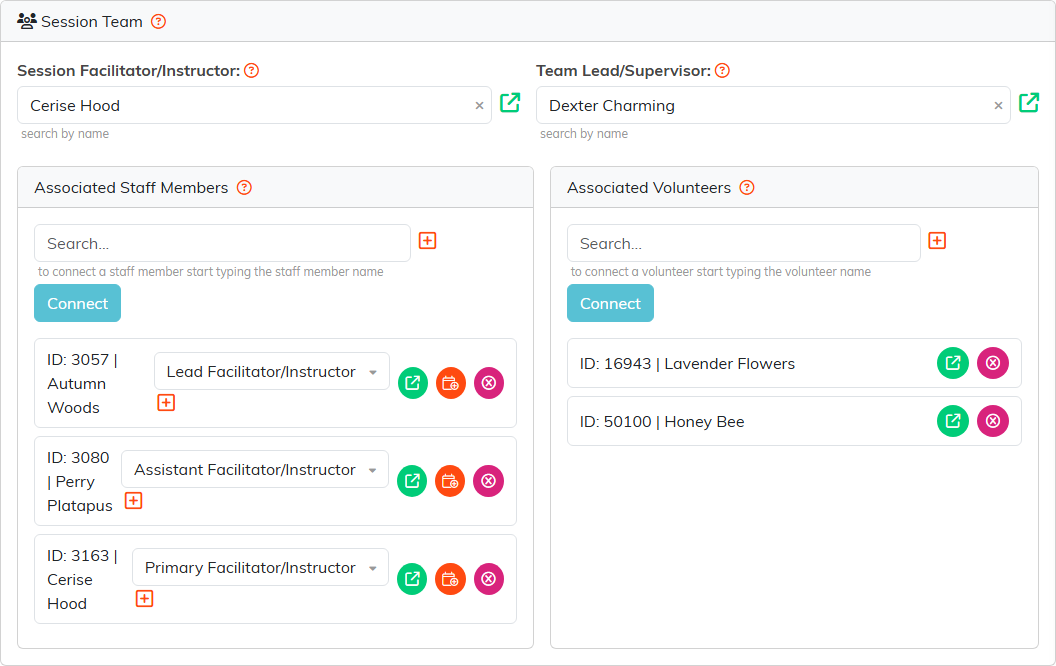
Staff and volunteers have a panel each, and each row carries that person's role for this session.
What Connecting Does to Their Calendar
Connecting somebody puts the session on their schedule as an appointment, carrying the session name, the date and time, and the location. Removing them takes the appointment back off again.
Two things have to be in place for that appointment to appear: the person needs a constituent record and a user account. A person with no team schedule yet is given one, a Staffing Schedule named after them. A session that has already finished never generates one. The calendar icon on a row adds the session to that person's team schedule by hand, and it will not do it for a session that is over.
Roles
Everyone on the page carries a role saying what they did on this particular session, so the same instructor can lead one session and assist on the next.
The role fills itself in when you add somebody. The session's facilitator comes out as Primary Facilitator/Instructor, and anybody else takes the role matching their job title where there is one. Lead Facilitator/Instructor is set by hand and is not handed out automatically; somebody who already holds it keeps it until it is changed. You can change any role afterwards, and the list of roles is your own team's to add to.
Sessions that ran before roles existed are left blank rather than guessed at.
Two Things That Will Stop You
- You cannot remove the facilitator while they hold that role. Change the instructor on Session Details first, then come back and remove them here like anyone else. If you try, Argenta refuses and tells you why, and the row stays where it is.
- Approved time off is flagged, not blocked. If the person has time off approved across the session, Argenta warns you and leaves the decision to you.
When the Session Is Short of Instructors
If the participants on this session are recorded as needing more instructors than the team actually has, a warning sits at the top of the Associated Staff Members panel, giving you the number needed and the number on the team.

The figure the session needs is the highest number recorded against any one participant, not the sum of them all. Cancelled seats are left out of it, and a cancelled session never warns.
Each participant's own figure comes from two places, and Argenta takes whichever is higher. The first is # Instructors Needed on their seat, which your staff set. The second is the family's own answer on the booking form: where they said the participant needs more than one instructor, that seat counts as needing 2, even if nobody ever typed a number onto the seat. The family's answer only ever raises the figure, so a seat already set to 3 stays at 3.
That means a warning can appear on a session where every seat looks blank. It is not a fault; it is the booking form being read.
Taking somebody off the team is the action most likely to cause this, so the removal confirmation tells you before you agree: Taking this person off leaves the session short of instructors: needs 3, has 1. You can still go ahead. Nothing here blocks you.
Which session roles count as an instructor is part of your organization's setup, so a role that is not being counted is being left out on purpose rather than overlooked.
A single person can also be set to count whatever their role, using Counts As An Instructor on their staff record. It is meant for somebody who is training up and whose role has not caught up with them yet, and it applies on every session they are on until you turn it off.
It never happens quietly. The session tells you at the top that somebody is counting this way, and that person's own row carries a counts as instructor badge, so you can weigh the exception against the person rather than against a number. Their recorded role for the session is left alone, so your roster still says what they actually did.
Volunteers
The volunteer list here is the same one as the Associated Volunteers panel on the session's Connections page, so a volunteer connected in either place shows in both.
Removing a volunteer here breaks their link to this session and nothing else. Their volunteer record is left alone.
