Knowledge Base Article
What Are Event Sessions and How They Work
An Event Session is a single scheduled activity inside an event: a workshop, a class, a breakout, a lesson slot. Each one carries its own date and time, location, facilitator or instructor, capacity and sign-up settings, so one event can run many sessions across different days without needing an event apiece.
Where They Live
Open Event Management > Event Sessions from the main menu for the full list. Each session also opens into its own Event Session Workspace.
When you open Event Sessions from an event's workspace menu, the page has a short Show Me How To Use This Page video at the top right; click it to watch, and use its chapters to jump to the part you need.
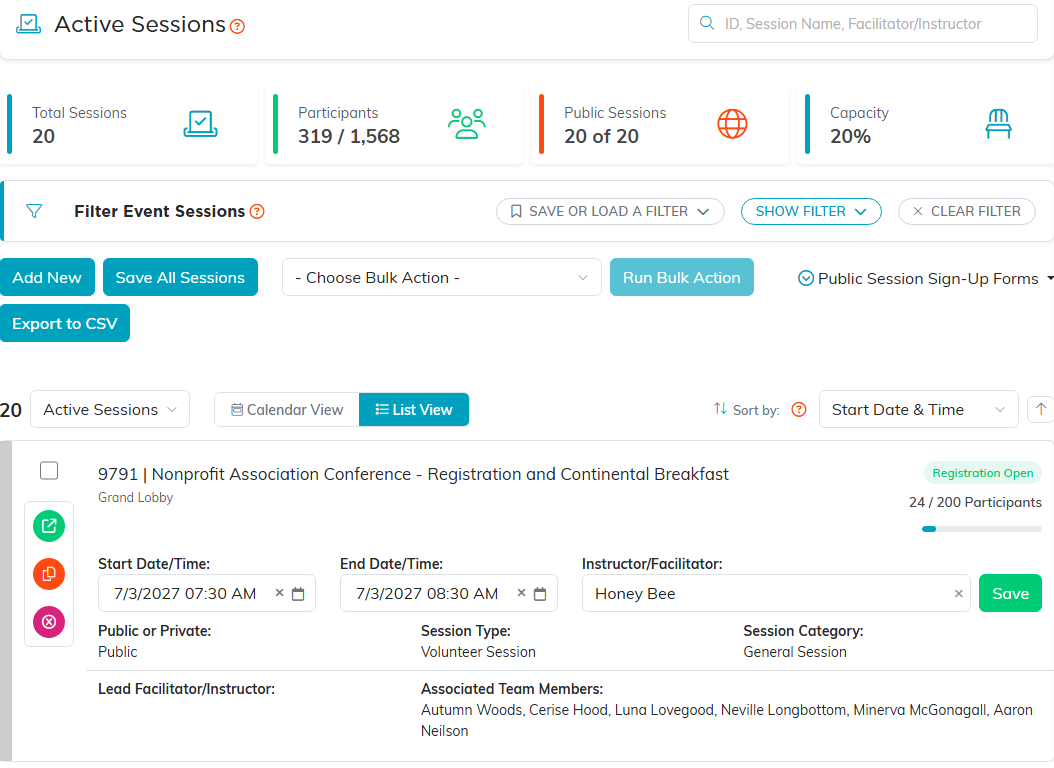
The session list. The tiles across the top total what you are looking at, and List View and Calendar View show the same sessions two ways.
Archiving a Finished Session
When a session is over but you want to keep it, set its Current Status on Session Details to Archived. An archived session drops off the Event Sessions list and the calendar, and keeps its participants, team and history. Families see no change on your public sign-up form.
To see archived sessions again, switch on Show Archived in the filter panel, or tick Archived in the Session Status filter. Change the status to anything else and the session is back on the list.
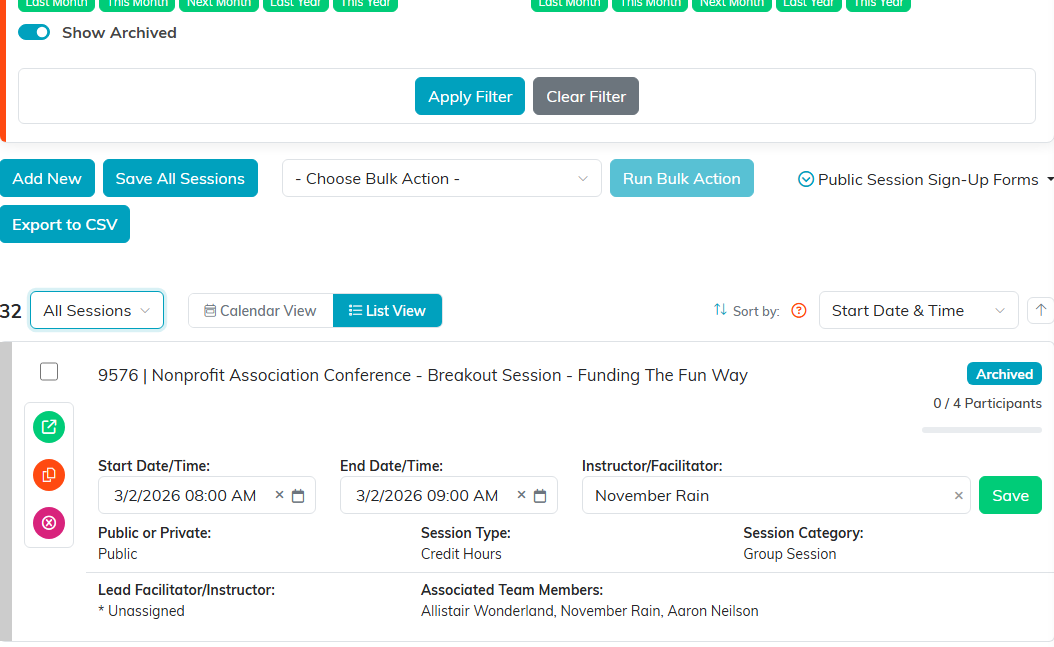
Show Archived brings archived sessions back into the list, each marked with its Archived badge.
Each status has its own color on the list, so Registration Open and Registration Closed are easy to tell apart at a glance.
Who Can See Them
You need the Event Manager module permission, or you have to be a Master Admin. Without one of those the Event Sessions pages are closed to you.
What you then see is narrowed to your own work. A Master Admin sees every session in the organization. Everybody else sees only the sessions where they are the session owner, the lead facilitator or instructor, or an assigned team member.
The Session Workspace
- Session Details for the date, time, location, instructor and capacity.
- Session Participants for the people attending.
- Session Team for the instructors, staff and volunteers running it.
- Session Waitlist for people waiting on a spot.
- Connections, Notifications, Session Checklists, Session Files, Session Notes and Record Permissions.

The Workspace Menu on a session. Every page for that session sits on this strip.
Participants Are Not the Session Team
Participants are the people attending, the roster of who holds a spot. The people running the session belong on Session Team, and the same person can appear in both.
Adding somebody on the Participants page books them the way a real sign-up does. Argenta creates the booking, sends them a confirmation, and queues a reminder before the session. If they already hold a booking on that session, nothing extra goes out.
Capacity
Max Number of Participants on Session Details is the most people you will take. Leave it blank, or set it to zero, for no limit.
Once the enrolled count reaches that number the session shows BOOKED on the list, your public sign-up form turns new bookings away, and staff can no longer move somebody in from another session. People marked cancelled do not count toward it, so cancelling one frees the spot straight away.
The Waitlist
The waitlist is a queue, and nothing on it runs on a timer. A spot coming free does not quietly promote anybody.
Two things move people off it. Remove a participant on the Session Participants page, and the first person still waiting is booked into the session and emailed to say so. Or send the envelope on their row, which tells them a spot is free and asks them to book it, without holding it for them.
The Instructor View
Every session has an instructor view, showing the session and who is on it. It is the one Event Sessions page that does not need the Event Manager permission, so somebody teaching a session can open theirs without being given the run of the module. They still only reach the sessions they are attached to.
Reporting on Sessions
The Report Center's Event Reports category carries Event Sessions Summary for how each session filled, Event Session Cancellations for people who pulled out, and Event Session No-Shows for people who booked and did not arrive. See Where to find Event Reports.
