Knowledge Base Article
How to Suspend a Volunteer
Suspending a volunteer puts them on a temporary hold without ending their record, so you keep their whole history and can lift the hold when they come back.
When to Suspend
Suspension fits a temporary pause: the volunteer's own request, a break after an incident while you look into it, or a background check or certification that has lapsed and you expect them to renew. If someone has stopped volunteering for good, make them inactive instead.
Suspend a Volunteer
- Open the volunteer record and stay on the Volunteer Details tab.
- Set Is Suspended? to Yes. The three fields beside it turn on, and Suspension Start Date fills in with today's date.
- If the hold began earlier, change the Suspension Start Date.
- Optional: enter an End Date when you already know the day the hold lifts. It cannot be earlier than the Suspension Start Date.
- Choose a Suspension Reason. You manage that list yourself, as the Volunteer Suspension Reasons classification code.
- Click Save All Changes or Save All & Exit Record. Nothing is recorded until you save.
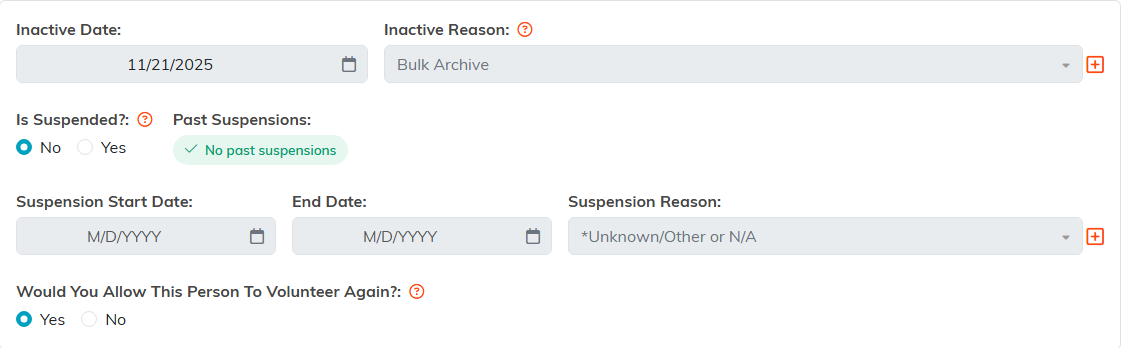
The three fields stay greyed out until Is Suspended? is set to Yes.
Beside the switch, Past Suspensions reads either No past suspensions or Has past suspensions, so you can see whether this has happened to the same volunteer before.
Suspended Is Not the Same as Inactive
Suspended is a temporary hold on a volunteer you expect back. Inactive means they have stopped volunteering, which you set with the volunteer's active status and an inactive reason. They are separate fields with separate logs, and a volunteer can be active and suspended at the same time.
Would You Allow This Person To Volunteer Again? is a third field again, and suspending someone does not answer it for you.
End a Suspension
- Open the volunteer record on the Volunteer Details tab.
- If you want the log to carry a particular end date, enter it in End Date now.
- Set Is Suspended? back to No.
- Click Save All Changes or Save All & Exit Record.
Argenta closes the open suspension entry and fills in its end date, using the End Date you set and today's date when that field is empty. Setting Is Suspended? to No clears the date fields on screen, which is why the end date goes in before you move the switch rather than after.
The Volunteer Suspension Log
Every suspension is kept on the volunteer's Status Logs tab, under Volunteer Suspension Log. Each line carries the suspension start date, the end date, and the reason as they stood at the time. A line with no end date is a hold that is still open.
Deleting a line removes that piece of history only. It does not lift a suspension and it does not change whether the volunteer is suspended right now. To lift a hold, set Is Suspended? back to No.
Finding Your Suspended Volunteers
In the filter panel on your volunteer list, set Suspension Status to Suspended or Non Suspended. It starts at Any Suspension Status, which returns everyone. For more on working with that list, see Overview, Working With Volunteer List.
What a Suspension Does Not Do
A suspension records a status. It does not remove the volunteer from your records, and it does not stop staff assigning a task to them, so when you pause someone mid-schedule, reassign their open tasks yourself. What it does stop is the volunteer signing themselves up for a shift on your public volunteer task page.
