Knowledge Base Article
Where to find the merge tag button in the email editor
The merge tag button is in the editor toolbar on the Email Template Workspace. Here is how to find it:
- Go to Communication > Email Templates from the main menu.
- Open any email template.
- Click the Template Design tab to open the Email Template Workspace.
- In the editor toolbar, look for the tags icon with a Tags label. Its tooltip reads Insert Merge Tag.
- Click it to open the merge tag picker.

The editor lives on the Template Design tab.

The Tags button, tooltip Insert Merge Tag, sits in the top row of the toolbar.
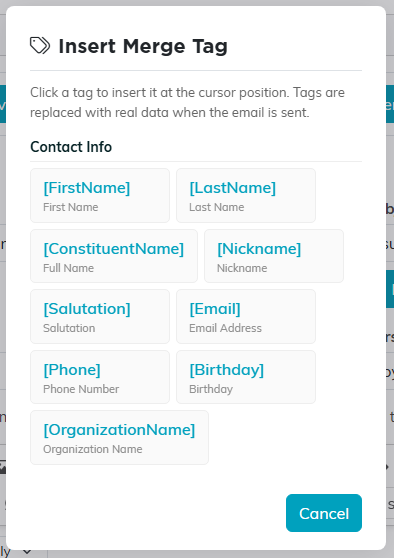
Clicking it opens the picker.
Good to know: the merge tag button appears in only three places: the Email Template Workspace editor, the New Campaign page you open with Send Email in the Mail Room, and Edit Unsent Emails on a paused email batch. Those are the emails that fill the tags in for each recipient. Other editors do not show it, and that includes record Notifications and the email queue, because tags typed there would go out exactly as typed.
If you do not see it: make sure you are on the Template Design tab (the Email Template Workspace), not the Template Details tab. The Details tab manages settings like the campaign, organizational hierarchy, and record permissions; the editor with the merge tag button is on the Template Design tab.
