Knowledge Base Article
What are email merge tags in Argenta?
Email merge tags are personalization placeholders that you insert into your email templates. They look like [FirstName], [TotalDonated], or [OrganizationName] while you are designing your template.
When you send the email, Argenta automatically replaces each tag with the real data for that specific recipient. For example, [FirstName] becomes "Sarah" for one recipient and "Michael" for the next.
Key points:
- Tags can be placed anywhere in the email body or subject line.
- They are replaced at send time, not when you save the template.
- If a recipient is missing data for a tag (for example, no mailing address on file), the tag is replaced with a blank so no bracket text appears in the sent email. To use words of your own instead, add a bar and fallback text inside the tag:
[MailingCity|your area]reads your area for anyone with no city on file. - [FirstName] uses the nickname when there is no first name. With neither, a greeting that opens a line, such as Hi [FirstName],, is left out of that person's email rather than reading Hi ,, and a [FirstName] anywhere else comes out blank. To greet them with a word of your own, write
[FirstName|Friend]. - Tags work for both single-recipient emails and batch sends to entire mail room lists.
- The tags are grouped as Contact Info, Mailing Address, Organizational Segments (Chapter, Division, Department), Donations, Membership, Volunteerism, and Event / Program.
- The Event / Program group holds [EventName], which fills in only on an email sent from an event's guest or participant list. Sent any other way it comes out blank, and the picker's own heading for that group says so.
You insert merge tags from the Email Template Workspace by picking a section and clicking the tags icon in its editor toolbar. A picker opens showing all available tags grouped by category.
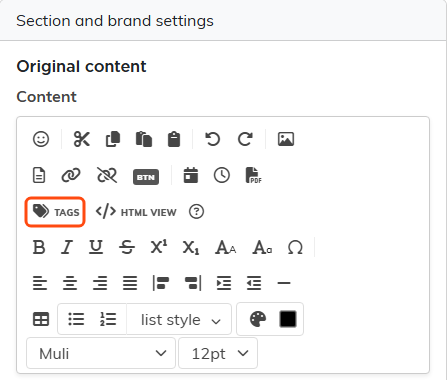
The tags icon in the Email Template Workspace toolbar.
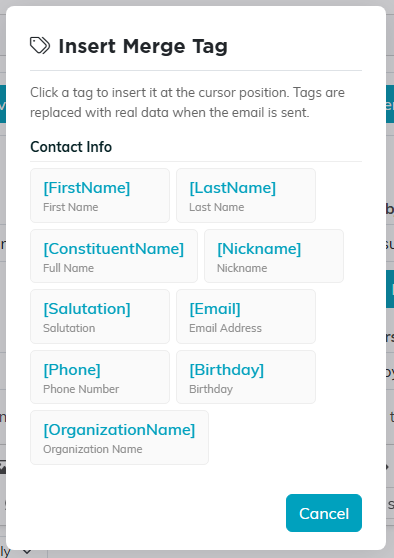
The picker, grouped by category.