Knowledge Base Article
Complete Guide to the Constituent Engagement Score Report
This is the full reference for the Constituent Engagement Score Report: where it lives, how every number is worked out, what each filter does, and how to turn the results into something useful.
What the report does
It measures how involved each person is with your organization across six dimensions and combines them into one score from 0 to 100. Instead of reading donors, volunteers, members, and event guests in separate reports, you get them side by side, which is where the useful patterns tend to show up.
Where to find it
- Click Report Center in the links across the top right of the screen. It is not in the left menu.
- Open the Constituent Reports category card.
- Choose Constituent Engagement Score Report.
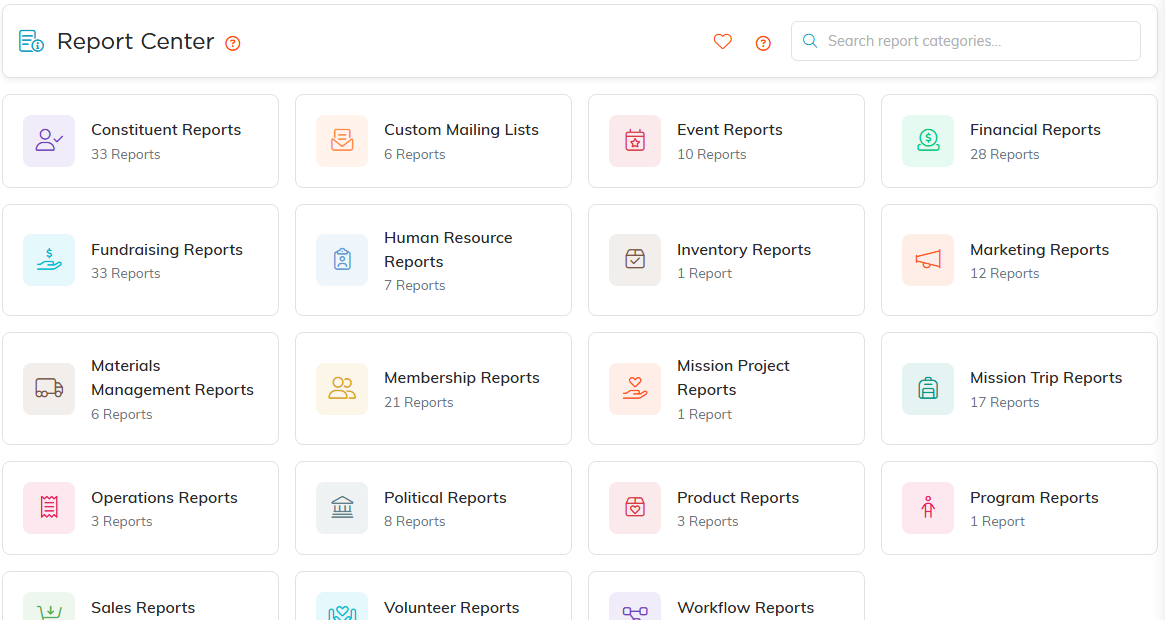
Constituent Reports is the first card. The count under each name tells you how many reports are inside.
Direct address: /reports/constituent-engagement. Click the heart beside the name to keep it in My Favorite Reports.
You need the Marketing Manager, Donation Manager, or Admin role to open it. Exporting additionally needs the Can Export Lists To Excel permission or Admin.
Who gets scored
Three rules decide who appears at all, and between them they explain almost every case of a missing person:
- Only active constituents are scored. An inactive record is left out however rich its history.
- Only constituents scoring above zero are returned. A flat zero, the level called Not Engaged, never reaches the results.
- If your account is restricted to certain chapters, divisions, departments, or precincts, you only see constituents inside them, plus constituents not assigned to any.
The six dimensions
Each is scored out of 100 on its own, then weighted:
- Volunteering (20%): hours logged, task completion, active volunteer status.
- Events (20%): events attended, attendance rate, committee participation.
- Email (15%): open rate and click rate, less a penalty for heavy bouncing.
- Membership (15%): active status, tenure, visits.
- Giving (25%): frequency, recency, and total amount.
- Leadership (5%): board positions and committee roles.
Engagement levels
- Highly Engaged (70 and up): your champions, active across several areas. Prioritize stewardship.
- Moderately Engaged (40 to 69): solid supporters with room to grow. Good cultivation candidates.
- Lightly Engaged (15 to 39): a real but casual connection that needs nurturing.
- Minimally Engaged (above 0, under 15): on the periphery and most at risk of drifting away.
How each dimension is scored
Hours, tasks, events, committees, email, visits and gifts are counted inside your chosen time period. A volunteer shift marked Unfulfilled is left out, so it adds no hours, no task and no completed task. Active status, membership tenure and board seats are read as they stand today.
Volunteering
- Hours logged: 100 or more = 40 points, 50 or more = 30, 20 or more = 20, 5 or more = 10.
- Task completion rate: completed divided by total tasks, times 30 points.
- Active volunteer status: 30 points.
Events
- Events attended: 10 or more = 40 points, 5 or more = 30, 3 or more = 20, 1 or more = 10.
- Attendance rate: attended divided by invited, times 30 points.
- Committee participation: 3 or more = 30 points, 1 or more = 15.
- Open rate: opened divided by sent, times 50 points.
- Click rate: clicked divided by sent, times 50 points.
- Bounce penalty: 20 points off when more than 20% of their email bounced. The email score never drops below 0.
Membership
- Active member: 40 points.
- Tenure: 10 or more years = 30 points, 5 or more = 20, 2 or more = 10, any start date at all = 5.
- Visits: 12 or more = 30 points, 6 or more = 20, 3 or more = 10, 1 or more = 5.
Giving
- Frequency: 12 or more gifts = 30 points, 6 or more = 20, 3 or more = 15, 1 or more = 10.
- Recency: within 30 days = 30 points, within 90 = 25, within 180 = 15, within 365 = 10.
- Total amount: $10,000 or more = 40 points, $5,000 or more = 30, $1,000 or more = 20, $100 or more = 10, anything above zero = 5.
Leadership
- 2 or more active board positions = 100 points.
- 1 board position = 75 points.
- No board seat but 3 or more committee roles = 50 points.
- No board seat but 1 or more committee roles = 25 points.
The filters
Time Period sets how far back the report looks, and it shapes nearly every score:
- Last 6 Months for recent movement.
- Last 12 Months, the default, for a standard annual view.
- Last 24 Months for year-over-year comparison.
- Last 3 Years or Last 5 Years for long-run patterns.
Engagement Level limits results to a single tier. Min Score and Max Score carve out an exact band, which is the practical way to work through a list since there are no column sort controls. Each takes a score from 0 to 100; leave it blank or at 0 for no limit. A value outside that range shows a message and the report does not run.
Filter by Activity Type is a multi-select list starting on All Activity Types:
- Volunteer: has logged hours or is an active volunteer.
- Event: attended at least one event. An invitation alone does not count.
- Email: opened or clicked at least one email. Being sent email does not count.
- Membership: active member or has recorded visits.
- Giving: made at least one donation.
- Leadership: holds a board position or committee role.
Selecting several narrows rather than widens: a person must have all the types you picked. And the filter can only include, never exclude, so there is no way to ask for people who have not done something. That matters for the volunteers-who-never-give search below.
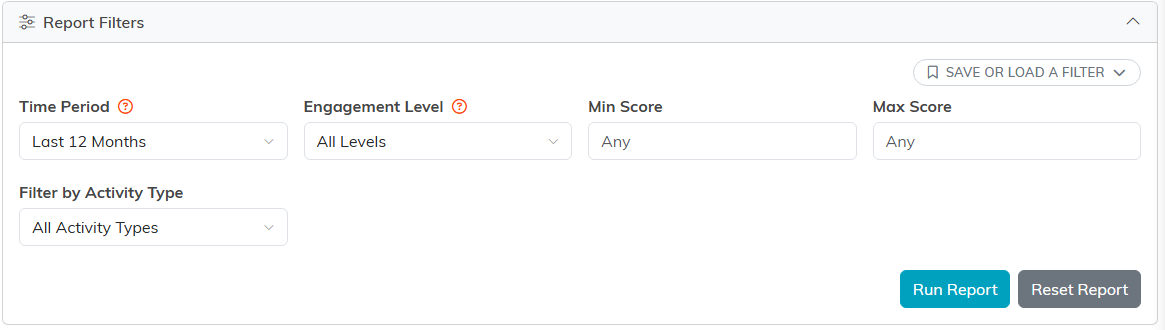
Time Period is the one that changes everything else, so set it first. Min and Max Score are how you carve out an exact band.
Reading the results
- Results arrive sorted by engagement score, highest first.
- Each row shows the overall score with its level badge.
- Dimension Scores appear as small badges: V for Volunteer, E for Event, M for Email, B for Membership, G for Giving, L for Leadership. Two people with the same overall score often got there completely differently, and this is where you see it. Hover over a badge to see which score it is, or read the legend above the results, which the PDF prints too.
- Activity icons show the areas a person is active in: Volunteer, Event, Email, Member, Donor, Leader.
- Click a constituent's name to open their record in a new tab.
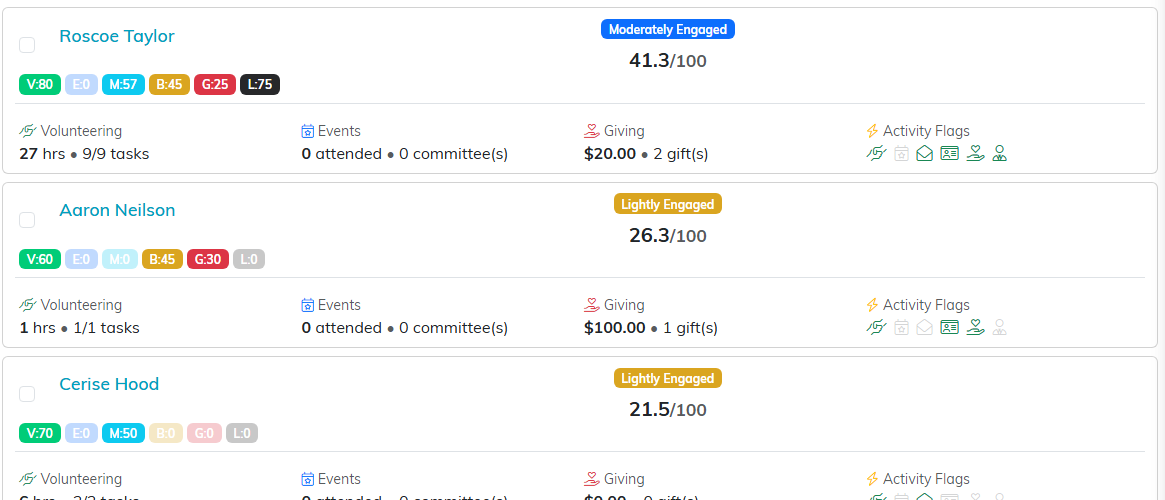
The six small badges are the dimension scores, and they are where two people with the same overall score turn out to be completely different. Email addresses are hidden in this example.
Common ways to use it
- Find your champions: set Engagement Level to Highly Engaged.
- Find volunteers who could become donors: select Volunteer in the activity filter, run it, then look for rows with a strong V badge and a G badge of zero. The filter cannot exclude donors for you, so this last step is done by eye or in a spreadsheet after exporting.
- Find supporters slipping away: set Time Period to Last 24 Months and Engagement Level to Minimally Engaged.
- Find people involved in everything: select Volunteer, Event, and Giving together.
- Find board prospects: select Volunteer and Giving for people already giving both time and money, or select Leadership to see who currently serves.
Getting the data out
- Export To CSV for the full data set, including every dimension score and the raw metrics behind it.
- Export To PDF for a printable version of the current results.
- Select rows and use the bulk actions to build a Mail Room mailing list straight from the report.

Tick rows first, then the bulk action builds a Mail Room list straight from what you are looking at.
When a score looks wrong
- Check the time period first. Activity outside the window scores nothing.
- Check the data was recorded. Hours must be logged, event guests must be marked attended, visits must be entered.
- Remember email tracking is imperfect. Only mail sent through Argenta counts, and many mail clients block the tracking pixel.
- Check active status. Active volunteer status is worth 30 points and active member status 40, so marking someone inactive costs them real points.
- Remember the weighting. Giving is 25% of the total, so a devoted non-donor scores lower than their involvement feels.
Related reports
- RFM Donor Segmentation Report in Fundraising Reports, for deeper donor behavior analysis.
- Lapsed Donors (LYBUNT) Report in Fundraising Reports, for people who gave last year but not this one.
- Volunteer Service Hours Report in Volunteer Reports, for the detail behind a volunteer score.
