Knowledge Base Article
How to Add a Hyperlink to Text in the Content Editor
Choose what you want linked first. Highlight the words, or click a picture so it is selected. With nothing chosen, Argenta asks you to point at something rather than dropping the address at the top of your content.
- Select the text, or click the picture.
- Click Insert Link on the toolbar. The Insert/Edit Link box opens.
- Fill in the fields and click OK.
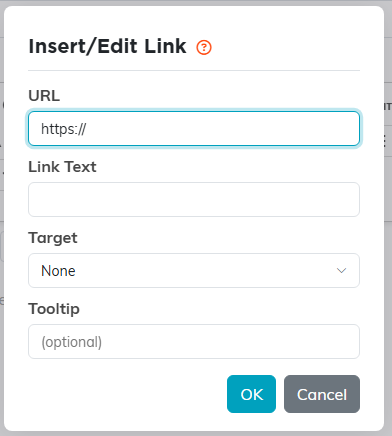
The Insert/Edit Link box. URL is the only field you have to fill in.
The fields
- URL. The only one you have to fill in. Use the full address, starting with https://.
- Link Text. The words the reader sees, pre-filled from your selection. Linking a picture ignores this, because the picture itself becomes the thing they click.
- Target. None, New Window (_blank), Same Frame (_self), Parent Frame (_parent) or Full Window (_top). New Window is the usual choice inside an email.
- Tooltip. Optional. The small note that shows when someone hovers over the link.
To take a link off again, select the words or click the picture, then use Remove Link on the toolbar.
