Knowledge Base Article
How to Insert a Downloadable Document Link in the Content Editor
To add a link to a downloadable document (PDF, Word, Excel, etc.):
- Place your cursor where you want the document link
- Click the document icon (file with lines) in the toolbar
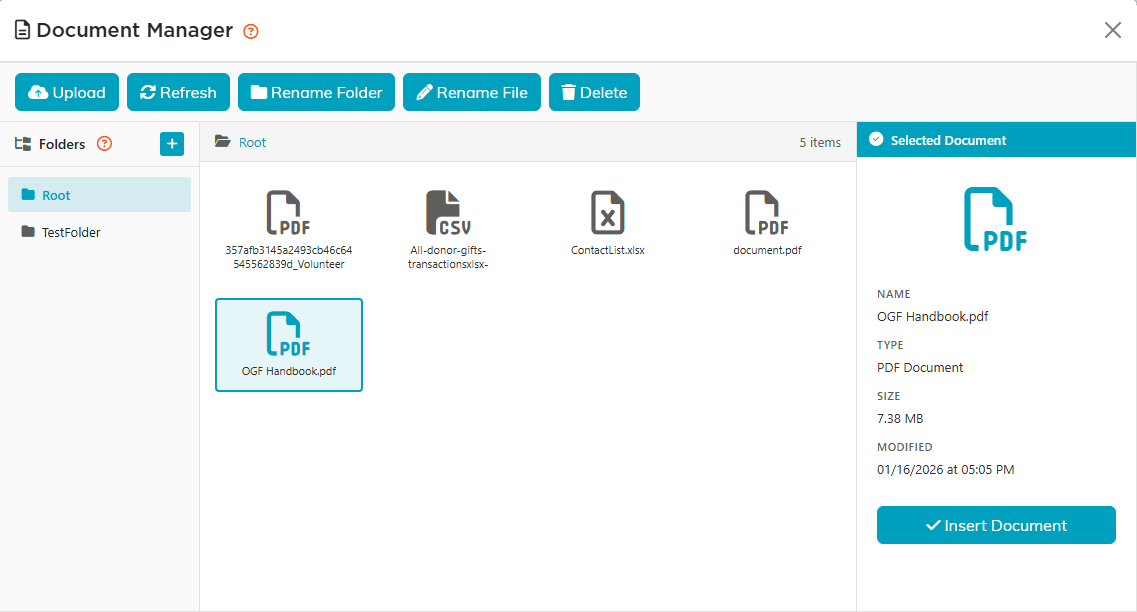
- The Document Manager window opens
- Either:
- Select an existing document from your folders, OR
- Click Upload to add a new document
- Click the document you want, then click Insert Document
Supported file types:
- PDF, DOC, DOCX (Word)
- XLS, XLSX (Excel)
- PPT, PPTX (PowerPoint)
- TXT, RTF, CSV
- ZIP, RAR
- ODT, ODS, ODP (OpenDocument)
- XML, JSON, HTML, HTM
Each document can be up to 50 MB. Anything else, or anything larger, is refused.
Tips:
- The link text will show the file name by default, and the link opens the document in a new tab
- You can edit the link text after inserting
- Organize documents in folders for easy retrieval
