Knowledge Base Article
What is the Image Manager in the Content Editor
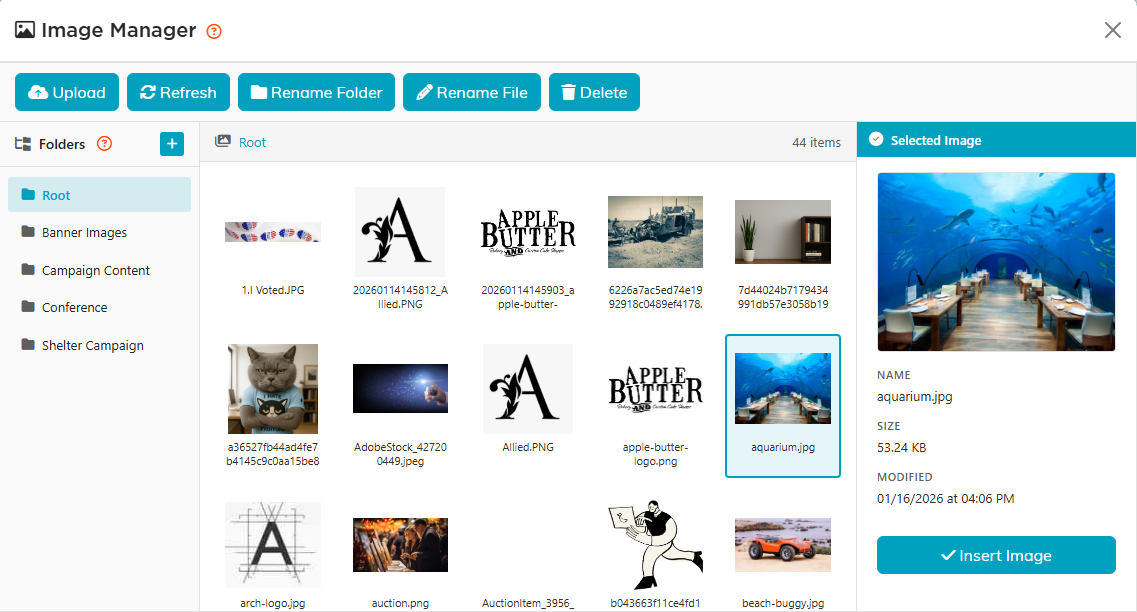
The Image Manager is your organization's shared picture library, opened from the Insert Image button on the content editor toolbar. Anything uploaded here belongs to the whole team, so a logo only has to be uploaded once and can be reused anywhere.
Using it
- Folders run down the left, files on the right. Click a picture to see it larger with its name, size and date, then Insert Image to drop it where you were working.
- Across the top, Rename Folder renames the folder you are in, and Rename File and Delete act on the picture you have selected. Refresh reloads the list.
- Upload adds new pictures, or drag them straight onto the window. Drag a picture onto a folder name to move it there.
- The plus sign at the top makes a folder. Root is the top level and cannot be renamed or removed; hover any other folder for its rename and delete buttons.
- Accepted formats are .jpg, .jpeg, .png, .gif, .bmp and .webp, up to 4 MB each.
What stops you breaking something
This is the part worth knowing, because the library is shared:
- Renaming or moving a picture updates the places it was showing, and tells you how many it changed, so those do not go blank.
- Deleting a picture that is still in use shows you where it is used first, so you can back out. Delete Anyway leaves all of those pointing at nothing. A picture nothing uses still asks you to confirm before it is deleted.
- Deleting a folder takes everything inside it, and there is no undo. The warning counts the files first, and how many of them are still in use.
- Uploading a file with a name already in the folder offers to replace it. Because the name does not change, everywhere already showing that file picks up the new version by itself.
- Blog posts, meeting minutes and policy documents are covered by both checks too. A picture used only in the body of one of those is counted, so moving or renaming it updates that copy and deleting it warns you first.
- The one picture this library does not manage is a blog post's header image. That is chosen with its own picker rather than the Image Manager, and it is stored separately, so it will not appear here.
