Knowledge Base Article
How to Insert an Image in the Content Editor
Pictures come from your organization's shared library, so a logo only has to be uploaded once and can be reused anywhere.
- Put the cursor where the picture should go.
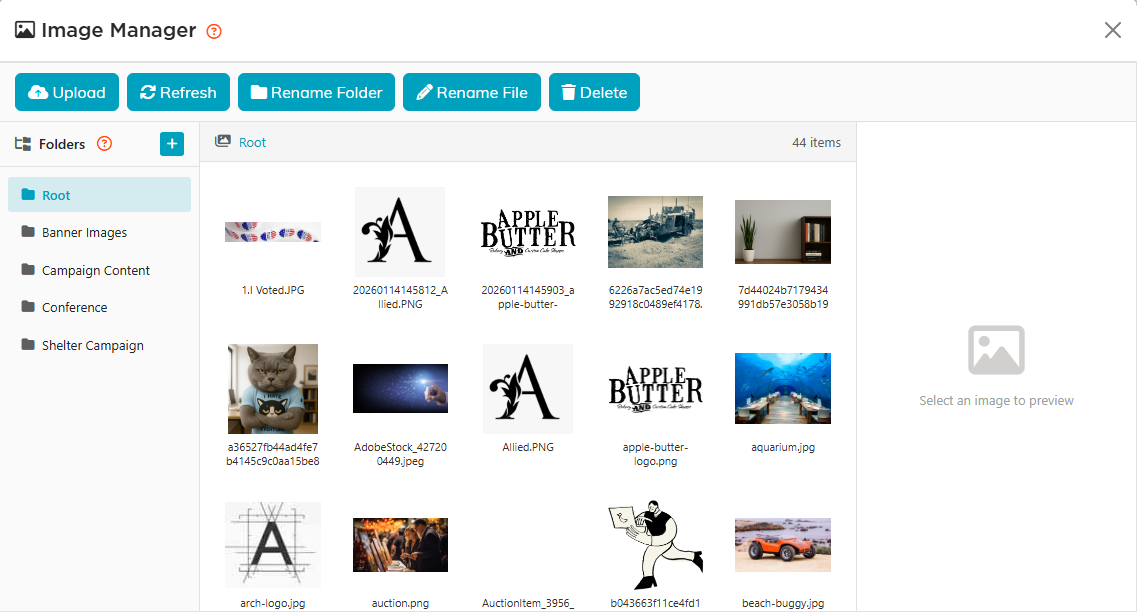
- Click Insert Image on the toolbar. The Image Manager opens.
- Click a picture to see it larger on the right, or upload a new one first.
- Click Insert Image to drop it where you were working.
Dropping a picture in
You can also drag a picture from your computer straight into the writing box. It is uploaded to the top folder of your Image Manager library and placed where you drop it, with the same formats and size limit as below. Only pictures can be dropped; add a document with the Document Manager button instead.
Uploading
Use the Upload button, or drag files straight onto the Image Manager. Drag a picture onto a folder name to move it there.
- The formats accepted are .jpg, .jpeg, .png, .gif, .bmp and .webp. Anything else is refused.
- The size limit is 4 MB per picture. A larger file is refused rather than slow, so shrink it before you try again.
After you insert it
To move a picture left, center or right, click it in the writing box first so it is selected, then use the align buttons. With nothing selected, an align button aligns the text around your cursor and leaves the picture where it was. To have your words flow beside the selected picture instead, click Wrap Text, Image Left or Wrap Text, Image Right. Clicking the picture a second time deselects it.
Renaming or moving a picture in the library updates the places it was showing and tells you how many it changed. Deleting one that is still in use shows you where it is used first, so you can back out. Both checks cover your forms, emails, events, campaigns, auctions and notes, and your blog posts, meeting minutes and policy documents too.
