Knowledge Base Article
How to Change Text Color in the Content Editor
To change the color of your text:
- Select the text you want to color
- Click the palette icon (color picker) in the toolbar
- Choose a color from the palette grid, OR
- Click "Add Custom Color..." and type a hex color code such as #FF5733, or a color name such as blue, in the box your browser opens
- The color is applied to your selected text
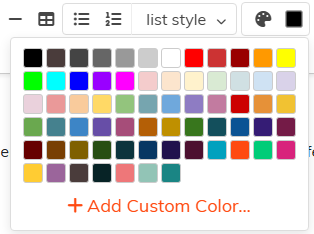
Using the color preview swatch:
- The small colored square next to the palette icon shows the color of the text at your cursor, or your last-used color when that text has none (black if you have not picked one yet)
- Click this swatch to quickly apply the same color to new text
- This saves time when using consistent brand colors
Tips:
- The palette keeps only your most recent custom color, as the first square in the grid, and only until you leave the page, so keep your brand hex codes somewhere handy
- Ensure sufficient contrast between text color and background for readability
- Standard link blue is often #0066CC or similar
- For emails, test colors in multiple email clients as rendering can vary
