Knowledge Base Article
How to Manage Your Ava Chat History
Ava keeps your conversations so you can go back to them. Your history is your own: the sidebar shows only the chats you started, not anyone else's.
Finding a Past Conversation
- Your chats are listed under Recent in the sidebar on the left.
- Click any chat to reload it, then carry on where you left off or just read back through it.
- Click New chat at the top of the sidebar to start a fresh one.
- On a phone the sidebar is hidden. Use the menu button at the top to open it.
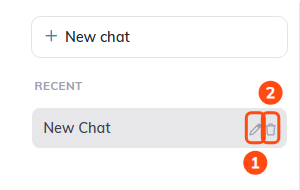
1. Rename (pencil). 2. Delete (trash). They show when you point at a chat, and on the chat you have open.
Renaming a Chat
- Hover over the chat in the sidebar and click the pencil icon.
- Type a new name.
- Click the save icon, or press Enter. To back out without changing it, click the cancel icon instead.
Ava names a new chat for you, and those names are all much alike after a week. Renaming the ones you will want again is the difference between finding an answer and asking for it a second time.
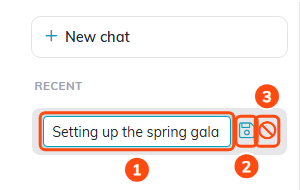
1. Type the new name. 2. Save. 3. Cancel.
Deleting a Chat
- Hover over the chat in the sidebar.
- Click the trash icon.
Argenta asks you to confirm, naming the chat. Click Yes and the chat and every message in it are deleted. It cannot be undone, so read the name before you confirm.
If you delete your only chat, Ava opens a new empty one for you.
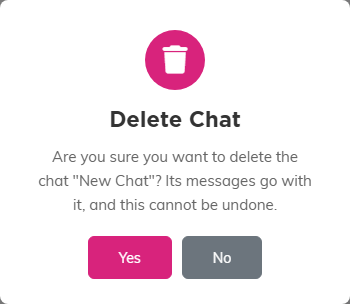
The confirmation names the chat. Yes deletes it for good.
If a Conversation Is Not in the List
This sidebar holds the chats you started on the Ava Support Chat page. A conversation you had through the live chat bubble is a support thread rather than one of your own chats, so it does not appear here and cannot be renamed or deleted from this list.
Getting the Most Out of It
- Rename a chat as soon as it turns out to be useful, while you still remember what it covered.
- Name it for what you were trying to do rather than what you asked, since that is how you will look for it later.
- Start a New chat when you change subject. One long chat covering five topics is hard to name and harder to find anything in.
- Clear out the chats you will not need again, so the ones that matter stay near the top.