Knowledge Base Article
How to Track Staff and Volunteer Evaluations
Evaluations record a performance review or assessment against a person: when it happened, what kind it was, and who conducted it. Each one is its own record with its own files, notes, and permissions, which matters because reviews are sensitive.
Where to Find Them
Evaluations are a limited-availability feature, so the Staff Evaluations link under Staff & HR only appears for teams that have it switched on. If you do not see it, that is why. You can still reach a person's reviews from their record.
Open a staff member and go to their Evaluations page to see every evaluation for that person, with a green icon to open each one. Volunteers have the same page on their record.
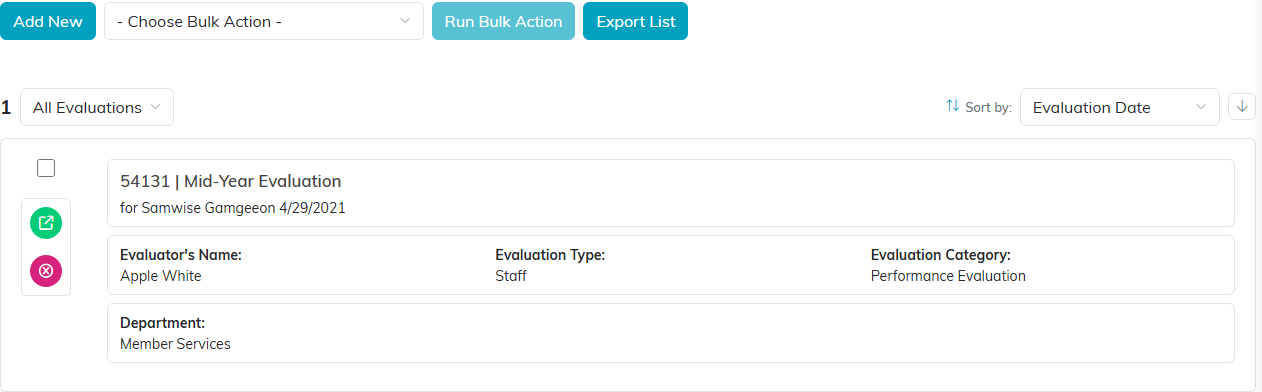
The evaluations list. The green icon on a card opens that review.
Adding an Evaluation
- From Staff & HR > Staff Evaluations, click Add New. Argenta asks for the Evaluation Date and the Evaluation Title first, both required, then you click Add & Enter Details. The evaluation is created and the Evaluation Workspace opens, where you say who was evaluated, who evaluated them, the type and the questions.
- Fill in Evaluation Details.
- Click Save All Changes, or Save All & Exit Record.

The buttons at the foot of Evaluation Details.
Evaluation Details
- Evaluation Date (required) - when the review took place
- Evaluation Title (required) - what to call it, and what you will search on later
- Evaluated (Constituent) - the person being reviewed
- Evaluator (Constituent) - who conducted it
- Evaluation Type and Evaluation Category - your own lists, which you add to with the orange plus icon (admins and master builders only) beside each field
- Chapter, Division, and Department, plus District and Precinct for political organizations
Note that both Evaluated and Evaluator are constituent lookups, so you can record a review of anyone in your system, not only staff.
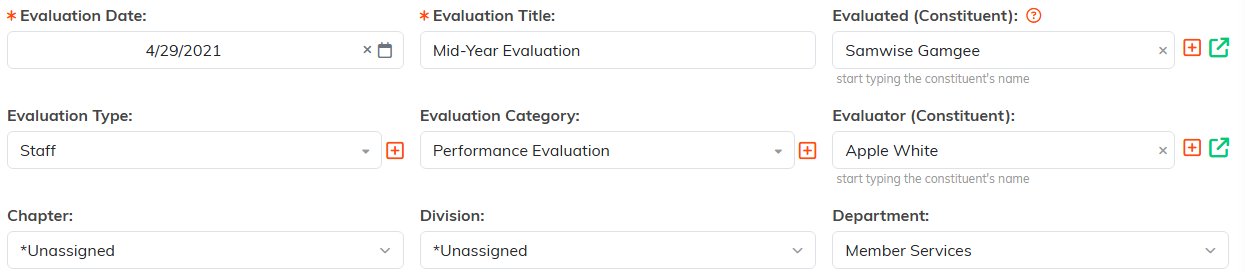
Evaluated and Evaluator are both constituent lookups.
Keeping Reviews Private
This is the part worth getting right. On Evaluation Details, Set As View Only stops others changing the record, and Lock This Record stops them opening it at all. Beyond the record creator and master admins, access is granted person by person on the Record Permissions page. Lock a review before you write anything sensitive into it, not after.

Lock the review before you write anything sensitive into it.
The Evaluation Workspace
- Evaluation Details - the record itself
- Evaluation Files - the signed review form, self-assessments, supporting documents
- Evaluation Notes - internal notes
- Record Permissions - who can view or edit
Teams using Argenta's evaluation forms also get a Results page showing the scored answers. If your team does not use those forms, the page does not appear.

The four pages of the evaluation workspace.
Search and Export
Search the evaluations list by ID, staff member, or evaluation title, and export what you find.

The search box takes an ID, a staff member, or the evaluation title.
