Knowledge Base Article
How to Create Fund Transfers Between Accounts
Fund Transfers move money from one fund to another inside Argenta, so your records stay accurate when you reallocate resources or fix a fund assignment.
Fund Transfers Move Money Between Funds
A fund transfer has a From Fund and a To Fund. That is the whole scope of it. If you need to move money between bank accounts, use Account Transfers instead, which is its own item under General Financials.
Common uses:
- Moving money between restricted and unrestricted funds
- Releasing restricted grant money once the requirements are met
- Reallocating between funds partway through the year
- Correcting a donation that was coded to the wrong fund
Creating a Fund Transfer
- Go to General Financials > Fund Transfers
- Click Add A New Fund Transfer. Argenta asks for the four things it needs first, all required: the Transfer Date, the Amount, the From Fund and the To Fund
- Click Add & Enter Details. The transfer is created and its Fund Transfer Details page opens, where you can change any of those four
- Add a Transfer Description/Reason
- Click Save All Changes, or Save All & Exit Record to save and return to the list

Step 2. Add A New Fund Transfer sits above the list.
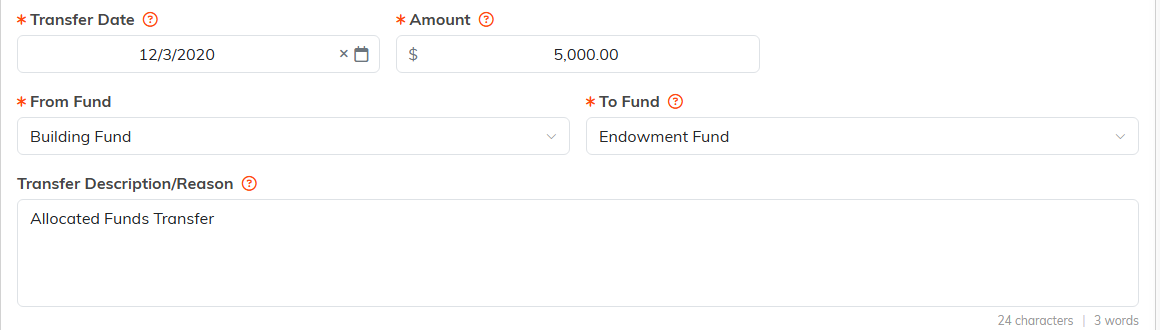
Steps 3 to 5. From Fund and To Fund are the whole scope of a fund transfer.
Transfer Date, Amount, From Fund, and To Fund are all required and marked with an orange asterisk. The description is optional.

Step 6. Exit Record leaves without saving.
Documentation Best Practices
- Always write a clear reason in the description field
- Reference the board approval in the description if your policy requires one
- Word similar transfers the same way so they are easy to find later
Reviewing Transfers
The Fund Transfers list shows every transfer with the total across the list at the top. Filter it down to what you need, then use Export to CSV to work with the numbers in a spreadsheet. Open any transfer with the green arrow, or delete one with the pink X.
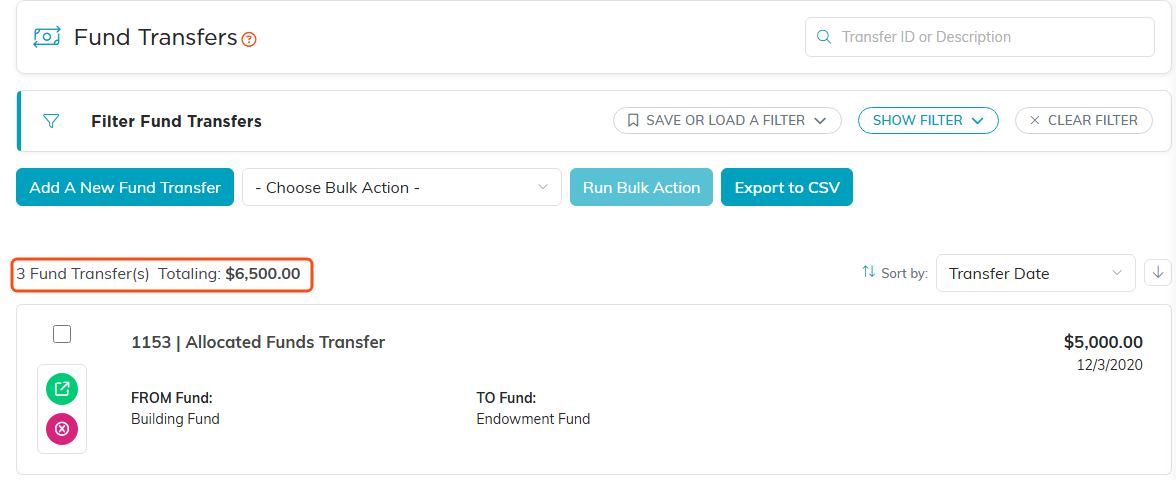
The total across the list sits above the first transfer.

Filter the list down, then Export to CSV.
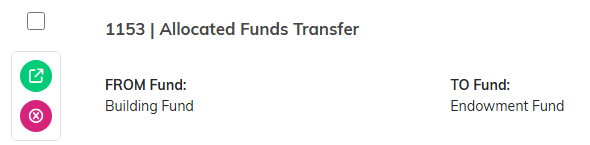
The green arrow opens a transfer. The pink X deletes it.
