Knowledge Base Article
How to Use Policies and Procedures to Document and Track Acknowledgments
Policies and Procedures is where your organization's written policies live, so staff and volunteers read the current version instead of an old PDF someone emailed round. Argenta logs who opened each policy and when they first did.
Click the building icon with your organization's name in the top-right corner to open the team slide-out menu, then choose Our Policies & Procedures. It is not in the left-hand menu, which is the usual reason people cannot find it.
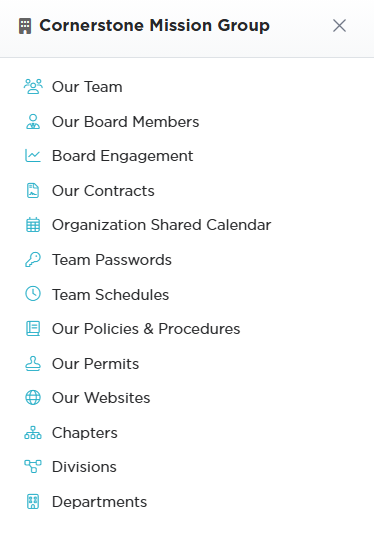
It is in this slide-out, not the left-hand menu.
Adding a Policy
- Click Add A New Policy. Argenta asks for the two required fields first, Category and Policy/Procedure Title, and will not let you go on without both.
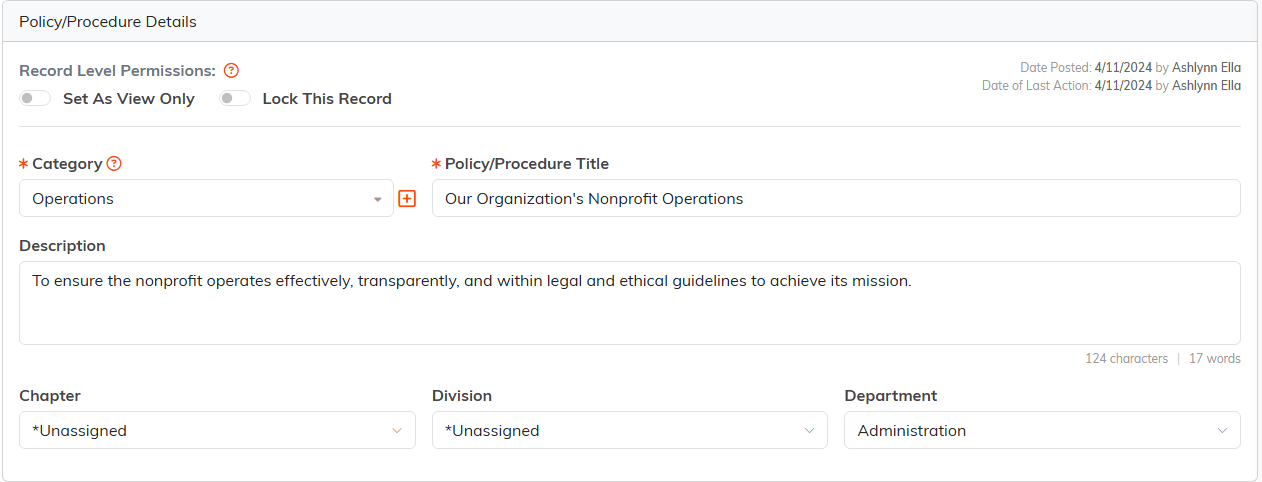
- Click Add & Enter Details. The policy is created and the Policy Workspace opens on Policy/Procedure Details, where the description and the content itself are written.
- Add a Description, and your Chapter, Division, or Department if the policy applies to only part of the organization.
- Save.

Add A New Policy opens a short form asking for the Category and the Policy/Procedure Title.
Category and Policy/Procedure Title are the two Argenta will not save without.
Where the Policy Text Goes
The details page is the header. The policy itself goes on one of two pages:
- Policy & Procedure (Text) - write or paste the policy into Argenta, which keeps it searchable and means there is one current version
- Policy & Procedure (File(s)) - attach a document instead, for a signed or formatted policy maintained elsewhere
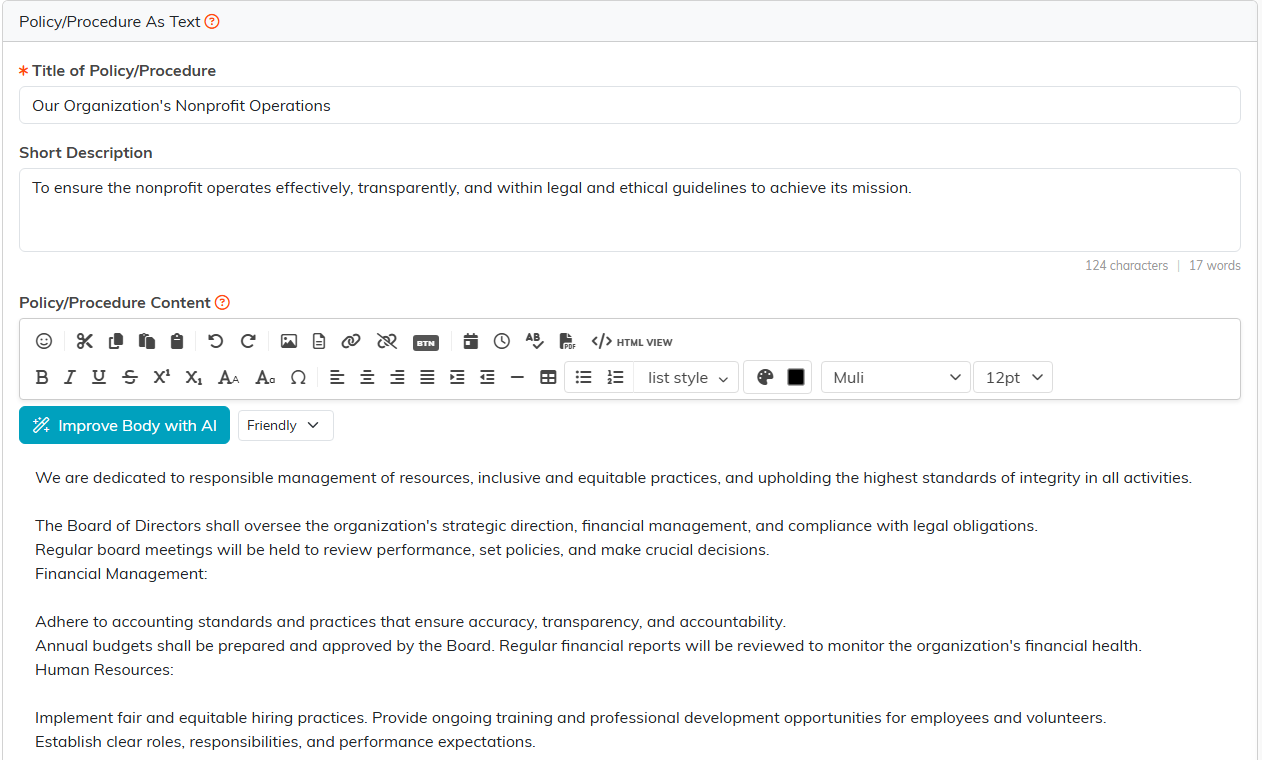
Written into Argenta, the policy stays searchable and there is one current version.
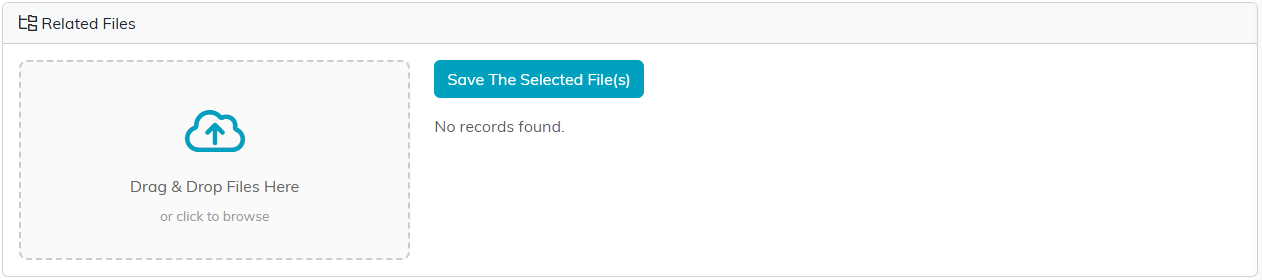
Attach the document here instead when it is maintained elsewhere.
The View Log, and What It Actually Proves
Every policy has a View Log page listing each person's name and the date and time they first viewed it, with a total count at the top. A view is recorded when someone opens the policy using the View icon on the policy list. Each person is logged once: opening the policy again later adds nothing, so the count is people, not visits.
Be precise about what this gives you. The log is evidence that a person opened the policy, not that they agreed to it. There is no acknowledgment button, no way to require a signature, and no deadline to chase. If your compliance process needs a signed acknowledgment, collect it separately and attach it to the policy under Policy & Procedure (File(s)).

A view is recorded when someone opens the policy with this icon.

A name, a date, a time, and a total count. Nothing about agreement.
Updating a Policy
Edit the text in place. Argenta keeps one current version rather than a version history, so if you need to preserve superseded wording, save the old version as a file on the policy before you replace the text. The View Log does not start over when the text changes, so someone who read the old version stays on it with their first date and is not logged again for the new one.
The Policy Workspace
- Policy & Procedure Details - category, title, description
- Policy & Procedure (Text) and Policy & Procedure (File(s)) - the policy itself
- Policy Notes - internal notes
- View Log - who has opened it
- Record Permissions - who can view or edit the record

Every page of the policy is on this bar.
Finding Policies
Search by ID or policy name, and export the list to CSV. Categories are your own list, so set them up the way your organization thinks about policies, whether that is HR, safety, finance, or IT.

Search by ID or policy name, or send the list out to CSV.
