Knowledge Base Article
How to Use Training Tracks to Manage Training Programs
A Training Track records a training session your organization held: when it happened, what it covered, who ran it, and who attended. Because attendance is recorded per person with a completion flag, you end up with a clean record of who has been through what.
Go to Staff & HR > Staff Training. The same list appears under Volunteerism as Volunteer Training and under other modules as their own training link. It is one list, reached from wherever you work.
Adding a Training Track
- Click Add New. Argenta asks for the Training Topic and the Date of Training first, both required, then you click Add & Enter Details. The track is created and the Training Track Workspace opens.
- Fill in Track Details. Three fields are required: Date of Training, Total Hours, and Training Topic.
- Add the rest as it applies: Training Category, Trainer/Facilitator, Description, and your Chapter, Division, and Department (plus District and Precinct for political organizations).
- Click Save All Changes, or Save All & Exit Record.
Running the same training again next quarter? Open the existing one and click Copy & Add New, then change the date.
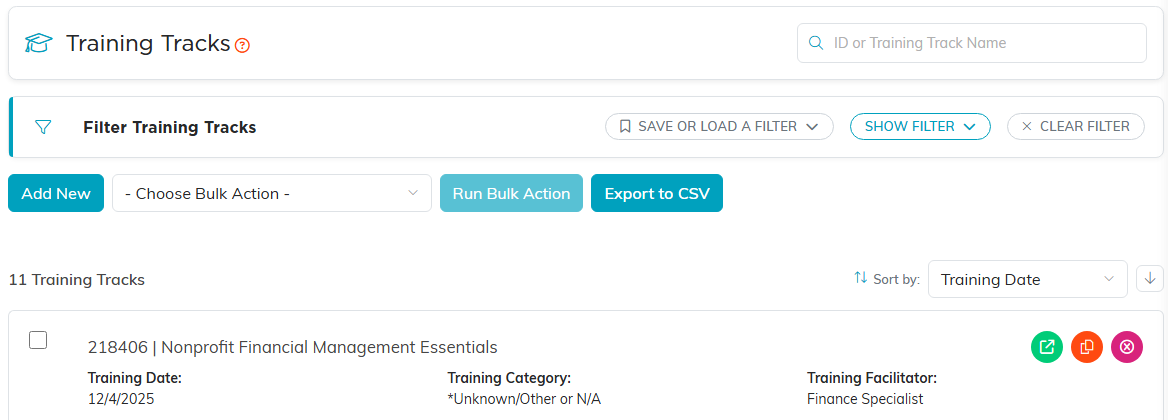
Add New sits above the training tracks list.

The three fields with an orange asterisk are the ones you have to fill in.

Copy & Add New sits with the save buttons.
Recording Who Attended
The workspace has a separate page for each kind of attendee, so you add people where they belong rather than into one mixed list:
- Staff Members, Volunteers, Board Members, Members, Participants, Parents, and Clients
On any of those pages, click Add New and fill in the window:
- Pick the person (required). Someone already on this list is turned away with a message; to mark them complete or change their score, use Edit on their row instead.
- Answer Completed The Training? (required).
- Enter a Final Score if you scored the training. It holds up to 50 characters.
Each page shows a running count of attendees, a completed or not-completed pill per person, the score where there is one, and its own CSV export.
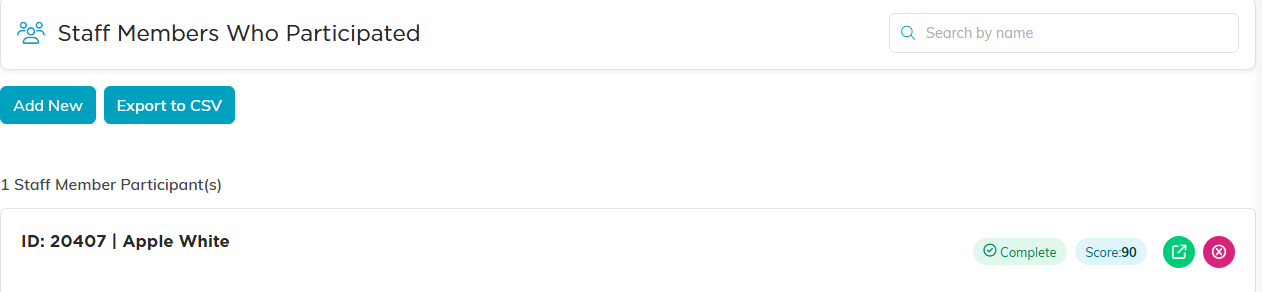
Each attendee page carries its own count, search and CSV export.
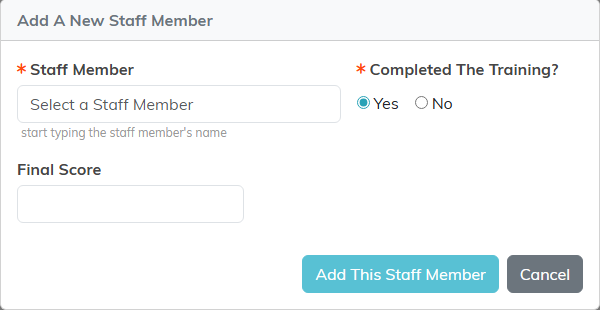
The window asks for the person, whether they completed it, and a score.
Seeing Training on a Person's Record
Open a staff member and go to their Training page to see every track they attended. Volunteers, members, board members, participants, parents, and clients each have the same page on their own record.
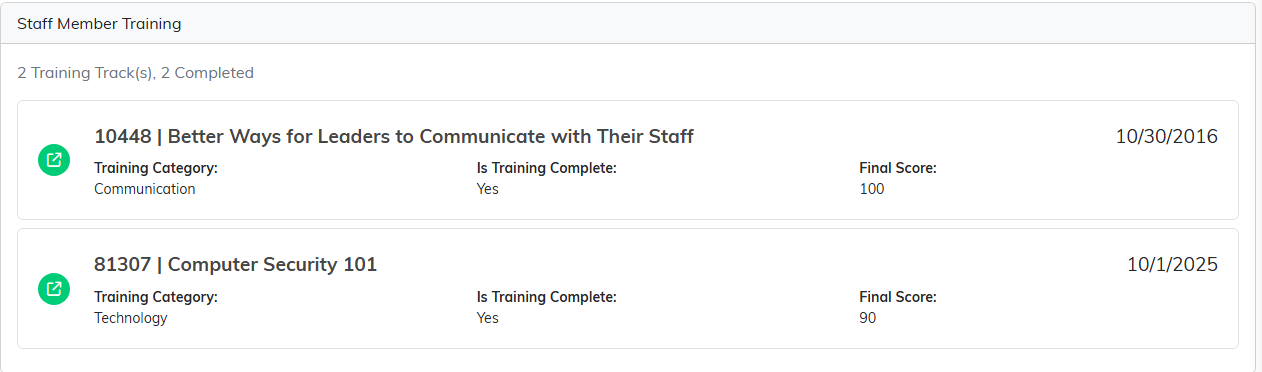
The same information reads back on the person's own Training page.
Files, Notes, and Access
Every track has Track Files for handouts, sign-in sheets, or slides, Track Notes for internal notes, and Record Permissions to control who can see or change it. Set As View Only and Lock This Record at the top of Track Details are the quick versions of that. They cover the attendee pages too, so someone they apply to cannot add, change or remove the people on the track.

The workspace menu. Each kind of attendee gets its own page.

Both switches sit at the top of Track Details.
A Note on Certifications
A Training Track is a record of a session on a date, not a certification with a built-in expiry. If you track something that lapses, such as CPR, record each session as its own track and use the date of training to work out who is due again.
