Knowledge Base Article
How to Use Volunteer Task Groups for Recurring Opportunities
A Volunteer Task Group gathers related volunteer tasks under one umbrella, which is what you want for anything recurring: every food pantry shift, every week of a summer program, every slot at a build day. The group holds the shared details, and the individual tasks hold the dates and the people.
Where Task Groups Live
Select Volunteerism > Volunteer Task Groups from the main menu on the left side of the screen. To create one, click Add New on the list. Argenta asks for the Task Group Title first, which is the only required field, then you click Add & Enter Details. The group is created and the Volunteer Task Group Workspace opens on the Task Group Details page, where the dates, the organizer and the location are set.
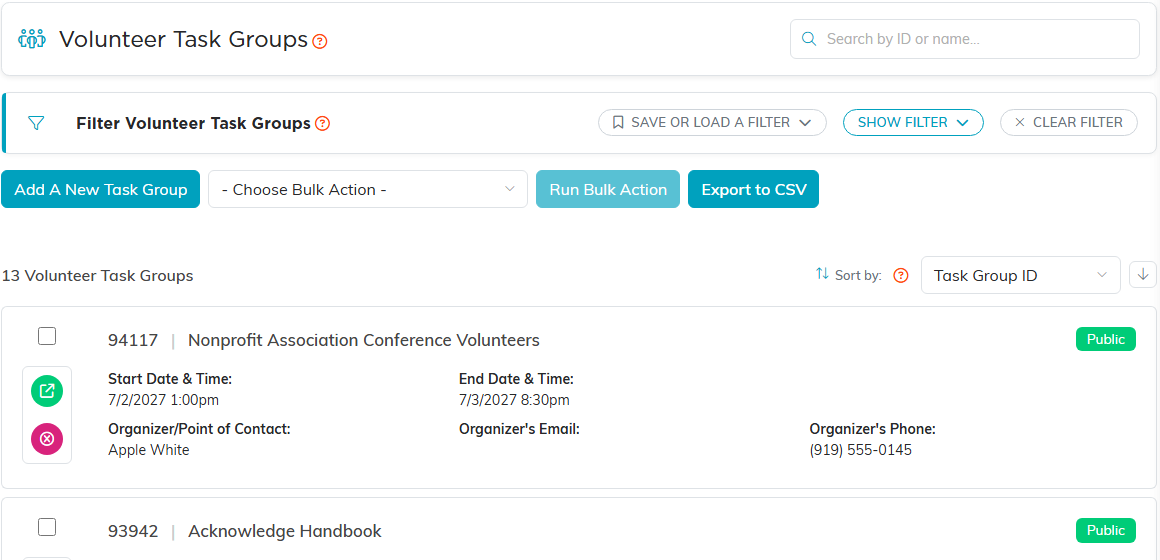
The Volunteer Task Groups list.
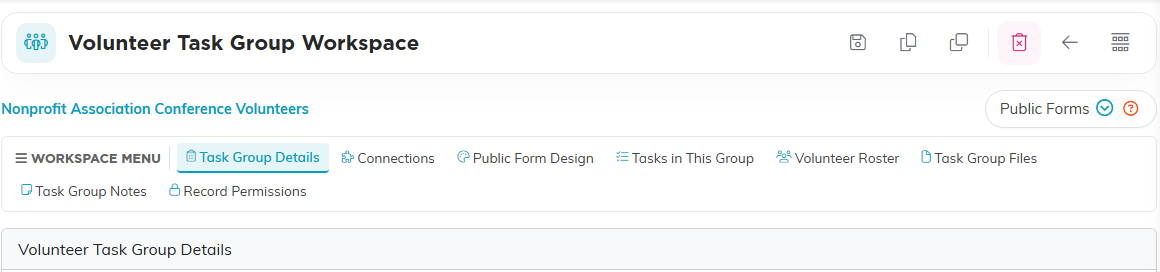
The workspace opens on Task Group Details.
Task Group Details
- Record Level Permissions. The Set As View Only and Lock This Record switches at the top work the same as on any other record.
- Task Group Title. Up to 140 characters, and required. This is what volunteers see, so name it the way they would say it: Food Pantry Volunteers, not FP-2026-Q3.
- Start Date & Time and End Date & Time. Both required. These bracket the whole run of the opportunity, not one shift.
- Group Organizer/Contact. Start typing to find the constituent who is running it.
- Chapter, Division, and Department. Set these if the group belongs to a particular part of your organization. Political organizations also get District and Precinct.
- Location. Enter Location Name, Location Address, City, State, and Postal Code for where the work happens.

The title is required and counts down from 140 characters.

These dates bracket the whole run of the opportunity, not one shift.

Chapter, Division and Department.
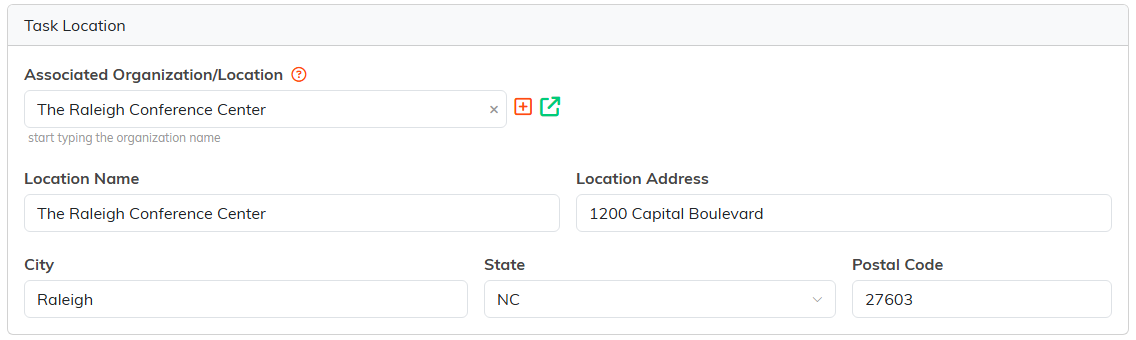
Where the work happens.
Adding the Individual Tasks
Open the group and click Tasks in This Group. This is where the actual shifts go, each with its own start and end date and time and its own volunteer. The hours on each task are calculated from those times, so the group gives you a clean way to total up a recurring commitment.
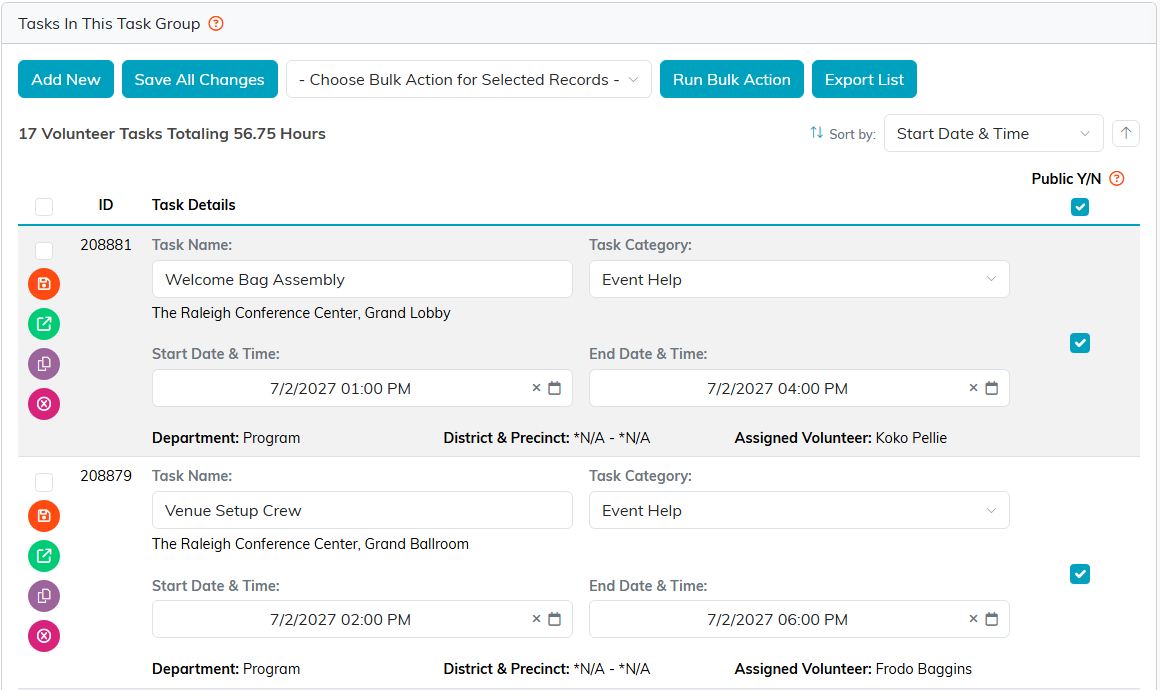
Each shift is its own task, and the page totals the hours across the group.
Public Sign-Up
The Public Form Design page lets you build a public sign-up form for the group, so volunteers can claim shifts themselves instead of you assigning every one by hand. Design the form there, then share the link.
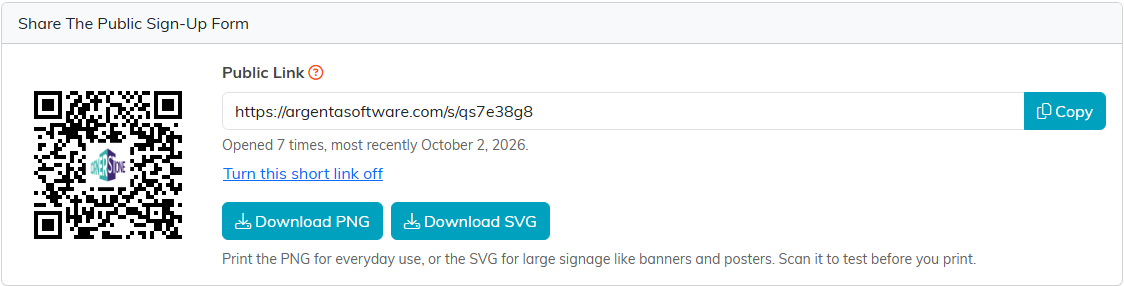
The page hands you a public link and a QR code to share.
Seeing Who Signed Up
The Volunteer Roster page shows the volunteers attached to the group, which is the page you want the morning of an event.
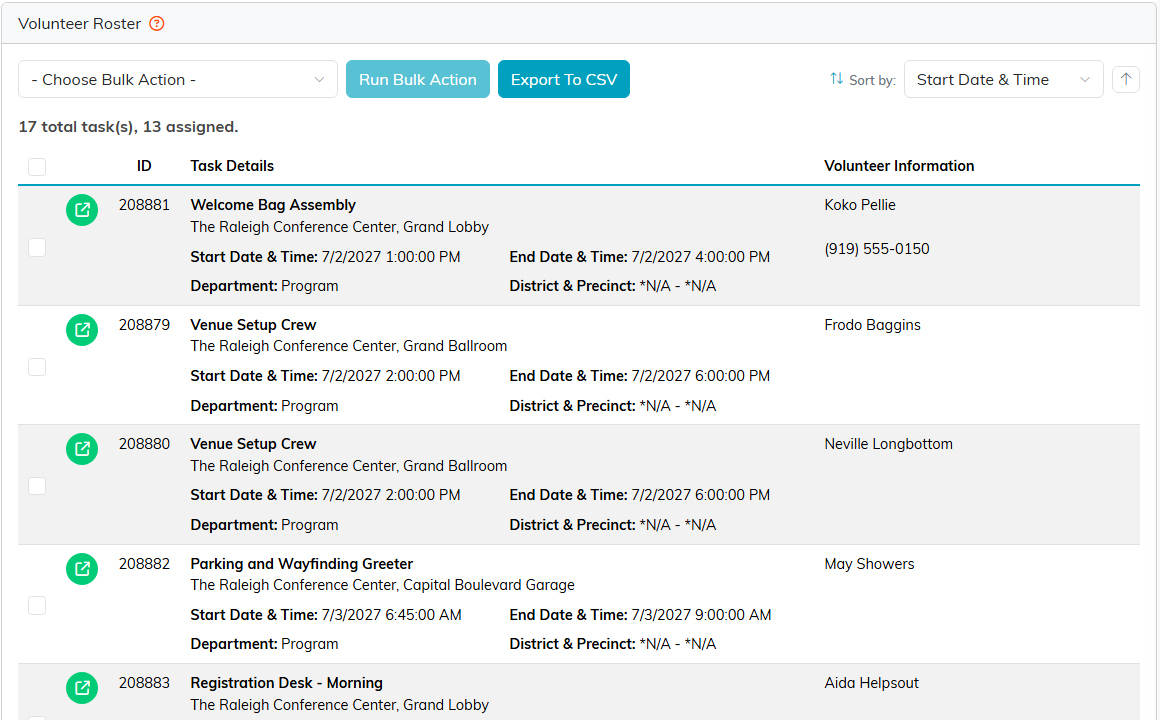
The Volunteer Roster, showing who is attached to the group.
The Rest of the Workspace
Connections links the group to the programs, events, or activities it supports. Task Group Files and Task Group Notes hold documents and your running commentary, and Record Permissions controls who can see and edit the group.
