Knowledge Base Article
How to Convert a Task to a Project
When a task turns out to be bigger than one action, Argenta can promote it. A task can become a full project, or become one line on a project you already have. Both conversions start from the task, and both are permanent.
Turn a task into a new project
- Open the task.
- Click Convert Task To A Project, the first convert icon in the title bar.
- Confirm when prompted.
Argenta creates the project and opens it on its details page. The new project starts with the task's title, description, status, priority, assigned team member, client and hourly rate, dates, and your organization's chapter, division, and department already filled in. Projected hours come across from the task's hours to complete.
Everything attached to the task moves with it: checklists, files, notes, meeting minutes, any invoice, and its connections to campaigns, events, expenses, grants, participants, programs, and properties. Time sheet hours logged against the task move to the new project too, and so does its contact log. Everyone named on the task's Record Permissions gets the same access to the project. Each sub-task becomes an item on the new project's task list with its hours and due date, and a finished sub-task stays finished. A sub-task keeps no completion date of its own, so it is given the date it was last changed. A campaign already linked to a different project stays with that project, and its link to this task is removed. The assigned team member is emailed to let them know the task became a project.
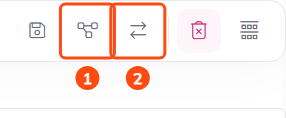
Icon 1 turns the task into a full project. Icon 2 moves it into an existing one.
Move a task into a project you already have
- Open the task.
- Click Convert Task To A Project Task, the second convert icon in the title bar.
- Choose the project from the list, click Convert, and answer the question that names the project.
The task becomes one item on that project's task list, carrying its description, assignee, hours, billable hours, hourly rate, and due date. Any sub-tasks come across as their own items with their hours and due dates (a finished one stays finished, dated the day it was last changed), and sprints move to the project. The task's files and notes move to the project's own Files and Notes tabs, and time sheet hours logged against the task are charged to that project. Its checklists, any invoice, its meeting minutes, its connections and its contact log move to the project as well. People named on the task's Record Permissions are not added to the project, which keeps its own. When the task has a requester, the new item is named "[Requester] Requested: [Task Title]", so you can see at a glance where it came from; otherwise it keeps the task's title. Argenta then opens that project's Project Tasks page, where the item now sits.
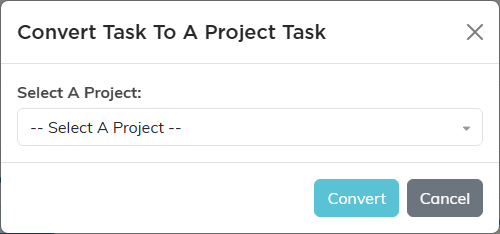
Pick the project here, then click Convert and confirm.
The original task is removed
Both conversions delete the original task once everything has been moved. That is why nothing is left behind in your task list, and it is also why there is no undo. Make sure you have picked the right project before you confirm the second option.
Because converting deletes the task, a locked task converts only for a Master Admin, the same as deleting it; anyone else is asked to untick Lock This Record first. If a conversion fails partway, nothing is moved and the task stays exactly as it was.
There is no conversion the other way
A project cannot be turned back into a task. If a project turns out to be smaller than you thought, you have three sensible options:
- Leave it as a project and use only the pages you need. A project with three tasks and nothing else is perfectly normal.
- Set its status to Cancelled/Void to take it out of play while keeping the record and its history.
- Delete it and create a task instead, but only if nothing valuable is attached. Deleting a project takes its task list, sprints, team, discussions, checklists, files, and notes with it. Its meeting minutes are kept, just no longer linked to any project.
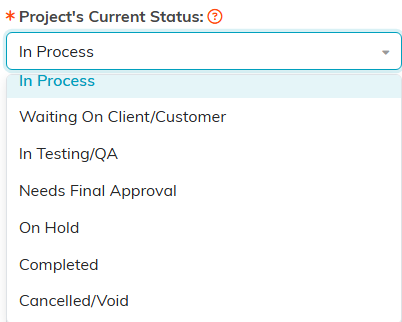
Cancelled/Void is the last status in the list.

Delete This Record sits at the foot of Project Details.
