Knowledge Base Article
How to Add Auction Items
Auction items are what your supporters bid on. The better the details, the more attractive each item is to bidders.
Open the Auction Items tab
- Open the auction.
- Click Auction Items in the workspace navigation.
The Auction Items tab has a short Show Me How To Use This Page video at the top right; click it to watch, and use its chapters to jump to the part you need.

Auction Items is one of the tabs in the auction workspace menu.
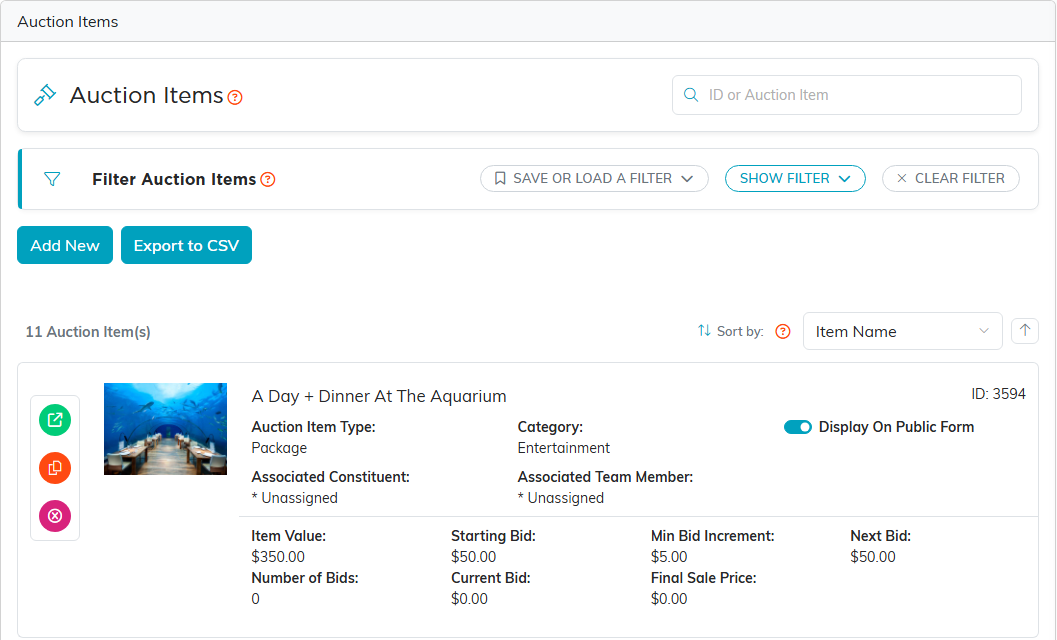
The Auction Items tab lists every item and holds the Add New button.
Add an item
- Click Add New. Argenta asks for four things first, all required: the Auction Item Name, the Item Value, the Starting Bid and the Min Bid Increment. Item Value and Min Bid Increment must be more than $0.00; Starting Bid can stay at $0.00. Click Add & Enter Details and the item is created.
- On the item's own page, fill in the rest (the required fields are marked with an orange asterisk):
- Photo: upload an attractive image with the Upload Photo button.
- Auction Item Name (required, up to 140 characters).
- Item Description: what the winner receives.
- Item Value (required): your good faith estimate of what the item is worth. This one is not only for display. Bidders see it on the public item page before they bid, and it decides how much of the winning bid counts as a tax-deductible gift, so estimate it honestly.
- Starting Bid (required): the minimum first bid.
- Min Bid Increment (required): how much each new bid must raise the price.
- Add any optional details:
- Auction Item Type and Auction Item Category for organizing and filtering.
- Associated Team Member: whoever on your team is looking after the item.
- Purchase Instructions: how the winner claims the item.
- Use Currently Public Item (Y or N) to control whether the item shows on the public auction form.
- Click Save All & Continue to keep working, or Save All & Exit.
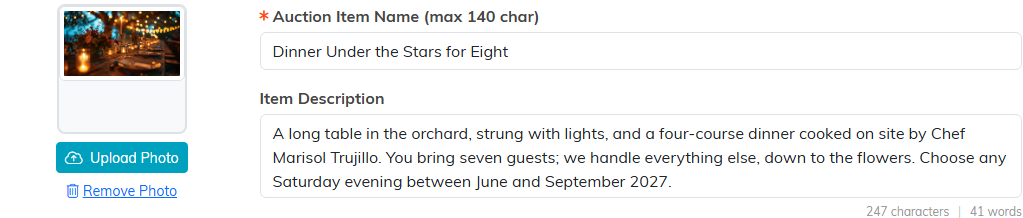
Start with the photo, the name and the description.

Value, starting bid and minimum increment are all required.

Type and category are what you filter and group items by.

Purchase Instructions tell the winner how to claim the item.
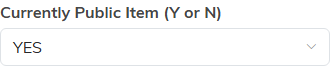
Currently Public Item decides whether the item shows on the public form.

Save and continue to add another item, or save and exit when you are finished.
The field you do not fill in
Highest/Winning Constituent Bidder looks like another lookup to complete, but Argenta keeps it for you. While bidding is running it shows whoever is currently the highest bidder, and it changes as new bids come in. When the auction closes it shows the person who won. Once the item has bids, Argenta refuses a change to this field; to give the item to someone else before it closes, delete the higher bids on the Bidding Info & Activity tab.

Name the team member yourself. The winning bidder fills itself in.
Closing one item early
Bidding Closed On This Item stops bidding on that single lot while the rest of the auction carries on. Closing a lot does not cancel its bids: if it holds any, the high bidder at that moment is awarded the lot, invoiced and charged when the auction closes. To withdraw an item that already has bids, delete those bids on its Bidding Info & Activity tab first. Once a lot has sold, the switch cannot be turned off again, so the winner is never billed twice.
Tips for items that sell
- Use high-quality photos.
- Write clear, tempting descriptions.
- Set the starting bid around 30 to 50 percent of the value to get bidding going.
- Group similar items with categories.
