Knowledge Base Article
How to Lock a Program or Set It as View Only
Protect sensitive programs with record level permissions that restrict who can view or edit them.
Accessing Record Permissions
- Open the program
- On Program Details, look at the Record Level Permissions section at the top. There are two switches

Both switches sit at the top of Program Details.
Set As View Only
Turn on Set As View Only so people can still open and read the program but cannot change it. The fields and the save buttons are disabled.
Three groups can still edit it: the person who created the record, master admins, and anyone you grant edit access to on the Record Permissions page.
Lock This Record
Turn on Lock This Record to stop people from opening the program at all. Anyone without access who tries to open it sees a message that the record has been locked.
The same three groups keep access: the creator, master admins, and anyone granted access on the Record Permissions page.
Deleting is stricter than editing. A locked program cannot be deleted, from the list or from a bulk delete, by anyone except a master admin. That includes the person who created it, so if you are not a master admin, unlock it first and then delete it. A program with payments, fiscal donations, in-kind donations or expenses attached cannot be deleted either, and nor can one set to View Only for you.
Granting Specific Access
- Click Record Permissions in the workspace navigation
- Add the users who should have access
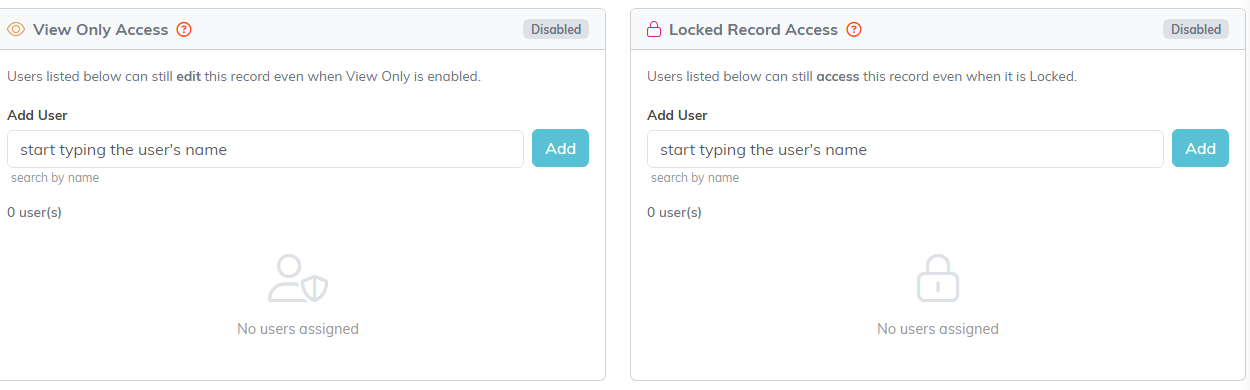
Add the people who should keep access even when the record is restricted.
When to Use These Features
- View Only: When the data should stay readable but frozen, such as a completed program you still report on
- Locked: When the program holds sensitive information, such as confidential client data
Visual Indicator
A locked program shows a pink lock icon next to its name on the Program List.

