Knowledge Base Article
How to Add Notes to a Program
Program notes let you document important information, updates, and activities related to your program.
Accessing Program Notes
- Open the program
- Click Program Notes in the workspace navigation

Adding a Note
- Click Add A New Note
- Type your note in the editor. It is a rich text editor, so you can format the text, add lists, and paste in links
- Click Add This Note, or Cancel to back out
The Add button stays disabled until you have typed something.
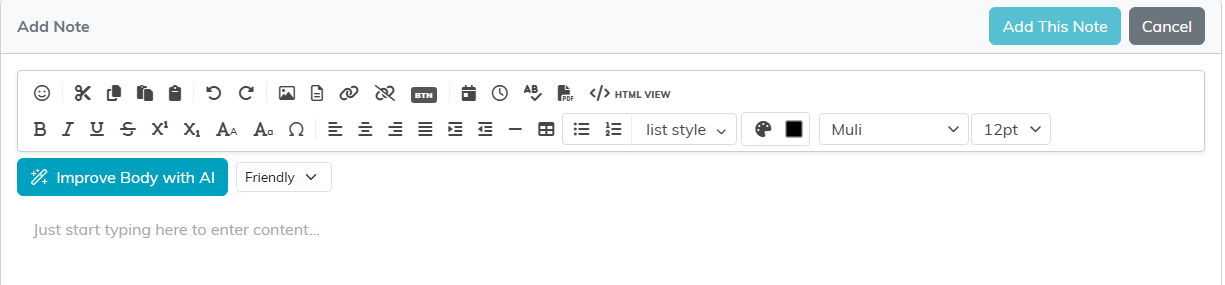
Add This Note stays greyed out until you have typed something.
Editing a Note
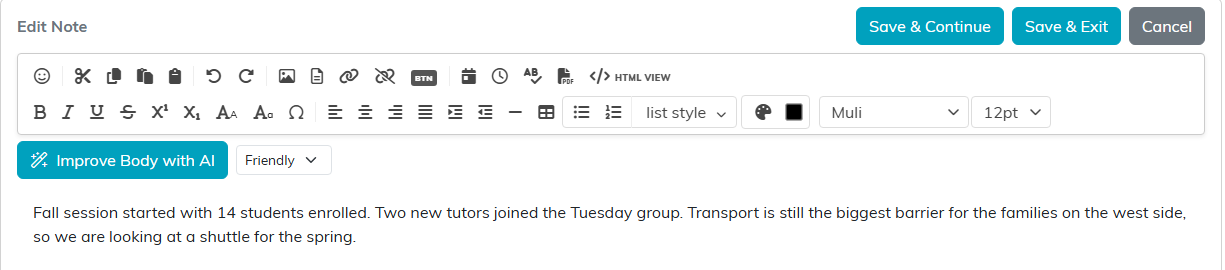
Open a note for editing and the card turns into an Edit Note form with Save & Continue, Save & Exit, and Cancel.
What Each Note Records
Every note shows Date Created and Created By, filled in automatically. The date is the day it was written, without a time.

What to Document in Notes
- Program updates and milestones
- Meeting summaries
- Issues or challenges encountered
- Decisions made about the program
- Participant feedback or testimonials
- Staff observations
- Grant-related documentation
Tips for Effective Notes
- Be specific and include relevant details
- Name the date of the activity in the note itself, since the stamp only records the day you wrote it
- Include context someone else would need to understand what happened
If the program is locked or set to view only, notes cannot be added or edited.
