Knowledge Base Article
How to Add Members to a Program
Program Members are constituents with a membership association to your program, different from Participants who receive services.
Accessing Program Members
- Open the program
- Click Connections in the workspace navigation
- Find the Associated Members panel. Click a panel heading to expand or collapse it
Members live on the Connections page alongside the other eleven connection types. There is no separate Members item in the workspace navigation.

Adding a Member
- In the Associated Members panel, search for the person or pick them from the list
- Click Connect
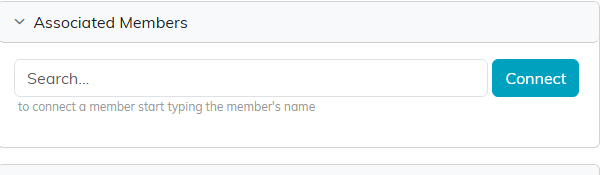
Associated Members sits on the Connections page with the other connection types.
Member vs Participant
- Members: Have a membership affiliation (for example paying members or organizational affiliates)
- Participants: Receive services from the program (for example clients, students, beneficiaries)
Participants have their own page in the workspace navigation. Members do not.
Managing Members
- Open: Click the green arrow to open that member's record in a new tab
- Remove: Click the pink X to break the connection. The member record itself is not deleted. If the program is view-only for you, the search box and the pink X are not shown, so you can see the connections but not change them. If it is locked to you, the page shows only a message saying the record is locked.
The panel has no export button and no mail room button. To email program members, build the list in the Mail Room under Manage Mailing Lists.
When to Use Members
Use Associated Members for dues-paying program members, organizational affiliates, advisory board members for a specific program, or supporting members who are not service recipients.
