Knowledge Base Article
How to Export Program Participants to Excel
You may want a program's participant numbers for a grant report or an outside analysis. Here is how to get that data out of Argenta.
First, What the Program Page Does Not Do
The Participants page inside a program is for adding, viewing, and removing people. It has no export button. Use one of the two routes below instead.

Best Option: The Program Impact & Outcomes Report
- Click Report Center at the top right (you see it if you are an administrator or have the Report Manager permission), open Program Reports, and choose Program Impact & Outcomes
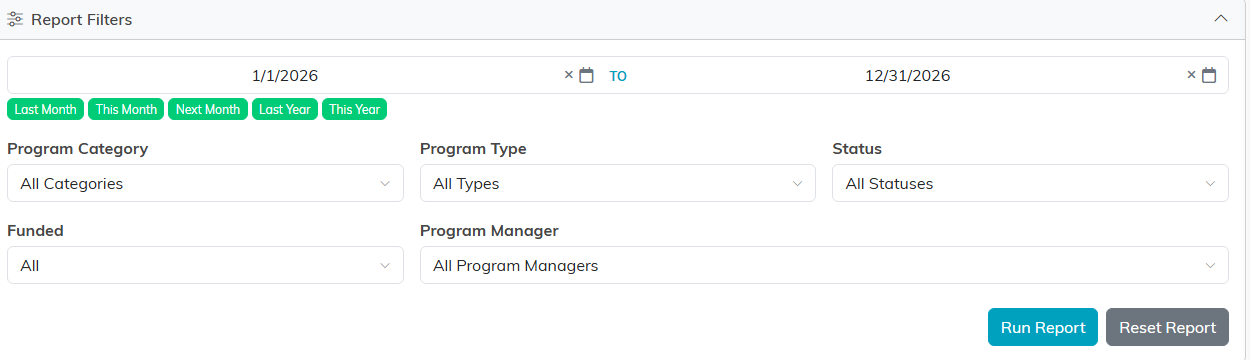
- Narrow it down with the filters (date range, Program Category, Program Type, Status, Funded, Program Manager)
- Read Total Participants Served at the top, and the participant count on each program
- Click Export To CSV or Export To PDF
This is the one that answers "how many people did we serve", which is what most grant reports ask for. CSV files open in Excel. Exporting requires export permission, so talk to your administrator if you do not see the buttons.

Total Participants Served is the number most grant reports ask for.

Other Option: The Participants List
- Go to Programs > Participants
- Filter the list as needed
- Click Export to CSV
This exports participant details such as name, age, type, and organizational unit. Be aware it covers your whole participant list and cannot be narrowed to a single program, so use the report above when you need per-program numbers.

Building a Mailing List Instead
If your goal is to email or mail participants rather than analyze them, build the list in the Mail Room under Manage Mailing Lists and add the constituents to it there.
Use Cases
- Grant reporting (how many people served)
- Program evaluation surveys
- Creating mail merge documents
- Sharing participant data with partners
