Knowledge Base Article
How to Add Participants to a Program
Participants are the constituents who receive services from your program.
Accessing Program Participants
- Open the program
- Click Participants in the workspace navigation

Adding a Participant
- In the Add A Participant box, start typing the person's name
- Select the correct person from the results
- Click Add
The person has to already exist in Argenta as a participant. If nobody comes up, add them under Programs > Participants first, then come back and add them here. Anyone already on this program is left out of the search results, so you cannot add the same person twice.

Start typing a name, pick the person, then click Add.
What the List Shows
Above the list Argenta shows the participant count. Each row gives the person's name, their email address as a clickable link, and their cell number when you have one. If a participant's record is locked to you, their row shows only the name.
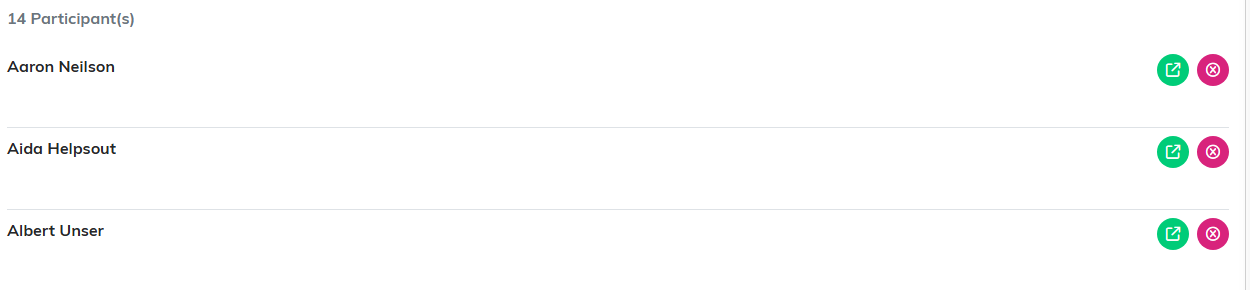
Contact details are hidden here. On your own screen each row also shows the person's email and cell.
Managing Participants
- Open: Click the green arrow to open that person's record
- Remove From Program: Click the pink X and confirm. This only removes them from this program, it does not delete the person

If the program is locked or set to view only, the Add box and the remove button are hidden.
