Knowledge Base Article
How to View the Program Financial Summary
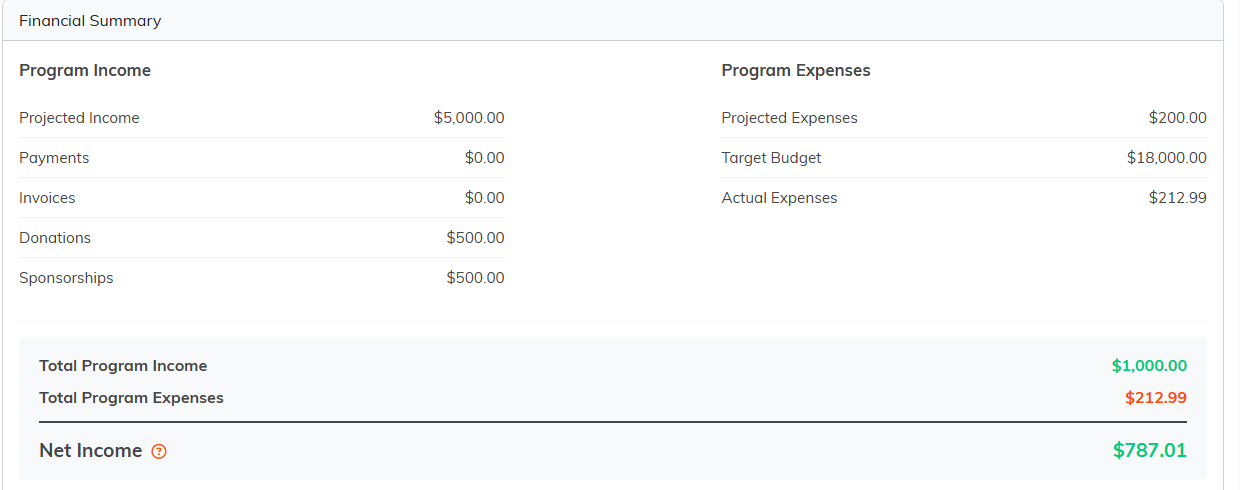
The Financial Summary gives you a single view of where a program stands financially.
Accessing the Financial Summary
- Open the program
- Click Budget & Financials in the workspace navigation
The Financial Summary sits on that page, below the four cards. There is no separate page to open.

The Financial Summary sits below these four cards on the same page.
What the Summary Shows
Program Income
- Projected Income (what you entered by hand)
- Payments
- Invoices
- Donations
- Sponsorships
Program Expenses
- Projected Expenses
- Target Budget
- Actual Expenses
Bottom Line
- Total Program Income
- Total Program Expenses
- Net Income, shown in green when positive and pink when negative
Reading It Correctly
Net Income compares real money to real money. Total Program Income adds up payments, donations, and cash sponsorships (the invoices listed above it are not added in, because the payment that settles an invoice is what counts), and Total Program Expenses is your actual expenses. Projected Income, Projected Expenses, and Target Budget are there for comparison and do not move Net Income.
Using the Summary for Reporting
The Financial Summary works well for board reports, grant reporting, budget reviews, and program evaluation. To pull the numbers into a document, use your browser's print or save-as-PDF option, or take them from the Program List export.
