Knowledge Base Article
How to Add Program Actual Expenses
Actual expenses track real spending that has occurred for your program.
Actual Expenses Are Not Entered on the Program
The program's Actual Expenses page is a read-only total. It shows Total Actual Expenses and Number of Expenses, and nothing more, plus a link that takes you to Expenses. You record the spending on the Expenses page and point it at the program, and the program picks it up from there.

The program's Actual Expenses page is a total, not a place to enter anything.
Recording an Actual Expense
- Go to the Expenses page from the main menu
- Click Add A New Expense. You can also click Add New from Receipt to upload a receipt and have Argenta generate the expense for you
- Fill in the expense and save it
- Open the expense and go to its Connections page
- Set Related Program to your program, then save
The expense now counts toward that program.

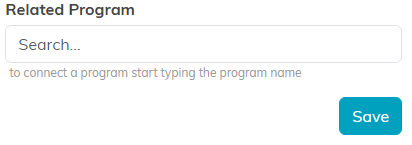
Related Program on the expense's Connections page is what ties the spending to the program.
Viewing the Total on the Program
- Open the program
- Click Budget & Financials in the workspace navigation
- Click the Actual Expenses card to see the total and the number of expenses
The same total feeds the Financial Summary and the program's Net Income.

Tips for Tracking Expenses
- Record expenses promptly so you do not forget
- Set the Related Program when you create the expense, otherwise it never reaches the program's totals
- Use consistent naming so reports read cleanly
- Compare regularly against projected expenses to stay on budget
