Knowledge Base Article
How to Edit Program Details
Learn how to update information for an existing program.
Accessing Program Details
- Navigate to Programs > Program List
- Find the program you want to edit (use search or filters if needed)
- Click the green open arrow to the left of the row
- You will land on the Program Details page
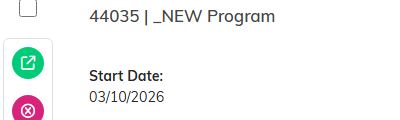
The green open arrow opens the program.
Editable Fields
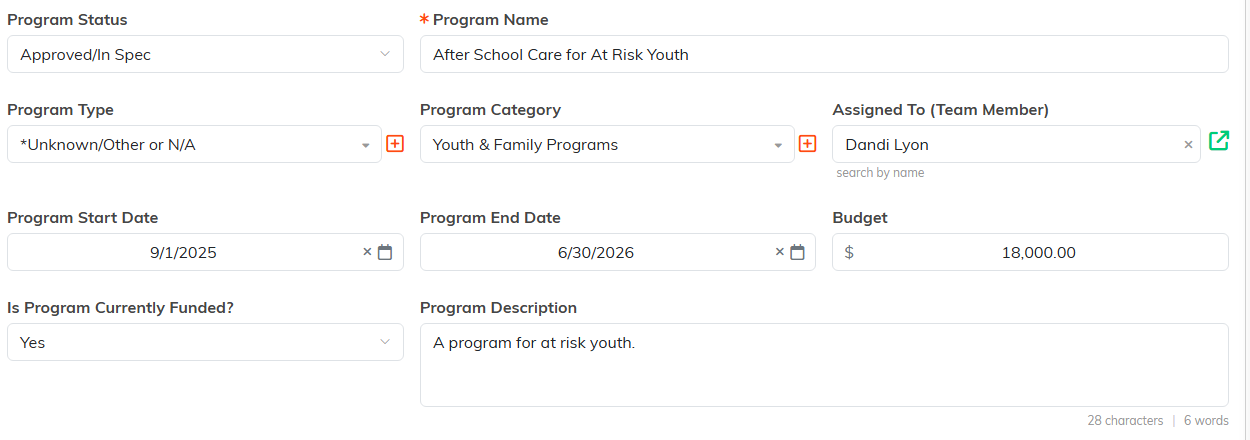
On Program Details, you can modify:
- Program Name and Program Description
- Program Status, Program Type, and Program Category
- Assigned To (Team Member)
- Program Start Date and Program End Date
- Budget
- Is Program Currently Funded?
- Chapter, Division, and Department
- District and Precinct (for political organizations)
- Set As View Only and Lock This Record, at the top under Record Level Permissions
Saving Changes
- Click Save All Changes to save and keep editing
- Click Save All & Exit Record to save and return to where you came from
- Use the Save icon (a floppy disk) in the title bar for a quick save
- Cancel & Exit leaves the record without saving your latest edits

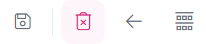
The Save icon in the title bar is a quick save.
Who Changed What
The top right of Program Details shows Date Posted and Date of Last Action, each with the person who did it.

Locked and View Only Programs
If a program is locked, you will see a message that the record has been locked and you cannot open it without permission. If it is set to view only, the fields and the save buttons are disabled. A pink lock icon on the Program List marks a locked record. Check the Record Permissions page or contact your administrator.

Set As View Only and Lock This Record sit at the top of Program Details.
