Knowledge Base Article
How to Track Program Income and Expenses
A program's income and expenses are tracked in four places, all reached from the Budget & Financials tab of the program record. Projected figures are what you plan. Actual figures are what really happened.
Getting There
- Open the program from Programs > Program List
- Choose the Budget & Financials tab
- Click the card for the area you want
Projected Income
Click Add New Projected Income to record what you expect to receive. The Add Projected Income form opens, and each line takes:
- Income Source
- Description
- Amount
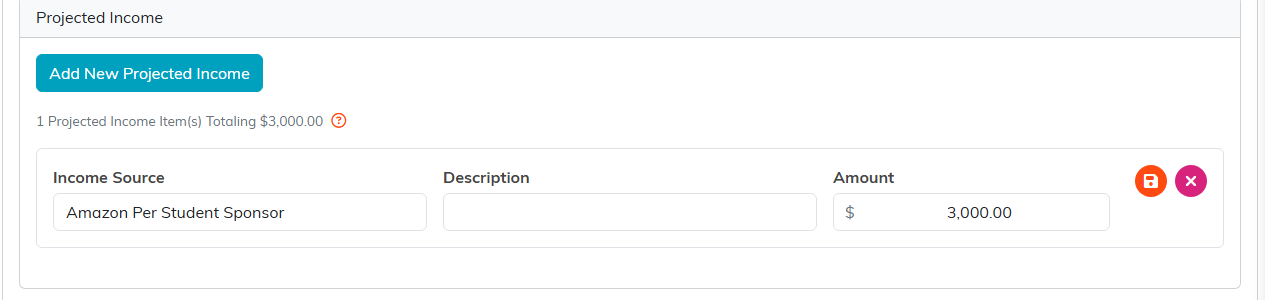
The count and running total sit above the lines.
Projected Expenses
Click Add New Projected Expense to record what you expect to spend. The Add Projected Expense form opens, and each line takes:
- Cost
- Expense Name
- Description
Actual Income
Actual Income is built from records that already exist elsewhere in Argenta and are attached to this program. Payments, donations and cash sponsorships feed it (invoices are listed alongside but not added in, because the payment that settles an invoice is what counts), and the page shows a Total Actual Income across them. You do not add actual income by hand here. You attach the real record to the program and it appears.
In-kind sponsorships are the exception. They are listed so you can see them, but because they are non-cash they are not added into Total Actual Income.
Actual Expenses
Actual Expenses works the same way, showing the real spending recorded against the program.
Seeing the Whole Picture
The four cards on the Budget & Financials tab each carry a running total and an item count, and the Financial Summary underneath pulls them together, so plan against reality is visible without opening each page.
Best Practices
- Put the projected figures in at the start, or there is nothing to compare against later
- Attach donations, payments and invoices to the program when you enter them, not at year end
- Read the Financial Summary before quoting a program's position to a board or a funder
