Knowledge Base Article
How to Set Up Program Budgets
A program's money is handled on the Budget & Financials tab of the program record. It brings projected and actual figures together in one place so you can see the plan and the reality side by side.
Opening It
- Open the program from Programs > Program List
- Choose the Budget & Financials tab
The Four Areas
The page opens on four cards, each showing a running total and the number of items behind it. Clicking one opens that area:
- Projected Expenses: what you expect to spend
- Actual Expenses: what has actually been spent
- Projected Income: what you expect to bring in
- Actual Income: what has actually come in
Below the cards, the Financial Summary pulls the same figures together for the program as a whole.
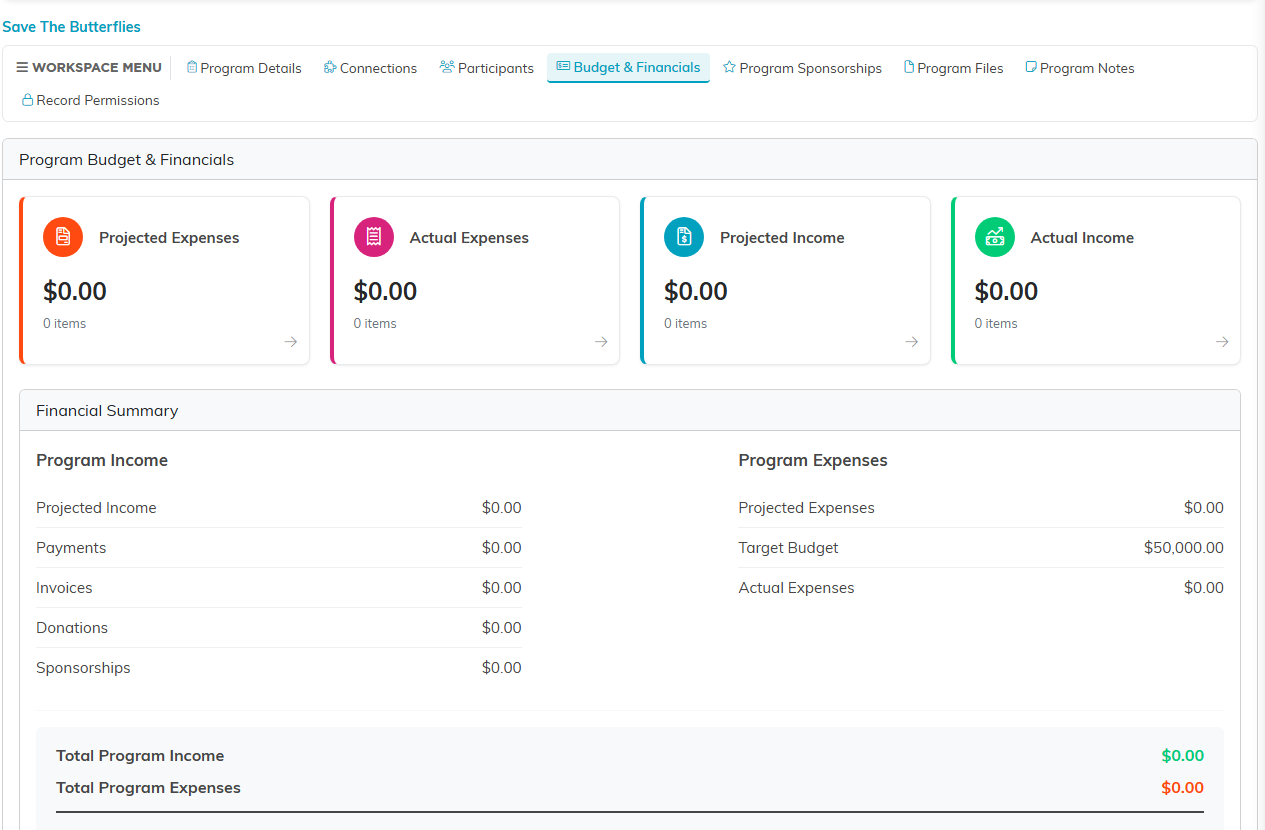
The four cards, each with its running total and item count, above the Financial Summary.
Where Actual Income Comes From
Actual income is not typed in by hand. It is drawn from the real records already in Argenta, so payments, donations and cash sponsorships attached to the program all count toward the total. Invoices attached to the program are listed too, but they are not added in, because the payment that settles an invoice is what counts. That means the figure moves as the money arrives rather than waiting for someone to update a spreadsheet.
In-kind sponsorships are the exception. They are listed in the Financial Summary so you can see them, but because they are non-cash they are not added into Total Program Income.
The Budget Field
The Budget figure on the Program Details tab, along with Is Program Currently Funded?, records the headline budget for the program. The Budget & Financials tab is where the detail behind it lives.
Best Practices
- Enter projected figures early, so the comparison has something to work against
- Attach income and expenses to the program as they happen, rather than reconciling later
- Check the Financial Summary before reporting a program's position to anyone
