Knowledge Base Article
How to Customize Form Styling and Branding
Public forms carry two pieces of styling you control yourself: the colors and the banner image at the top.
Colors
The form designers that offer colors have a Choose Form Colors section. It appears on:
- The public donation form
- The public email form
- The public text opt-in form
- Event registration forms, on the event's form design page
- Campaign forms, inside Form Settings, as Choose Form Colors for the Campaign Sales Form
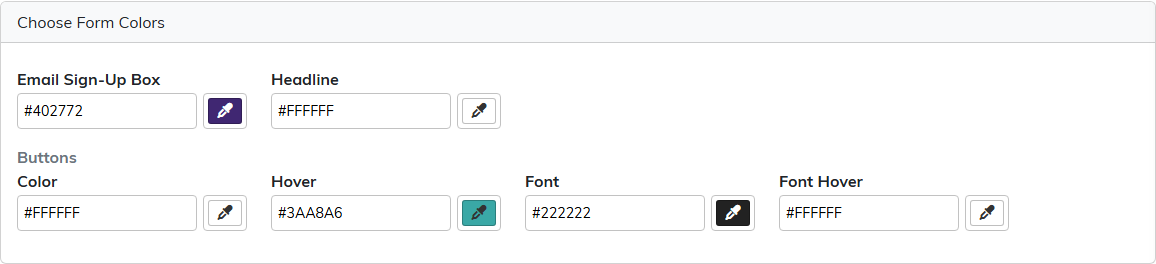
The auction and volunteer task group designers have no color settings.
A Campaign Has Two Forms, and They Do Not Share Colors
A campaign carries both a fundraising form and a sales form. The colors you set on the campaign apply to the sales form. The fundraising form takes its colors from your donation form settings instead, so changing those changes the campaign's fundraising form too.

Banner Image
The donation, email and text opt-in form designers have a Form Banner Image section with a Display Hero Image switch, so the banner can be turned off without removing the image. The campaign, auction and volunteer task group designers each have their own banner section.
On a campaign the banner is shared: the section is headed Banner Image (for both the donation and sales forms), and the wording section says the same. One picture and one block of text serve both forms.

Wording
The donation, email and text opt-in designers take a headline through To Add A Headline Enter It Here. The campaign, auction and volunteer task group designers have a content section for the wording on the form.
Checking Your Changes
On the Public Text Opt-In Form, donation form and email sign-up form designers this button reads Save & Preview. It saves your edits to the live form, tells you they are saved, and then opens the form in a new tab. If your permission is view only it reads Preview, because there is nothing for you to save.
Because it saves first, what you are looking at is already the public version. The event designer's Preview opens the form without saving. The campaign, auction and volunteer task group designers have no preview button, so open the form's own address from its share card to see it.
Because preview saves on every designer except the event one, treat it as publishing rather than as a private draft. If you do not want to keep your edits, leave through Exit instead, which walks away without saving.
Whichever route you use, look at the real public address on a phone as well as a computer before you send it to anyone.
What Is Not Adjustable
Styling is limited to the colors, banner and wording described above. The layout of the fields is fixed, and there is no style sheet to edit. Forms without a designer, such as the payment and membership forms, are set up for your organization rather than styled by you.
Best Practices
- Use your own brand colors, so the form does not look like it belongs to somebody else
- Check contrast. A pale color on white is unreadable for a lot of people
- Change donation form colors carefully, since campaign fundraising forms follow them
- Use a banner sized for a phone screen, since that is where most people will see it
