Knowledge Base Article
How to Use Constituent Focus Categories
Focus areas record what an organization works on or cares about. They live on the Focus page in the constituent workspace, under the Mission Focus / Purpose card. The page is on organization records only, beside Org Details; individuals and households do not have it.
Adding a focus area
- Open the organization and click Focus in the workspace menu.
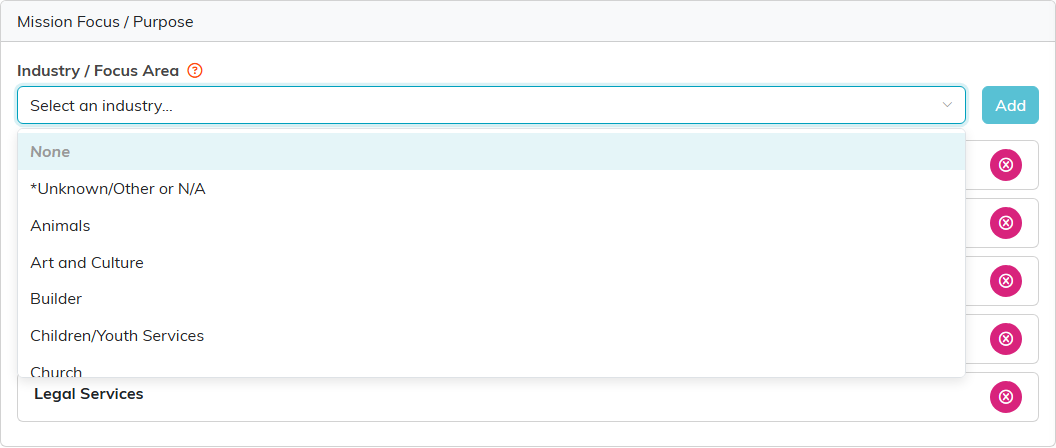
- Pick a value from the Industry / Focus Area dropdown.
- Click Add. It saves straight away, so there is no separate Save step.
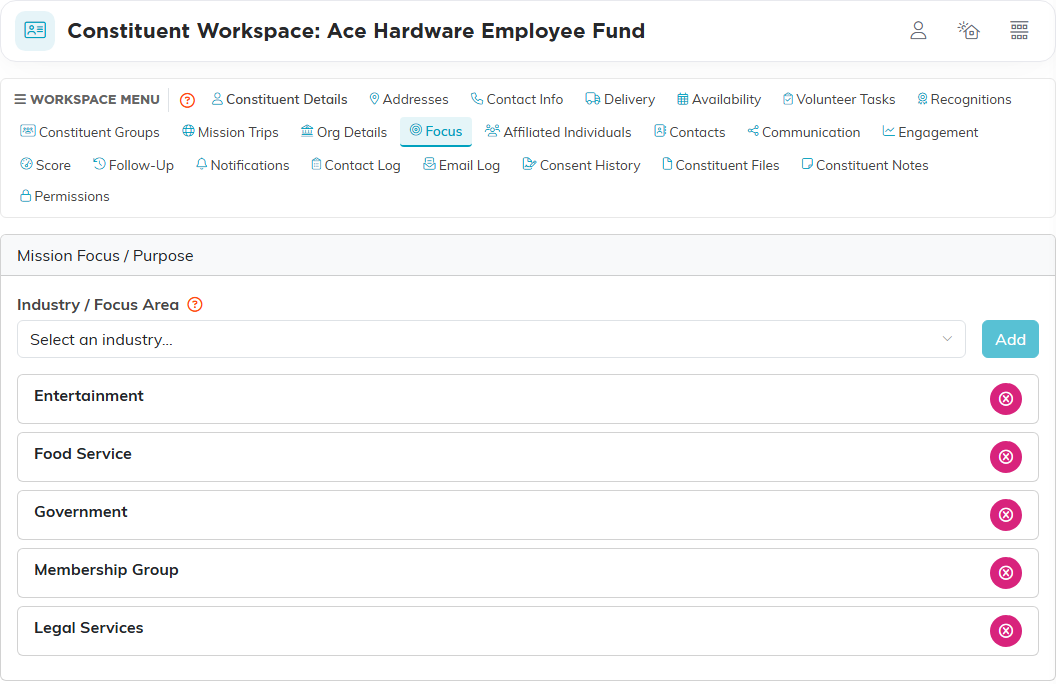
Each one you add shows as its own row below the dropdown. An organization can carry as many as you add, and adding one they already have does nothing, so you cannot end up with the same focus area twice.
Removing one
Click the pink x on the row and confirm. On a record that is locked or set to view only, the dropdown, the Add button and the x are all hidden.
Where the list comes from
The dropdown reads your team's Industries classification code, which you manage on the Classification Codes page. It is the same list behind the single Industry field on the constituent's Org Details page, so a value you add for one shows up in the other.
Focus areas and the Industry filter are two different fields
The Industry/Business Focus filter on the Donors list, the Industry Type filter on the Clients and Leads lists, and the Industries filter on the Constituents report, all match the single Industry field on Org Details. They do not read the focus areas from this page. Use the Org Details field when you need to pull a list, and use focus areas to record the full range of what one organization works on.
