Knowledge Base Article
How to Create General Journal Entries
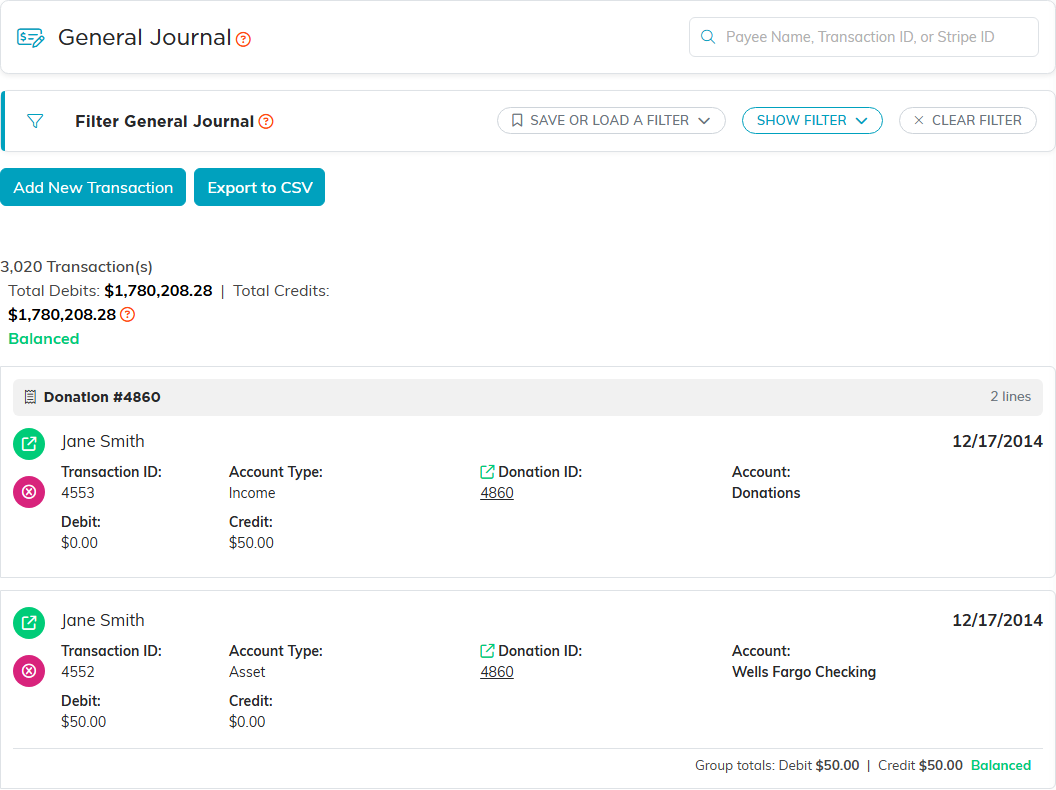
A journal entry records something that does not come in through a normal screen: an accrual, a depreciation charge, an allocation between accounts, or a correction. Open General Financials > General Journal and click Add New Transaction. It is a financial page, so you need Finance Manager or Master Admin.
The entry itself
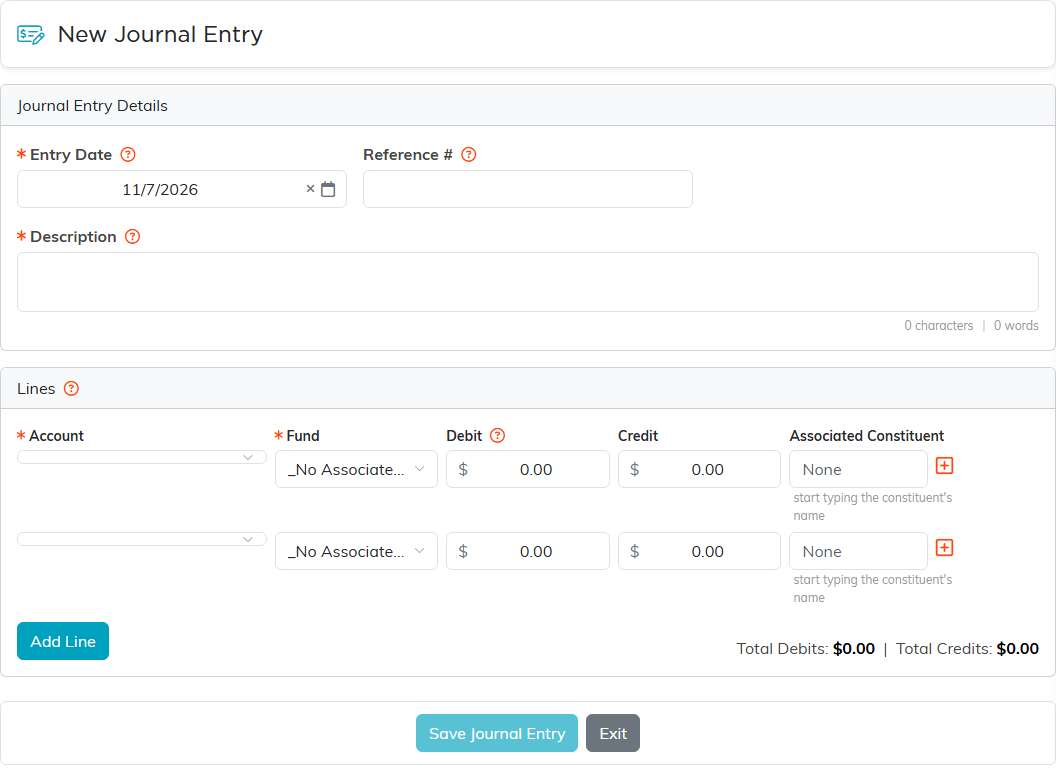
Add New Transaction opens a dedicated editor with the whole entry on one screen. The Journal Entry Details card takes:
- Entry Date, required.
- Reference #, optional, up to 50 characters. It is yours to fill in; nothing numbers entries for you.
- Description, required. This is the one somebody reads in a year when they ask why the entry exists, so write it for them.
The lines
Underneath, each line carries an Account, a Fund, a Debit or a Credit, and an Associated Constituent where one applies. Add Line adds another and the pink icon removes one.
A line is one side or the other, never both: type an amount into Debit and the Credit on that line clears itself.
It will not let you save it out of balance
As you type, the editor shows either Out of balance by and the amount, in orange, or Balanced in green. Save Journal Entry stays unavailable until it reads Balanced, and the check runs again on the server when you save, so an unbalanced entry cannot reach your books by either route.
That is worth knowing the other way round too: if Save Journal Entry looks broken, check the balance indicator before anything else.
The usual shapes
- Accrued expense: debit the expense account, credit the accrued liability.
- Depreciation: debit depreciation expense, credit accumulated depreciation.
- Correction: debit the account it should have gone to, credit the one it went to.
Changing or removing one
Opening an existing journal entry brings it back into the same editor, and Delete Entry removes the whole thing rather than a single leg.
Two things the general journal will refuse, both to keep the books straight. A line belonging to a business record, such as a donation or an expense, cannot be deleted from the journal; Argenta tells you to open that record and delete it there. And deleting one side of an account transfer removes the entire transfer, which it warns you about first.
Worth doing
- Write the description as the explanation, not a label. "Accrual" helps nobody later.
- Put your own reference in, since nothing generates one.
- Keep the calculation behind an entry somewhere you can find it again.
