Knowledge Base Article
How to Use Volunteer Task Calendars
The Volunteer Task Calendar/Schedule lays your volunteer tasks out on a month grid. Open it at Volunteerism > Volunteer Task Calendar View. You need Volunteer Manager or Master Admin.
Two views, and a way back to the list
- Month is the grid, with arrows either side and a Today button.
- Agenda is the same tasks as a straight list.
- List View is not a third view. It is a link out to the Volunteer Tasks page, which is where the filters live.
There is no day view and no week view.
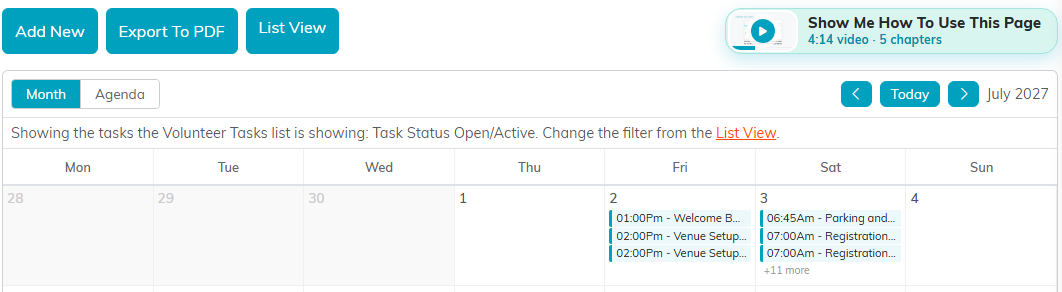
The calendar shows the same tasks the Volunteer Tasks list is showing. The Task Status and any other filters you last set on the list carry over, and a line above the calendar says which. To change them, go to List View.
What an entry shows
Each task appears on its date as its start time and title, followed by the volunteer's name once someone is assigned. A day shows three tasks and then a count of the rest, such as +11 more; switch to Agenda to see them all. Click a task to open it.
The calendar does not show how many volunteers a task still needs. For what is short, work from the Volunteer Tasks list or the task itself.
Adding a task
You cannot click an empty day to create something. Add New opens the ordinary new-task form and returns you to the calendar once you save, so the task then appears on its date.
Taking it with you
Export To PDF, there for anyone with export permission, turns the month into a document, which is the straightforward way to put a schedule in front of a meeting or on a bulletin board.
Worth doing
- Give tasks titles that read well small. The month grid cuts long entries short; point at one to see all of it.
- Use the calendar to spot empty weeks, then go to the task list to see what is unfilled.
- Export at the start of a month if your volunteers want something to look at that is not a login.
