Knowledge Base Article
How to Track Volunteer Availability
Volunteer availability is a weekly pattern you record on the volunteer's own record, so you can see when someone can serve before you ask them.
Where it lives
- Open a constituent record, or a volunteer record. Availability belongs to the person, so both show the same entries.
- Click Availability in the Workspace Menu.
On a volunteer record the card is headed Volunteer Availability; on a constituent record it is just Availability. Either way it lists the entries already recorded, with a count above them.
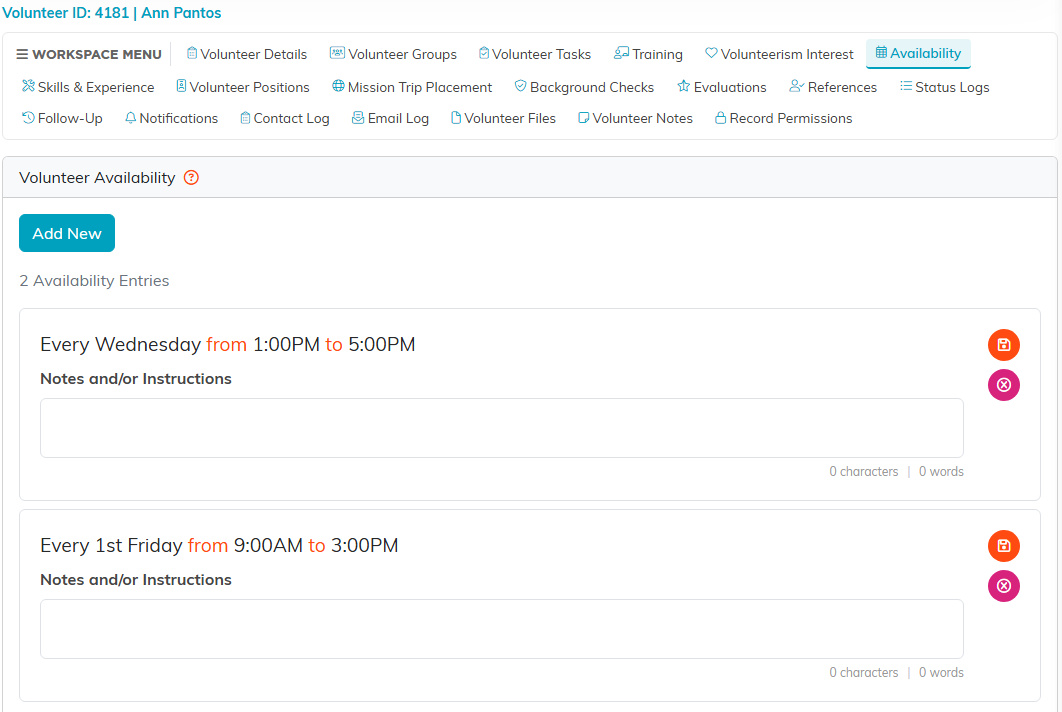
A volunteer's Availability page, one entry per slot.
Adding an entry
- Click Add New. The Add A Volunteer Availability Entry card opens (Add An Availability Entry on a constituent record).
- Choose an Iteration: Every, Every Other, or Every 1st through Every 5th.
- Choose the Weekday. One entry covers one day, so a volunteer free on Tuesdays and Thursdays needs two entries.
- Set the Start Time and End Time.
- Add Notes if there is anything worth saying about the slot.
- Click Add This Record. Cancel closes the card without saving.
Iteration, Weekday, Start Time and End Time are all required and carry an orange asterisk.
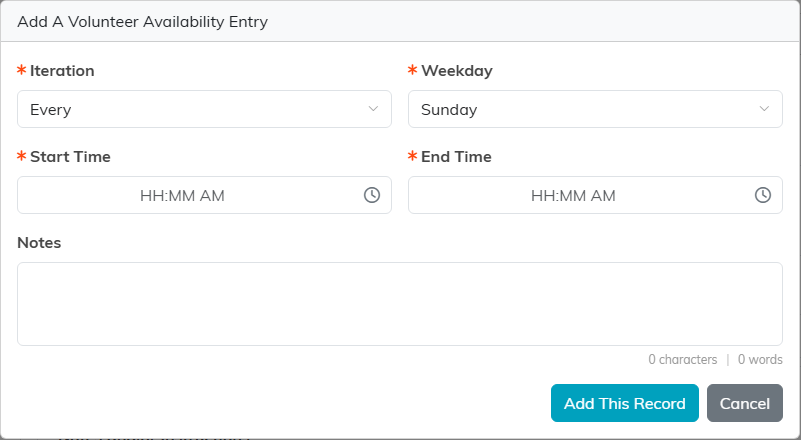
The add box. Nothing is saved until Add This Record.
The same entry cannot be recorded twice. If the Iteration, Weekday, Start Time and End Time all match an entry already on the record, Argenta refuses it and tells you it is already on file. Notes are not part of that comparison, so adding the slot again with a different note will not work – edit the note on the entry you already have. Iteration is part of it, so Every Sunday and Every 1st Sunday remain two separate entries.
Changing what you have recorded
The notes on an entry can be edited from the list itself, under Notes and/or Instructions. To remove an entry, use the delete button on its row.
What it does and does not do
Availability is a record you keep and read. The volunteer list can be filtered by the weekday someone is available, which is the one place Argenta acts on it. It does not match availability to volunteer tasks, filter task sign-ups by it, or use it to build a schedule, so check the record yourself before you assign someone. Someone on your team can record it for a person, and a volunteer can also give it themselves: the public Volunteer Interest form asks when they are available, and what they tick lands straight on their record.
Best practices
- Collect availability when you onboard a volunteer, while you are already asking questions.
- Use one entry per weekday rather than trying to fit a whole week into the notes.
- Put the caveats in Notes: "not in school holidays", "prefers mornings".
- Ask volunteers to tell you when it changes, and update the entries when they do.
