Knowledge Base Article
How to Track Direct Reports and Org Structure
Argenta records who reports to whom on the staff member's own record. There is one field, Manager/Supervisor, and every other part of the reporting structure is derived from it.
Assigning a manager
- Open the staff member's record and go to Staff Member Details.
- Set Manager/Supervisor to the person they report to.
- Set Management Status to Manager or Non-Management for this person.
- Save. They show on that manager's Direct Reports page straight away.
Management Status carries the orange required asterisk. Manager/Supervisor is optional, so the person at the top of your organization can be saved with no manager. Nobody is emailed when a reporting line changes, and neither the old nor the new manager is notified, so pass that on yourself.

The Direct Reports page
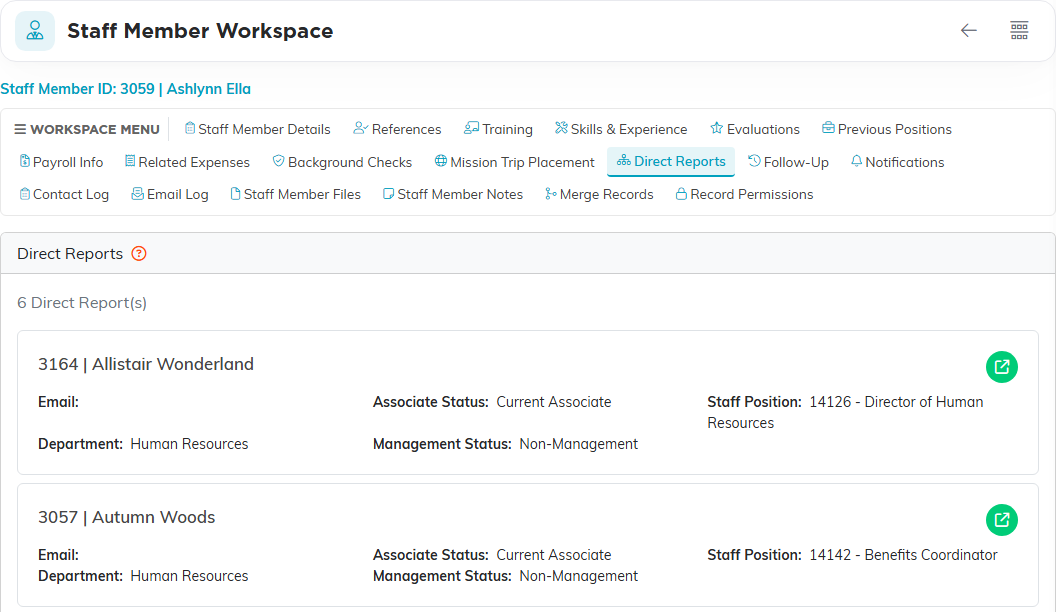
Every staff member record has a Direct Reports page in the Staff Member Workspace. It lists everyone whose Manager/Supervisor field points at this person, showing each one's email, associate status, staff position, department and management status, with a green icon to open their record.
You do not add anybody on this page. It is built from the other person's record, so to change who reports to whom, open their record and change their Manager/Supervisor field. The page also respects your own chapter, division, department and precinct access, so somebody outside your segments stays hidden even when they do report to this person.
What the reporting line drives
- Paid time off. An ordinary employee sees their own PTO requests and their direct reports', not the whole team's. A manager can approve a request belonging to one of their direct reports. Administrators and staff managers can approve any request.
- Timesheets. A staff member sees only their own. A manager also sees their direct reports'.
- The Staff Members list. Supervisor/Manager and Management Status are both filters there, and both land in the CSV export.
- Terminating employment. While Management Status is set to Manager, the Terminate Employment button refuses to run and asks you to reassign the direct reports first. That check reads the setting only, not whether anyone actually reports to the person, so a manager with nobody under them still has to be switched to Non-Management before you can terminate them.
What it does not do
There is no org chart view, and no report that draws or lists the reporting structure. What you have is the Direct Reports page, one manager at a time, plus the Supervisor/Manager filter and CSV export on the Staff Members list.
The reporting line is not dated. Changing Manager/Supervisor moves the person immediately and keeps no record of who they used to report to. If you need that history, write it on the staff member's Staff Member Notes page. (Job changes are different: those are kept for you on the Previous Positions page.)
It grants no access on its own beyond PTO and timesheets. Who can see which records is set by the chapter, division, department and precinct permissions on the person's user account, not by who their manager is.
