Knowledge Base Article
How to Manage Portal Users
Portal users are the people outside your staff who sign in to one of your portals: volunteers, participants, members, partners, and customers. A portal account is always attached to a constituent record, so the person has to exist in Argenta before they can have a login.
You need Portal Manager or Master Admin to manage them.
Creating a Portal User
- Go to Our Public Interfaces > Portal Users and click Add New.
- On Designate A Constituent As A Portal User, start typing the person's name and pick them. If they are not in Argenta yet, add them from the same box. Then type a User's Password, 5 to 50 characters. Nothing is saved until both are in.
- Click Add Portal User & Enter Details. The account is created and their details open.
- Set the Portal Type, the User's Status, and the User's ID. Argenta usually fills the User's ID with the person's email address, and leaves it blank when someone on your team already signs in with that address.
- Click Save All Changes & Exit, or Save All Changes & Continue to stay on the record.
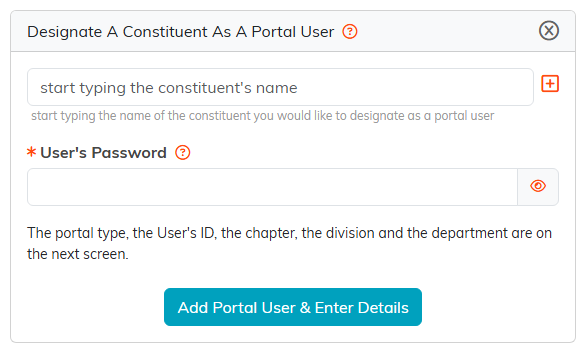
Pick the person and type their password. Nothing is saved until you click Add Portal User & Enter Details.
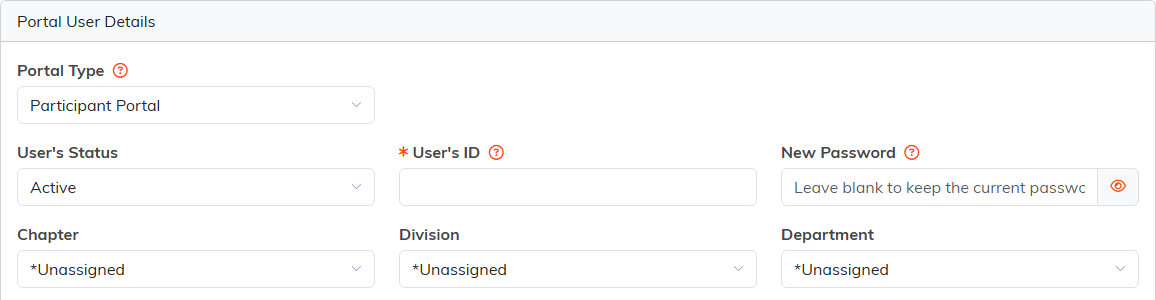
The details screen. Leaving New Password blank keeps the password the account already has.
User's ID holds up to 50 characters. If you use email addresses as logins, check the long ones fit.
You can also scope an account to a Chapter, Division or Department.
The Portal Types
Argenta has seven, and which ones your organization uses depends on your setup:
- Department/Chapter Portal
- Client/Customer Portal
- Participant Portal
- Staff Portal
- Volunteer Portal
- Member Portal
- Partner Portal
The portal type decides which portal the account signs in to, so setting it wrong means a working login that lands in the wrong place.
Getting Someone Their Login
Argenta does not email login details from the portal user record. There is no send button on the account.
Give the person their User's ID yourself, then point them at the portal's Forgot Password? link on its sign-in page. They enter their email address and set their own password from the email that arrives.
That is also the answer when somebody is locked out. You do not need to look up or retype anyone's password, and you could not if you tried: passwords are stored so that nobody can read them, so the details page never shows the current one. Typing in New Password replaces it, and leaving it blank keeps it. Passwords are case-sensitive, so the person has to type capital letters exactly as the password was set.
Turning Access Off
Open the portal user and click Make User Inactive, or set User's Status to Inactive and save.
This does not only stop the next sign-in. Argenta rechecks every signed-in portal user roughly every five minutes, so somebody already signed in on their own device is put out within about five minutes rather than staying in until they close the browser. That matters when you are removing access from somebody who should not have it any more.
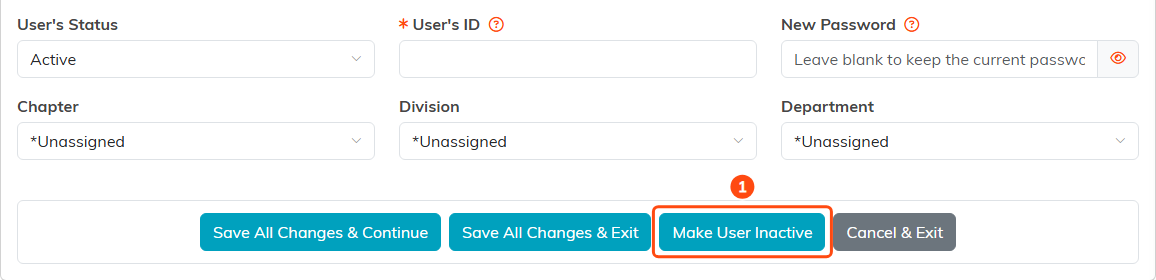
1 switches the account off. Anyone already signed in is put out within about five minutes.
Seeing Who Has Signed In
Go to Our Public Interfaces > Portal Sign-In Log. Filter it by Portal Type and by Sign-In Date Range.
This is where you check whether an account is actually being used before you go to the trouble of resetting it, and where you confirm somebody stopped signing in after you deactivated them.
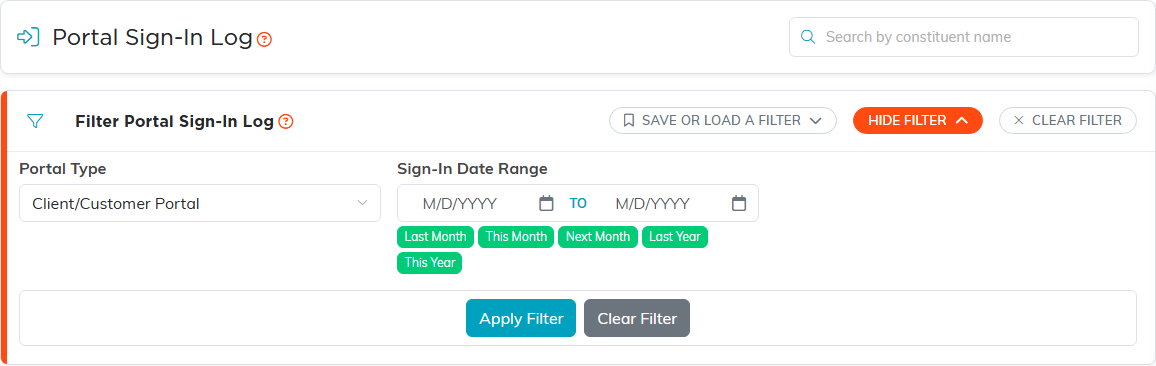
Show Filter opens the Portal Type and Sign-In Date Range filters.
Portal Account Requests
When someone asks for an account through a portal, the request lands in Our Public Interfaces > Portal Account Requests.
This list is for reading and clearing. There is no approve button, so nothing turns a request into an account by itself. Check the request, then create the portal user yourself with the steps above, and delete the request once you have dealt with it.
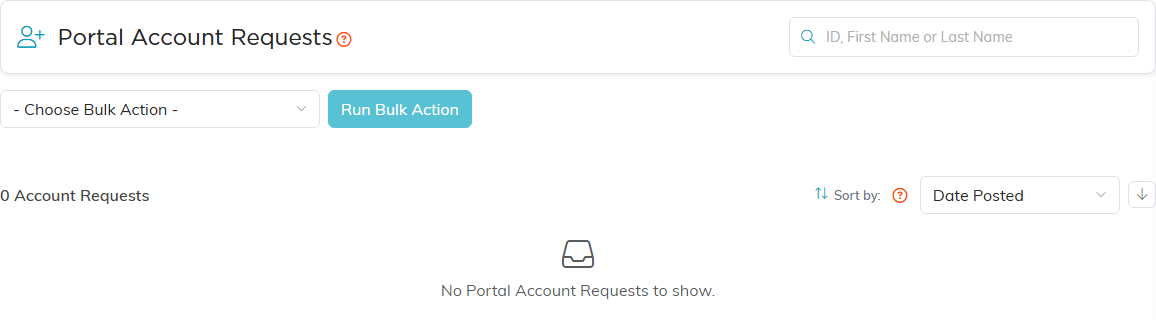
Requests are read and deleted here. There is no approve button.
Getting the Most Out of It
- Check the person is not already a constituent before you add a new one. A duplicate constituent means a portal account attached to the wrong record.
- Set the portal type carefully. A signed-in user in the wrong portal usually reports it as a broken login.
- Use Forgot Password? rather than sending a password. Nobody has to handle it, and the person ends up with one only they know.
- Review the sign-in log now and then and deactivate accounts nobody is using.
- Deactivate the moment a volunteer or member leaves, rather than at a tidy-up later.
- Clear Portal Account Requests as you go, since nothing removes a handled request for you.
