Knowledge Base Article
How to Manage Mission Trip Vehicles
Argenta records the vehicles taking people on a mission trip: what the vehicle is, how many seats it has, who is driving, and that the driver is insured.
The thing to understand first is the split. The vehicle record holds the vehicle and the insurance it travels under. The driver's own paperwork lives on the driver's constituent record. Each trip vehicle keeps its own Auto Insurance Company and Policy Number, so a rental or a borrowed van can carry its own policy, and saving a vehicle never changes the driver's record.
You need Mission Trip Manager or Master Admin.
Adding a Vehicle to a Mission Trip
- Open the mission trip and click the Vehicles tab, headed Vehicles For This Mission Trip.
- Click Add New. The Add A Vehicle panel opens.
- Complete all six fields. Every one of them is required:
- Enrollment: which group on the trip the vehicle belongs to.
- Primary Driver (Constituent): the driver is a constituent. If they are not in Argenta yet, add them from the same box with the plus button.
- Auto Insurance Company
- Auto Insurance Policy Number
- Vehicle Type
- Seats Available Including The Driver
- Click Save All Changes.
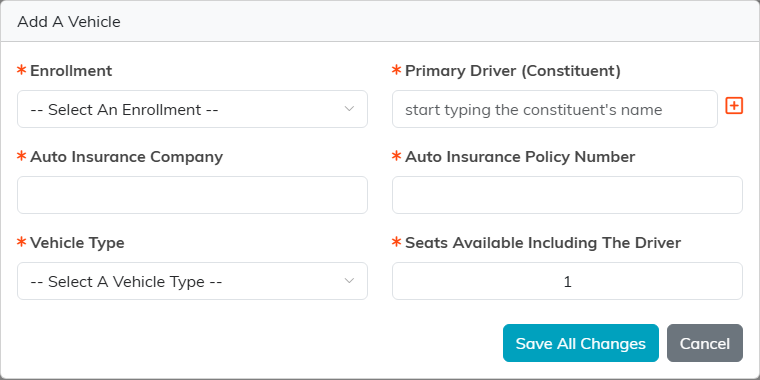
Argenta will not let you save a trip vehicle without insurance details. That is deliberate, and it is the main reason to record vehicles here rather than in a spreadsheet.
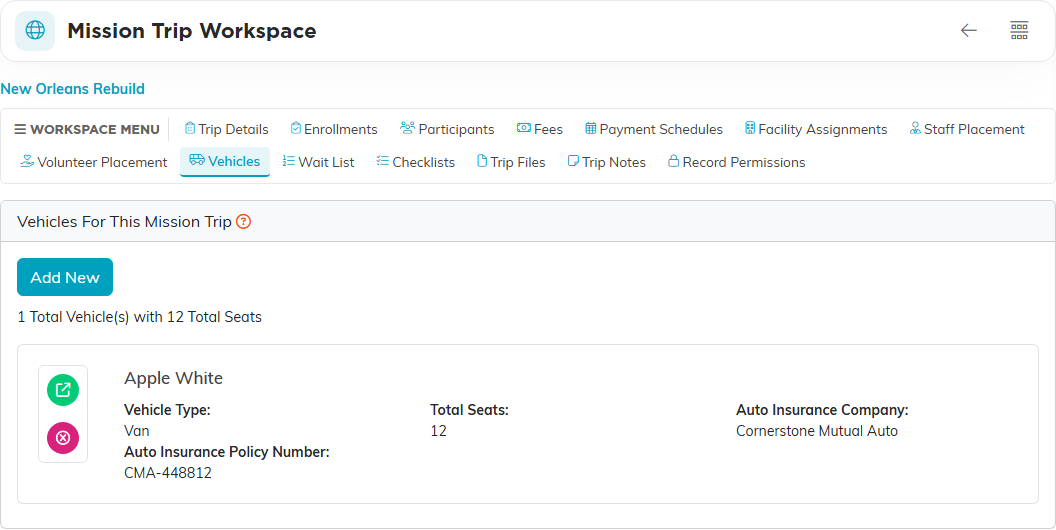
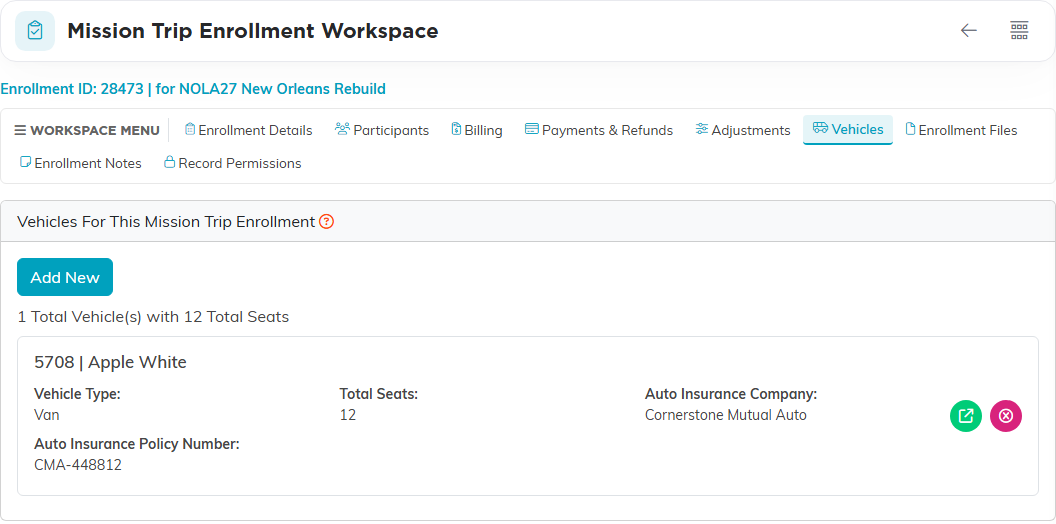
A vehicle can also be added against a single enrollment. Open the enrollment and click its Vehicles tab, headed Vehicles For This Mission Trip Enrollment.
What a Vehicle Record Does Not Hold
A vehicle record is those six fields and nothing else. There is no license plate, no make or model, no owner, no notes field, and no place to record a rental company. The Vehicle Type is a choice of Car, Van, Bus or Truck, not free text, so it cannot tell two vans apart either; keep anything like that outside Argenta.
Driver Details Live on the Constituent Record
Open the driver's constituent record and click Personal Info. The Driver & Insurance section holds:
- DL State and DL Number
- Insurance Provider and Policy #
- Policy Expiration
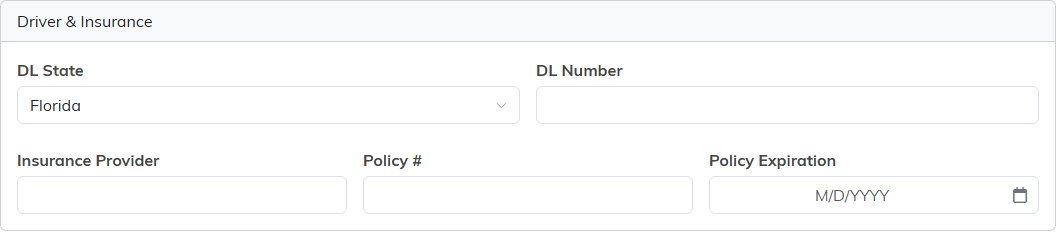
The expiration date is the one that catches people out. It is not on the vehicle form, so it can only be set on the driver's record, and it is the field that tells you whether a policy is still valid on the day you travel.
These are the driver's own details, separate from the insurance on any vehicle they drive. Editing a vehicle's insurance changes that vehicle only, and editing the driver's record does not change a vehicle that has its own insurance saved. A vehicle that has never had insurance saved on it shows the driver's until it is saved.
Checking Your Drivers Before a Trip
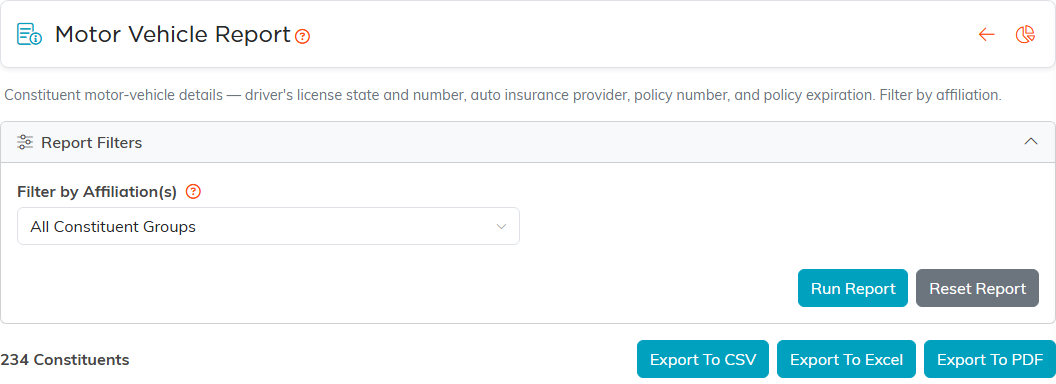
Run the Motor Vehicle Report. It lists each constituent with their birth date, driver's license state and number, insurance provider, policy number, and policy expiration, and you can filter it by affiliation. Export it to CSV, Excel or PDF. It reads the drivers' own records, not the insurance saved on each vehicle.
This is the report to run before you travel, because it is the one place you can see every driver's license and insurance side by side and spot an expired policy.
Vehicles on an Event
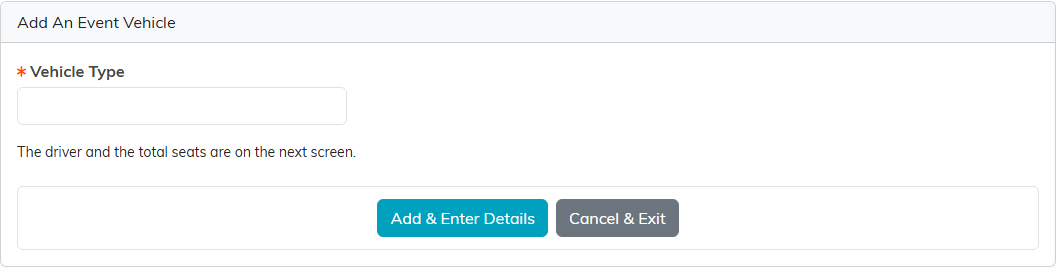
Events track vehicles too, but much more simply. Open the event and click Event Vehicles. A vehicle there holds only a Driver, a Vehicle Type and Total Seats, and the vehicle type is the only required field, both when you add the vehicle and when you edit it later. There is no insurance on an event vehicle.
Use event vehicles for lining up transport before you know who is driving. Use mission trip vehicles when you need the insurance on record.
Seating People
Argenta records how many seats a vehicle has. It does not assign named passengers to vehicles, and there is no passenger manifest, so who rides where is still yours to organize outside Argenta.
Getting the Most Out of It
- Put each driver's license and their own insurance on their Personal Info tab, so the Motor Vehicle Report has them.
- Fill in Policy Expiration on the driver even though the vehicle form never asks for it. An in-date policy number tells you nothing on its own.
- Count the driver when you enter seats. The field says so, and it is the usual off-by-one.
- Run the Motor Vehicle Report a few weeks out, not the night before, so there is time to chase a missing policy.
