Knowledge Base Article
How to Manage Mission Trip Facilities
A mission trip facility is a place your trip uses: somewhere the team sleeps, or somewhere the team works. Facilities are set up once and then attached to the trips that use them, so the same church or camp can serve year after year without being entered again.
A Facility Is a Constituent
This is the part that surprises people. A facility is not a separate address book. You pick a constituent who is already in Argenta and mark that record as a facility, so the church, camp or school keeps one record for everything: its address, its phone, its email, its gifts and its history.
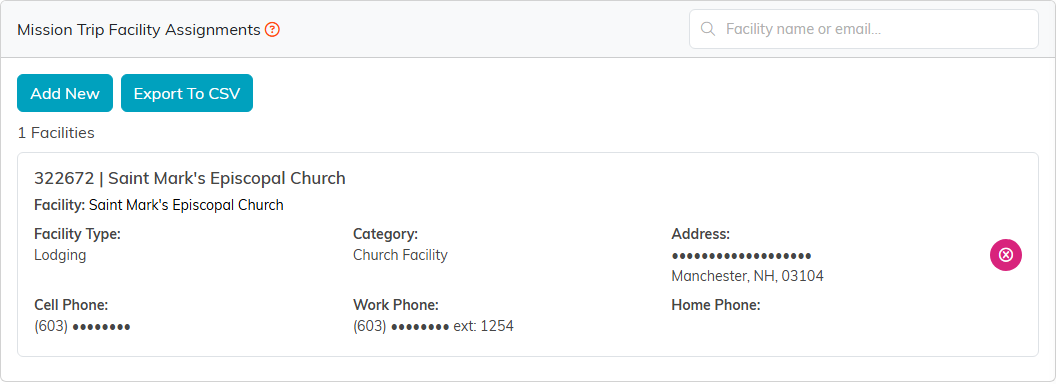
That is why the facility list shows the address and email, and the export and the trip's Facility Assignments tab add the phone numbers, without ever asking you to type them. Those come from the constituent record, and you change them there.
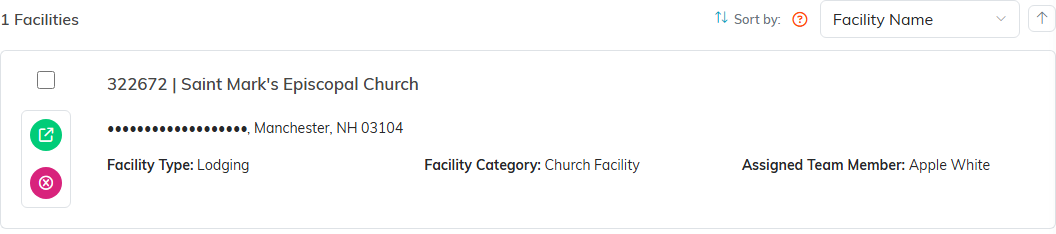
Adding a Facility
- Go to Mission Trips > Mission Trip Facilities
- Click Add New
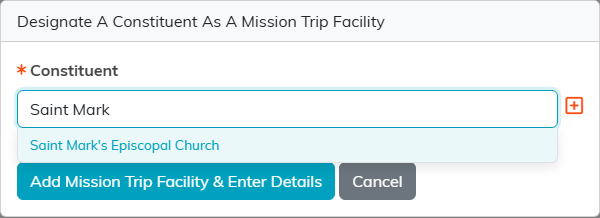
- In Designate A Constituent As A Mission Trip Facility, start typing the constituent's name and pick them. If they are not in Argenta yet, add them from the same box.
- Click Add Mission Trip Facility & Enter Details
You need the Mission Trip Manager or Master Admin permission to reach any of these pages. If your login is limited to certain chapters, divisions, departments or precincts, you see, export and open only the facilities whose constituent record sits inside those limits.
What You Record on the Facility
The Facility Details tab holds what is true about the place rather than about the organization:
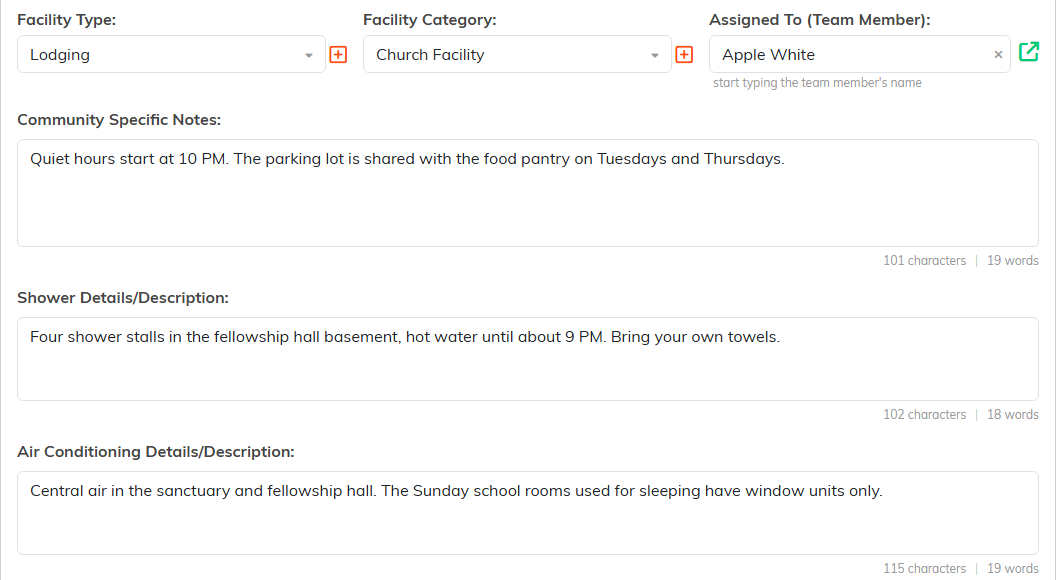
- Facility Type — Lodging or Work Site. This is the field that decides whether the team sleeps there or serves there.
- Facility Category — the kind of place: Church Facility, School, Community Center, Hotel or Motel, Private Residence, Commercial Office Space
- Assigned To (Team Member) — who on your staff owns the relationship
- Shower Details/Description and Air Conditioning Details/Description — free text, because the answer is usually a sentence rather than a yes or no
- Community Specific Notes
- Contact Name, Contact Email, Contact Phone and Contact Instructions — the person on site, who is often not the constituent's main contact
- Local Hospital Name, Local Hospital Phone and Local Hospital Address
Fill the hospital fields in. They are the reason to open this record at speed, and nobody wants to be looking them up on the day.
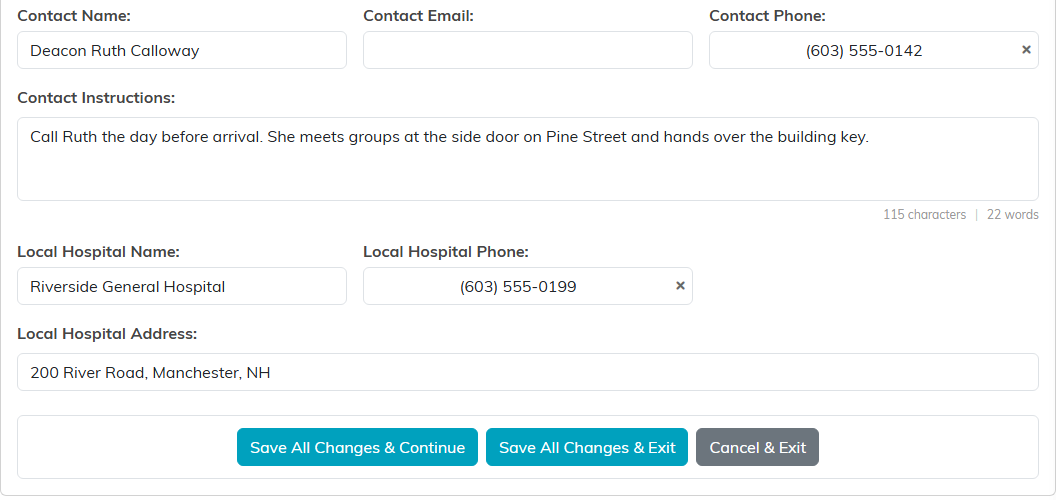
Save with Save All Changes & Continue or Save All Changes & Exit. The same tab carries Set As View Only and Lock This Record.
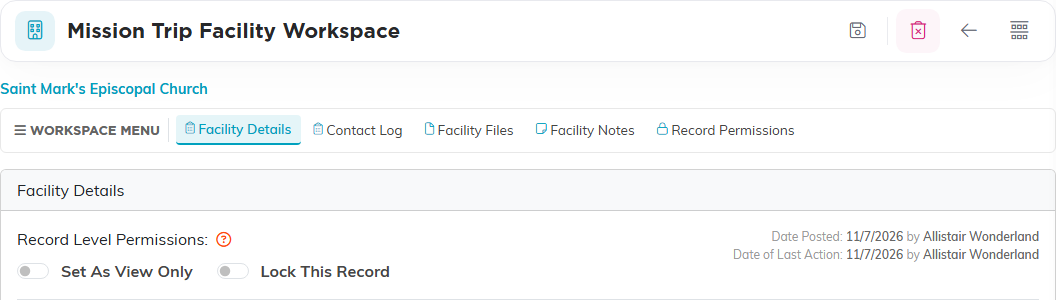
The Facility's Other Tabs
- Contact Log — the conversations you have had with the site
- Facility Files — maps, photos, signed agreements
- Facility Notes — rules, history, anything the next coordinator needs
Attaching a Facility to a Trip
- Open the Mission Trip record
- Go to Facility Assignments
- Click Add New, pick the facility, then click Add Assignment
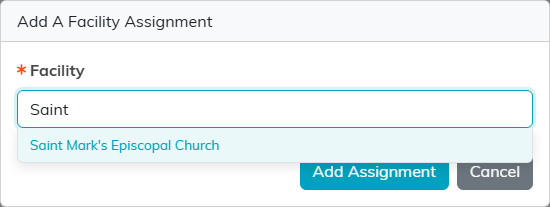
An assignment records that the trip uses the facility, and that is all it records. There are no dates and no group names on an assignment, so which team sleeps in which room on which night is planned outside Argenta. The page also has a search box and Export To CSV.
Removing a Facility
Three things will stop a delete, and each gives you a message rather than failing quietly:
- The facility is assigned to a mission trip. Remove the assignment from every trip first.
- The record is locked. Only a master administrator can delete a locked facility.
- The record is set to View Only and you are not one of the people allowed to edit it.
Deleting a facility removes the facility record, its notes, its contact log and its files. It does not delete the constituent, so the church or camp stays in your database with its history intact.
Best Practices
- Set the Facility Type on every record, since Lodging and Work Site are the only thing telling the two apart
- Fill in the local hospital before the trip, not during it
- Put the on-site contact in the Contact fields, even when the constituent record already names someone, because the person who meets you at the door is often different
- Say what the showers and the air conditioning actually are, rather than whether they exist
- Keep the address and phone current on the constituent record, since that is where the list reads them from
- Photograph the site while you are there and attach it to Facility Files
- Write down the house rules in Facility Notes while they are fresh
