Knowledge Base Article
How to Create and Manage Budgets
What a Budget Is in Argenta
A budget is a set of amounts against your chart of accounts, planned month by month for a fiscal year. It is not a list of projections you type in freehand: every line is an account, and every account gets twelve monthly figures.
That is what makes the Budget to Actual report work later, because your actual income and expenses are already posted to those same accounts.
Creating a Budget
- Go to General Financials > Budgets and click Add New.
- Enter the Budget Name and click Add & Enter Details. Nothing is saved until you do, so Cancel & Exit leaves nothing behind.
- On Budget Details, set the Fiscal Year, Budget Type and Budget Category.
You need Finance Manager or Admin rights.
Budget Types
The shipped types are General Fiscal Year Budget, Campaign Budget, Program Budget, Project Budget, Department Budget, District Budget, Precinct Budget and Projected Income.
The type is not just a label. It decides what you can attach the budget to on the Connections tab: a Campaign Budget lets you pick a campaign, a Program Budget a program, a Project Budget a project. The other two boxes stay grayed out, and changing the type clears whatever was set.
There is no event budget type. A grant keeps its own budget worksheet on its Budget tab. If your team already uses Budgets, that tab also offers Create a budget for this grant, which makes a Project Budget here, connected to the grant's project when it has one.
Budget Lines
The Budget Lines tab is the budget itself: a grid of accounts split into Income and Expenses, with an Annual column and a Last Year column. It totals Income, totals Expenses and shows Net Income for the year.
Turn on Show Monthly Breakdown to add a column for each month, so you can spread the year across the months; the totals then show per month too.
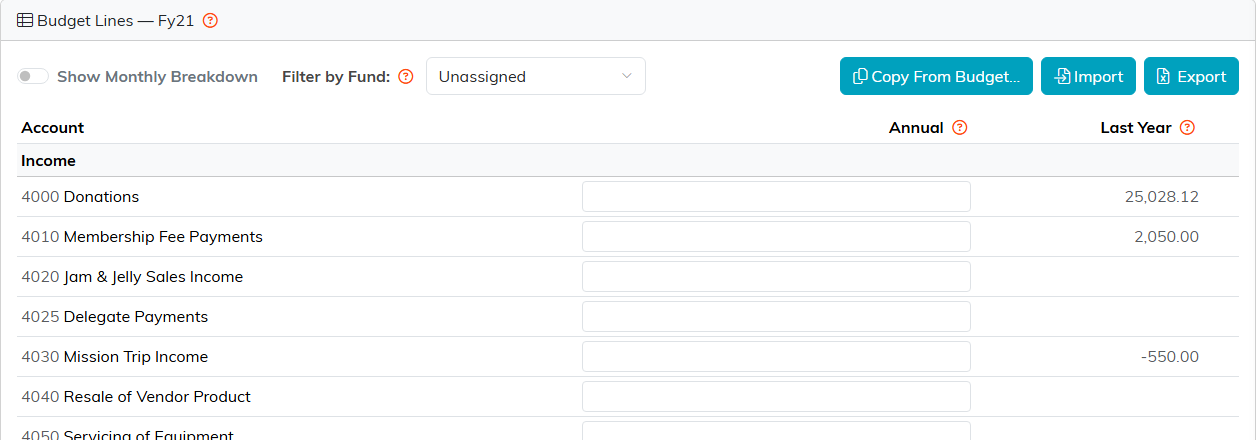
Three ways to fill it in:
- Type into the grid.
- Copy From Budget, which brings last year's numbers across as a starting point.
- Import, from a spreadsheet.
There is an Excel export too, for anyone with export rights.
Funds
If you use funds, Filter by Fund appears above the grid, and each fund carries its own amounts.
It starts on Unassigned, the amounts not tied to any fund. All Funds shows everything combined and is read-only; pick a single fund, or Unassigned, before you can type. The page says so, but it is the thing people get stuck on.
Approving a Budget
A budget shows as Draft or Approved, and the switch is Budget Approved on the Details tab. Once approved, Argenta records who approved it and when.
Approving freezes the numbers for everybody, admins included. The Budget Lines grid goes read-only, the Budget Items import on the Import & Export Hub refuses its rows, and the fiscal year can no longer be changed. To edit an approved budget, switch it back to draft first.
When You Have More Than One Budget for a Year
Default for Reports decides which budget reports use. Only one budget per fiscal year can carry it.
Move a budget to a different fiscal year and Argenta turns that switch off, because the flag belonged to the old year. Turn it back on if the budget should feed reports for its new year.
Budget to Actual
The Budget to Actual report is the comparison. Per account it gives you Annual Budget, YTD Budget, Actual, Difference, Budget % and Last Year, with the difference colored so you can see where you are over.
One thing to know about the dates: YTD Budget counts each month whose first day falls inside your date range, while Actual counts every transaction in the range. So a range ending mid-month counts that whole month's budget, which can make you look less over budget than you are, and a range starting mid-month leaves that month's budget out, which can make you look more over budget. Run it on whole months.
Best Practices
- Build next year's budget with Copy From Budget, then adjust. Starting from a blank grid of accounts is a long job.
- Spread amounts across the months honestly rather than dividing by twelve, or Budget to Actual will show variances that are only timing.
- Approve the budget once the board signs it off. The freeze is the point.
- Set Default for Reports deliberately when a year has more than one budget, and check it again after moving a budget between years.
- Run Budget to Actual on whole months, monthly.
- Put the assumptions behind the numbers in Budget Notes, and the board paperwork in Budget Files.
