Knowledge Base Article
How to Track Education History
Education tracking helps you understand your constituents' backgrounds, identify alumni relationships, and segment communications appropriately.
Recording Education
- Open a constituent record.
- Click Education in the Workspace Menu.
- Fill in the fields directly on the page. There is no separate add step and no add button.
- Click the save icon in the title bar at the top of the workspace.
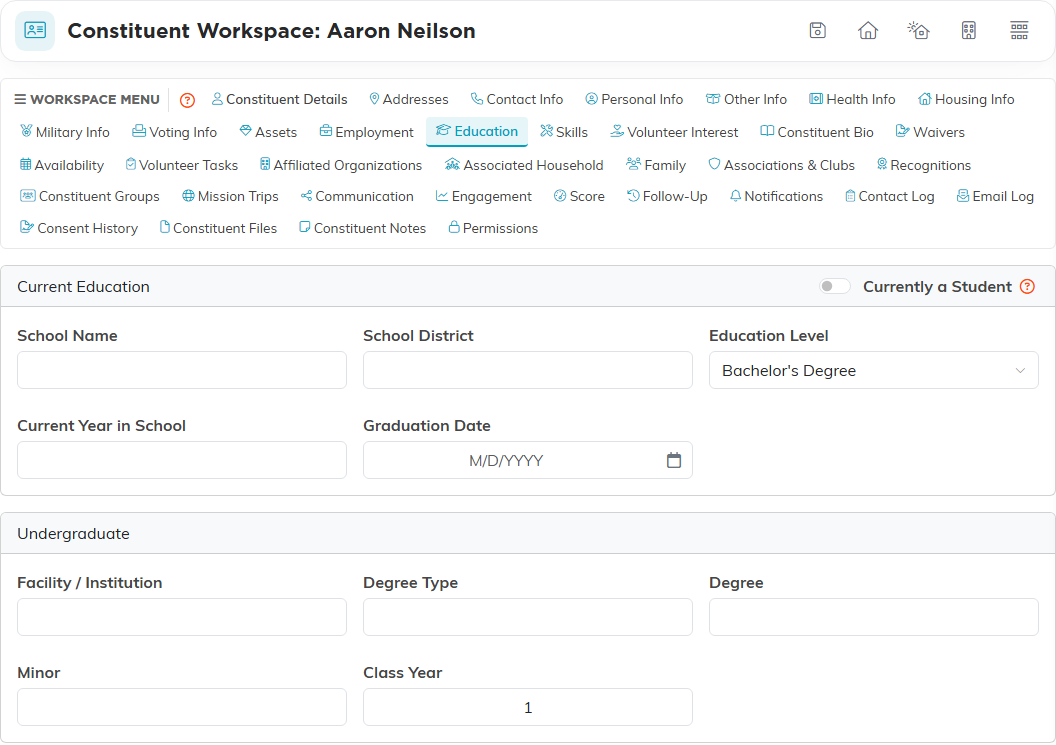
The four sections
- Current Education is for someone still studying. It carries the Currently a Student switch in its header, then School Name, School District, Education Level, Current Year in School and Graduation Date.
- Undergraduate holds Facility / Institution, Degree Type, Degree, Minor and Class Year.
- Graduate and Doctorate each hold Facility / Institution, Degree and Class Year.
- Additional holds Additional Training, Fraternity / Sorority and Honors Society.
Three qualifications, one of each level
The page is a form rather than a list you add rows to, so it holds one undergraduate, one graduate and one doctorate record per person. Someone with two master's degrees has room for one of them here; put the other in Additional Training or a note on the record.
Using Education Data
Education Level is the field the reporting uses. The Member Demographics Pie Chart Report - Education in the Report Center breaks your members down by it, so that field is worth filling in consistently even when you skip the rest.
Best Practices
- Capture education during intake or registration, while you are already asking questions.
- Standardize institution names, since "UNC", "U.N.C." and "University of North Carolina" do not group together.
- Update it when a constituent finishes a new degree.
- Use education data respectfully in communications.
