Knowledge Base Article
How to Process and Track Refunds
When money goes back to someone, or comes back to you, record the refund on the transaction it belongs to. That way it keeps the transaction's own fund and accounts, and both the original and the refund stay on the record.
Where refunds live
Open the record and click Refunds in its workspace menu (Applied Refunds on a ticket sale).
- Donations and payments: money you pay back. The page shows an Associated Refunds card.
- Event ticket sales: money you pay back to a ticket buyer. The page shows Refunds Applied To This Ticket Sale.
- Expenses and orders: money coming back to you from a vendor. The page shows an Associated Refunds card.
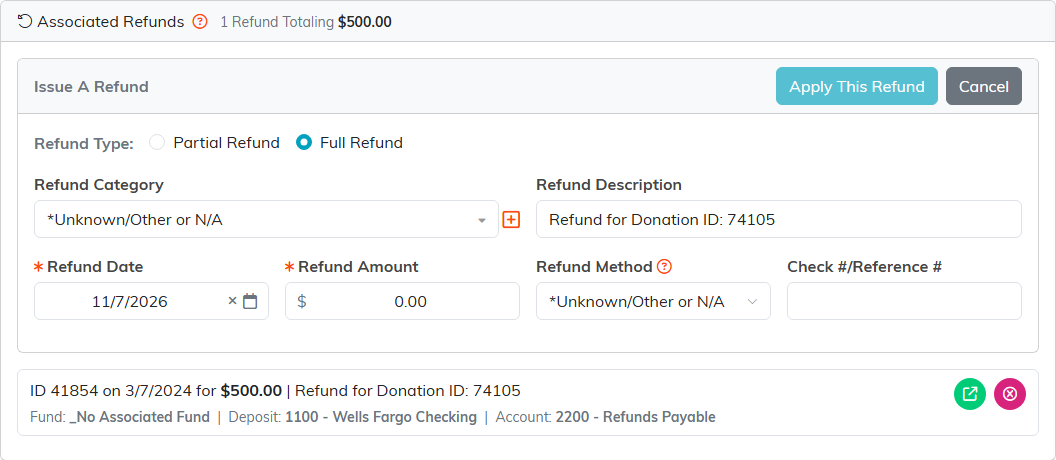
The card's header counts the refunds on the record and totals them, and each refund is listed below it.

Issuing a refund
- Click Issue A Refund.
- Choose the Refund Type: Partial Refund, or Full Refund, which fills in whatever is still left to refund.
- Fill in Refund Date and Refund Amount, which are both required, then Refund Category, Refund Description, Refund Method and Check #/Reference # as they apply.
- Click Apply This Refund. Nothing is recorded until you do, and Cancel closes the form.
You can refund less than the original amount, and refund it in more than one go. Argenta will not accept a refund that takes the total refunded past what was paid; it tells you what was paid, what has already been refunded and what is left. On a record with no amount recorded as paid there is nothing to cap against, so the refund is accepted.
Refunds and your books
A refund follows the record it belongs to. If the donation, payment, ticket sale, expense or order is in your general ledger, the refund is posted to the general journal against the same fund and accounts, and the refund shows its Fund, Deposit and Account. If the record is not in the general ledger, the refund shows Refund Is Not In The GL.
Refunding a card
On a donation or payment that came in through Stripe, choosing Credit Card as the Refund Method issues a real refund to the cardholder rather than only noting that you made one. Argenta sets the Refund Method to Credit Card for you in that case, and the finished refund carries a Refunded to card via Stripe badge. Any other method records a refund you handled outside Argenta, so you still have to write the check.
A payment with no Stripe charge behind it cannot be refunded to a card this way. Argenta tells you so and asks you to choose another Refund Method, such as cash or check.
It also works the other way round. When someone issues a refund in the Stripe dashboard instead, Argenta brings it in as a refund record carrying the Stripe charge and refund IDs. If you had already entered that refund in Argenta yourself, Argenta adds the IDs to the record you entered rather than making a second one.
Refunds not tied to one transaction
General Financials > Refunds Payable is money you owe back to someone, and Refunds Receivable is money coming back to you. Use those for refunds you manage at the general financial level rather than against a single record.
Read more: How To Manage Refunds in the Argenta General Financials Module
