Knowledge Base Article
How to Manage Event Wait Lists
The Wait List page on an event holds the people waiting for a place. How people get onto it depends on the kind of event.
Free registration events
Set Max Number of Guests on Event Details, and once the event has that many, the public registration form puts the next person on the wait list instead of registering them. It works the same way for extra guests somebody brings. They see: "the maximum number of guests for this event has been reached. You have been placed on a wait list and the event organizer will be in touch if a space opens." No payment is taken. Leave Max Number of Guests empty or at 0 and nobody is ever wait-listed.
Ticket-sales events
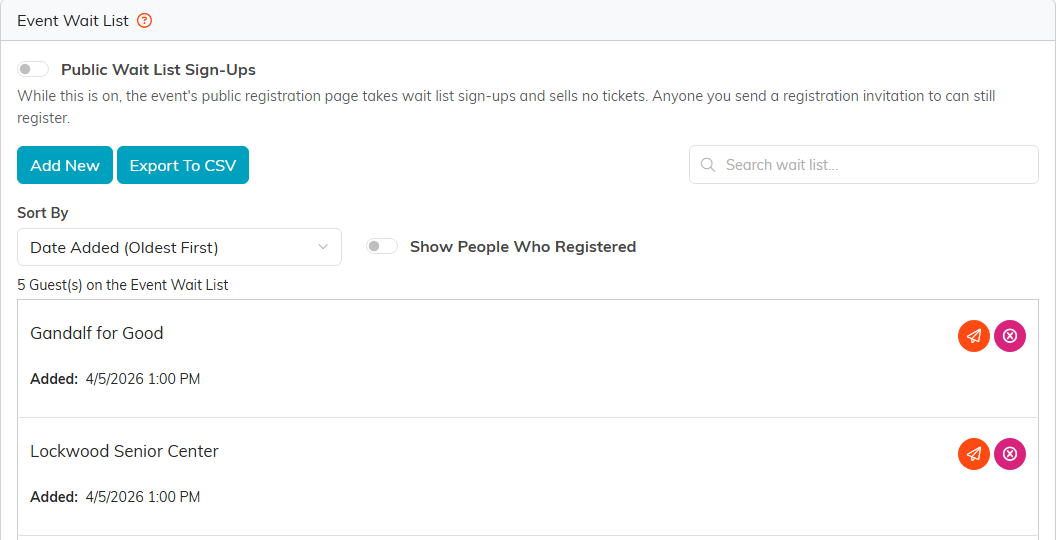
A ticket-sales event has a Public Wait List Sign-Ups switch at the top of its Wait List page. While it is on, the event's public ticket page sells nothing and shows Join The Wait List instead, asking for first name, last name, email address and an optional phone number. The person is told they have been added and that the organization may contact them if a place opens up. Turn the switch off and the page sells tickets again.
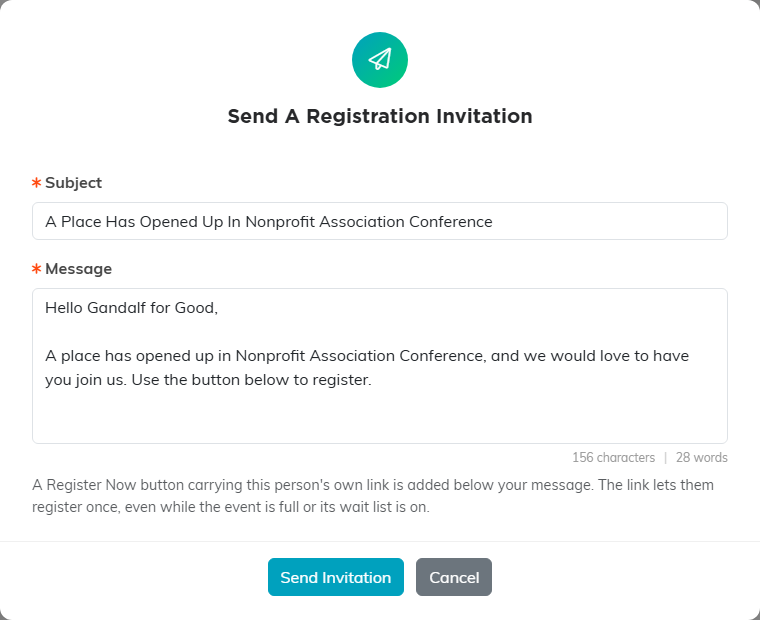
To bring someone in, use the paper plane on their row (Send Registration Invitation). Argenta fills in a subject and a message that you can change, and adds a Register Now button carrying that person's own link below it. The link lets them register once, past Max Number of Guests and past a sold-out ticket type, even while the wait list is on. Sending a new invitation replaces the earlier one, and the earlier link stops working. Once they register they leave the active list.
Working the list
Open the event and click Wait List. Each row shows the person's name and email, when they were Added, when an Invitation Sent and by whom, and who invited them if anyone did. Sort By offers Date Added (Oldest First), which is the default, Date Added (Newest First) and Name. Show People Who Registered brings back people who registered from an invitation. Add New puts someone on by hand, and the pink remove button takes them off. Export To CSV downloads the list with a Date Added column.
Two things to plan around
Nobody is notified for you. Argenta does not email the wait list when a space opens and sends nothing unless you send an invitation, so watch the list and contact people yourself. Give a short deadline to reply, then move to the next name.
On a free registration event there is no one-click move to registered. Taking someone off the wait list only removes the row. Add them through Participants/Guests the usual way, then remove them from the wait list so the list stays true.
