Knowledge Base Article
How to Use the Lead Sales Cycle Pipeline
What is a Lead?
A lead, or opportunity, is a relationship you are still working on: someone who might become a donor, a member, a client, a program participant, a volunteer or a partner.
A lead is not a separate person record. It is an existing constituent flagged as a lead, with a lead record attached to hold the pipeline information. Their name, address, phone and email stay on the constituent record where the rest of the system can see them.
Creating a Lead
- Go to Constituents (CRM) > Leads, or Marketing & Engagement > Leads/Opportunities. Both open the same list.
- Click Add New. The page is Designate A Constituent As A Lead.
- Start typing a constituent's name and pick them, or use the add icon to create the constituent first.
- Click Add Lead & Enter Details, which creates the lead and opens its workspace.
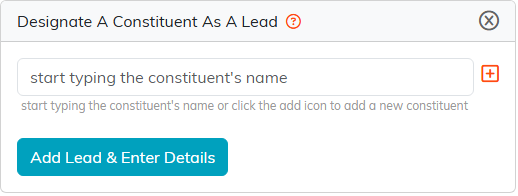
Anyone who is already a lead is left out of the picker, so you cannot designate the same person twice.
You need Marketing Manager or Admin rights to open leads at all.
The Sales Cycle Tab
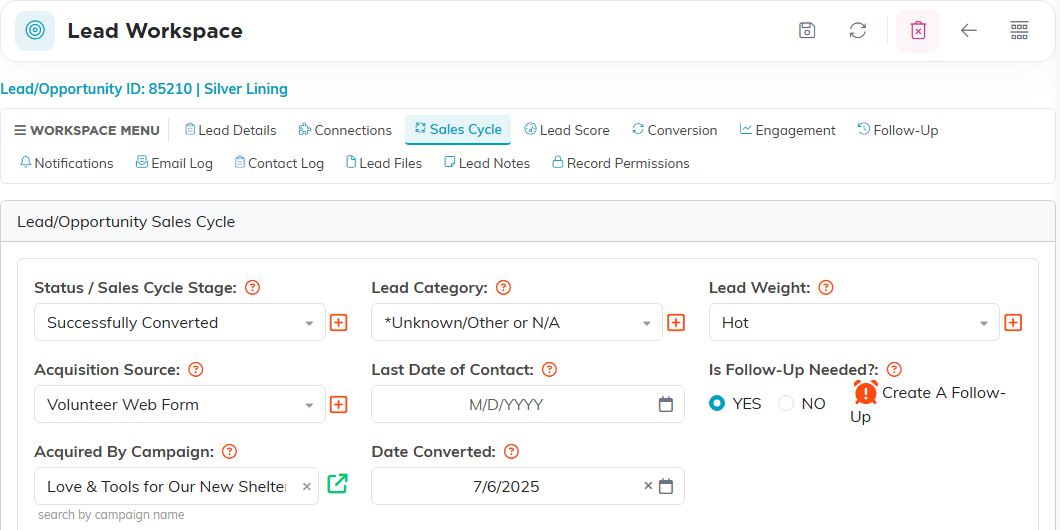
The lead workspace opens on Lead Details. Sales Cycle is the tab where you work the pipeline, and it holds:
- Status / Sales Cycle Stage: where the lead sits in your process.
- Lead Category: the kind of opportunity it is.
- Lead Weight: how likely it is to come off. The shipped options are Cold, Warm and Hot, and teams often add percentages instead.
- Acquisition Source: where the lead came from.
- Last Date of Contact.
- Is Follow-Up Needed?: a YES or NO switch, with a Create A Follow-Up link beside it that opens a reminder on the Follow-Up tab.
- Acquired By Campaign: search for the campaign that brought them in, which is what makes the lead show up in that campaign's acquisition reporting.
- Date Converted.
- Final Outcome: a full rich-text box for the story of how it ended.
Save with Save All Changes or Save All & Exit Record.
The Stages Are Your Team's Own List
Status, Lead Category, Lead Weight and Acquisition Source are all classification codes, so the choices in each dropdown are the ones your team turned on, not a fixed list. Argenta ships a long master list of stages, covering things like Made Initial Contact, In Discussions, Meeting Scheduled, Pending Proposal, Pending Contract, On Hold and No Response, and each team picks the ones it uses.
Edit them under Classification Codes. Stages are Lead Status, and the other three have their own entries. A few core stages are marked as system codes and cannot be deleted, but you can still leave them switched off.
Date Converted Unlocks Itself
The Date Converted box stays grayed out until the status is Successfully Converted. That stage is the one Argenta treats as the end of the pipeline, so it is worth leaving in your list even if you remove other stages.
Converting a Lead
Click Convert Lead... at the bottom of the Sales Cycle tab, or the circular-arrows icon in the title bar. Pick a relationship type: Board Member, Client/Customer, Donor, Member, Participant, Partner, Staff Member, Volunteer, or Other.
Anything the constituent already is shows as (Already Converted) and cannot be picked twice. Argenta creates the new record, takes you straight to it, and sets the lead's status to Successfully Converted with today's date stamped on Date Converted.
The lead is not deleted and nothing moves off it. You still have the whole history, and the constituent now carries the new relationship as well.
Follow-Up Is Yours to Drive
Follow-up in Argenta is deliberate, not automatic. The Follow-Up tab holds reminders you create, Notifications holds alerts you set up, and Contact Log and Email Log record what has already happened.
An Email Automation can start from a lead. Its Lead Reaches A Status trigger enrolls the lead's person when a lead is created at, or moved into, the status you choose, and the person leaves the series as soon as the lead moves to a status you did not tick under Statuses That Keep Them In. What it watches is the status, not the lead's age: nothing warns you when a lead goes cold. Use the Is Follow-Up Needed switch and the Last Date of Contact so those leads stay findable.
Best Practices
- Trim the stage list to the stages your team really uses. A dropdown of sixty is a dropdown nobody keeps current.
- Log every contact on the lead's Contact Log: each entry moves Last Date of Contact forward for you, and a back-dated entry never moves it back. It is the field that tells you which leads have gone quiet.
- Turning Is Follow-Up Needed on and saving puts a reminder for 9 AM tomorrow on the Follow-Up tab, for the lead's team member, unless the lead already has an open one. To word the reminder yourself, use Create A Follow-Up instead, while you still remember what you promised.
- Fill in Acquired By Campaign, so you can tell later which campaigns actually brought people in.
- Write the Final Outcome on the leads you lose, not just the ones you win. That is where the pattern shows up.
