Knowledge Base Article
How to Set Up Event Seating Charts
For gala dinners and formal events, Argenta lets you draw the room, set up the tables and seat guests at them. Open the event and click Event Seating.
The diagram
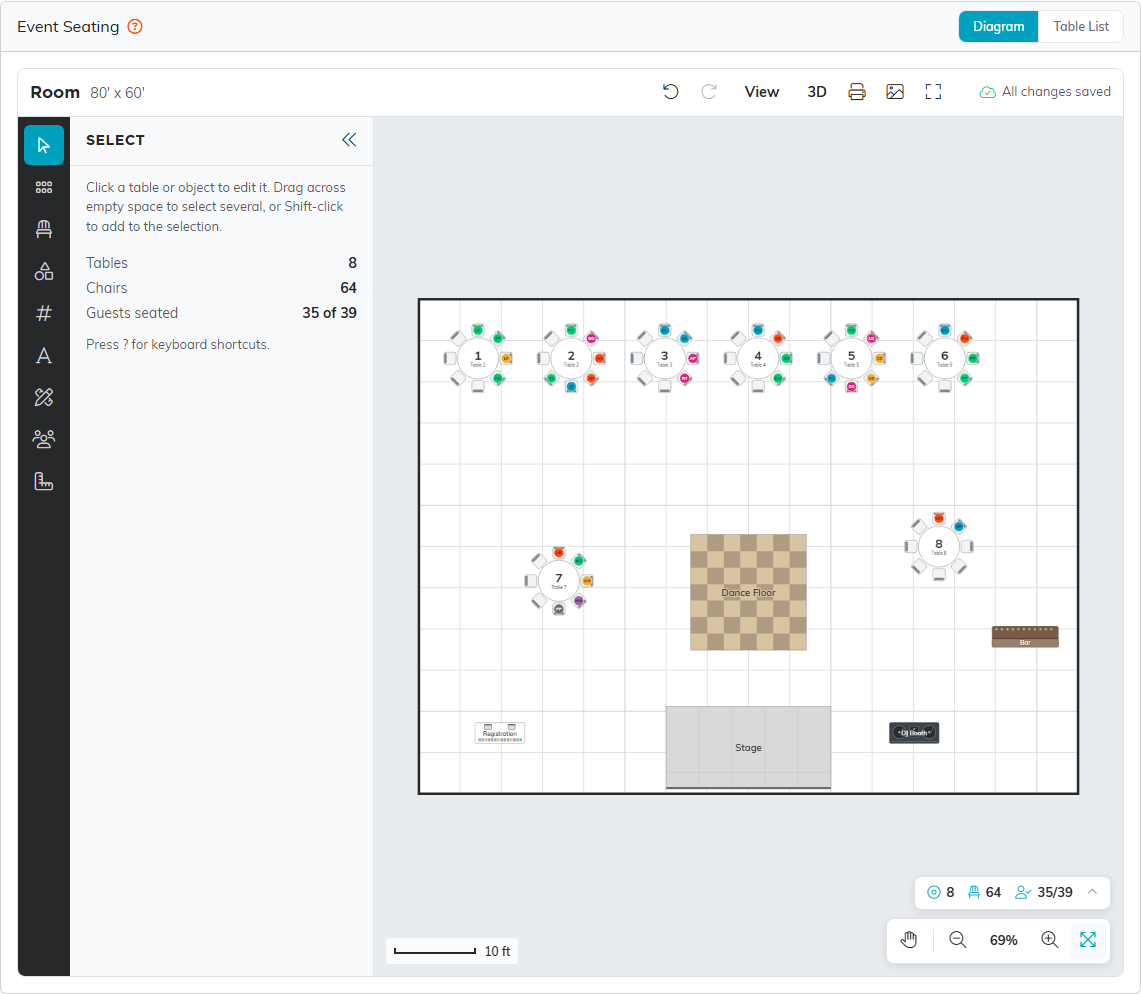
The page opens on a to-scale Diagram of the room. Set the room size with the Room tool, and upload the venue's floor plan there if you have one. Place tables from Tables & Seating or fill the room from Templates, add a stage, bar and more from Objects, and number the tables with Table Numbering. Click a table to change its name, number, shape, size and chairs. Changes save on their own.
Seating guests
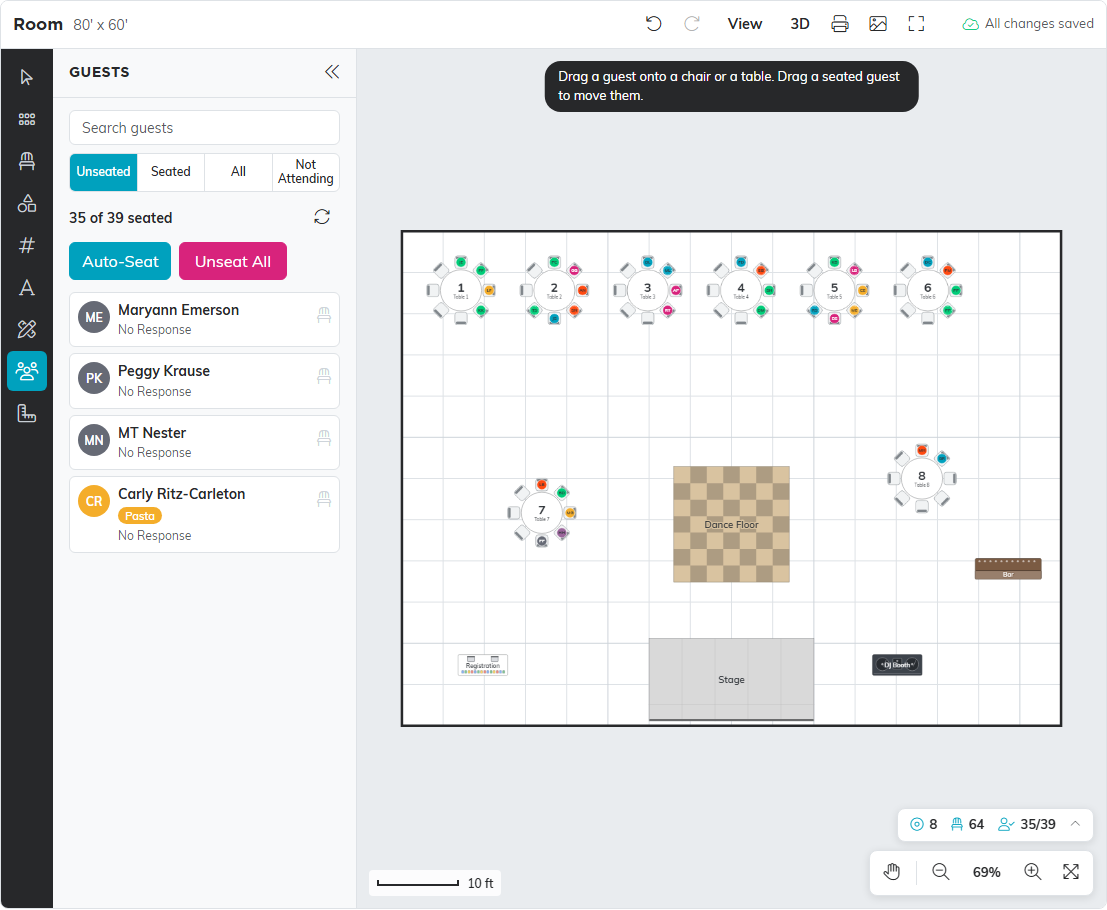
Open Guests and drag a guest onto a chair or a table. A plus-one takes the next free chair. Auto-Seat seats everyone still waiting at the open room's tables, keeping guest groups and plus-ones together. An event can have more than one room: click the room's name at the top of the diagram to switch rooms, add a room, or copy one from an earlier event. A table holds as many guests as it has chairs, and Argenta won't remove a chair someone is sitting in.
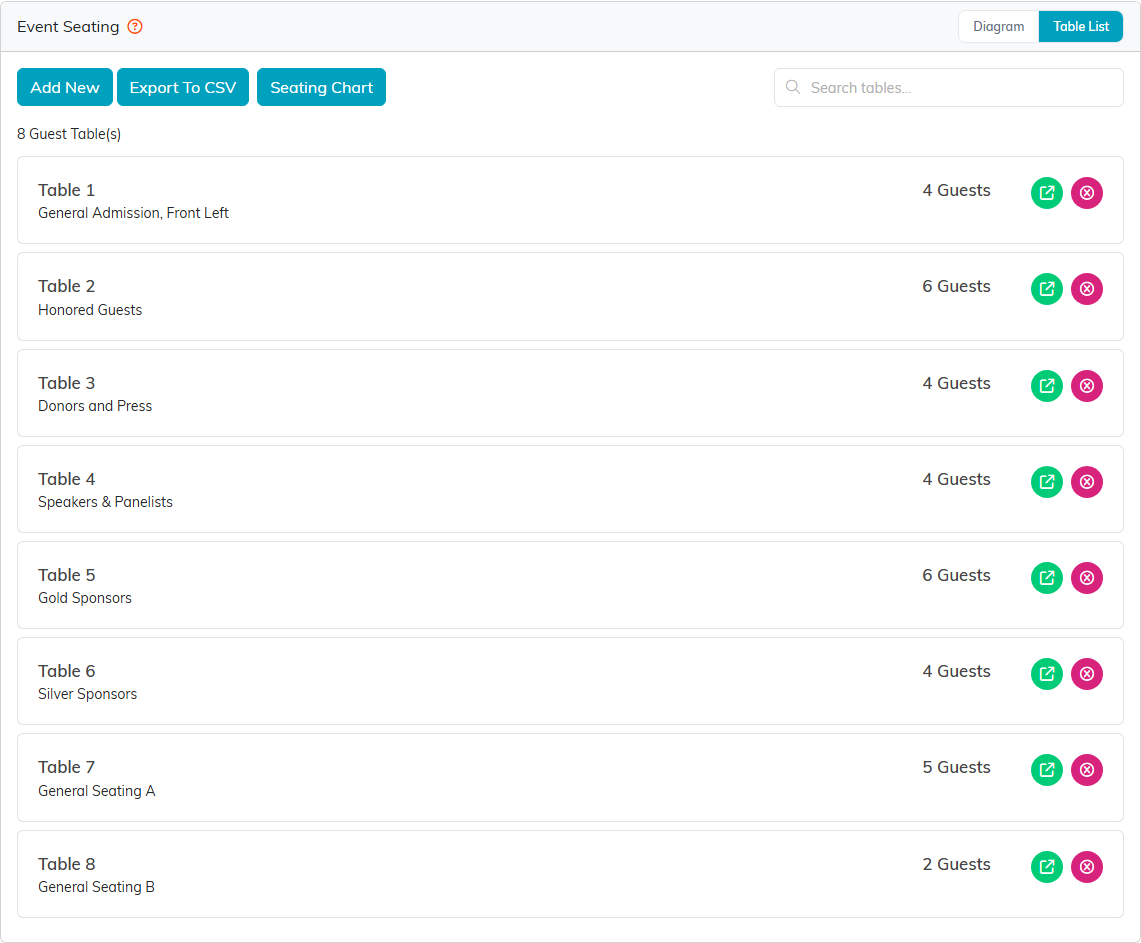
The Table List shows the same tables as a list. Add New makes a table there, and a table's Guests At This Table tab seats guests from a picker of those not seated yet. Seating from the list checks the table's chairs too, once the table is placed on the diagram. Table Notes holds anything else about a table.
Getting it on paper
Print on the diagram prints the room with the guests at every table, and Download Image saves it as a picture; both are there for team admins and users who can export. The Seating Chart button on the Table List opens the printable list of every table's guests and meals, with Export To CSV and Export To PDF. There are no place cards.
Dietary needs are not part of seating. Those are tracked with the event's meal choices.
The full guide is How to Set Up Tables and Seat Guests at an Event.
