Knowledge Base Article
How to Create Deposits and Match to Donations
A deposit records money going into one of your bank accounts, and links it to the donations and payments it came from.
- Go to General Financials > Deposits and click Add A New Deposit.
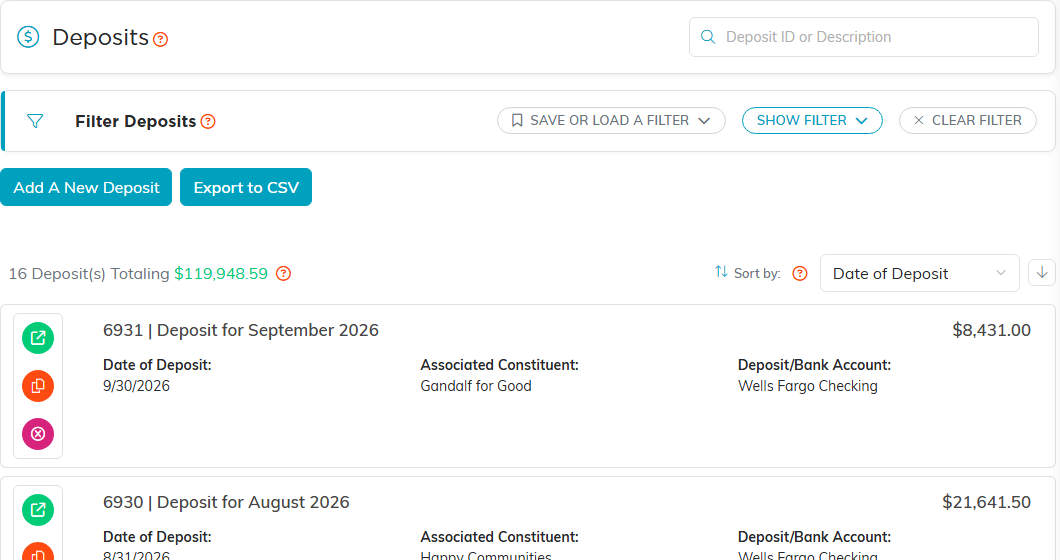
- Fill in the four required fields: Fund, Deposit/Bank Account, Deposit Date and Deposit Amount.
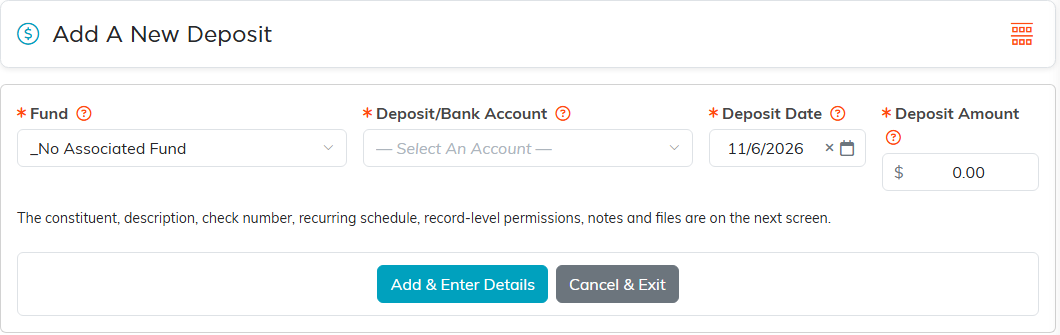
- Click Add & Enter Details. The constituent, description, check number, recurring schedule, record permissions, notes and files are on the next screen.
Matching it to what it holds
Open the deposit's Connections page and link the records it covers under Associated Donations, Associated Payments, Associated Event Ticket Sales and the other panels there. Total of All Transactions at the top adds up what you have linked; check it against the amount you actually took to the bank.
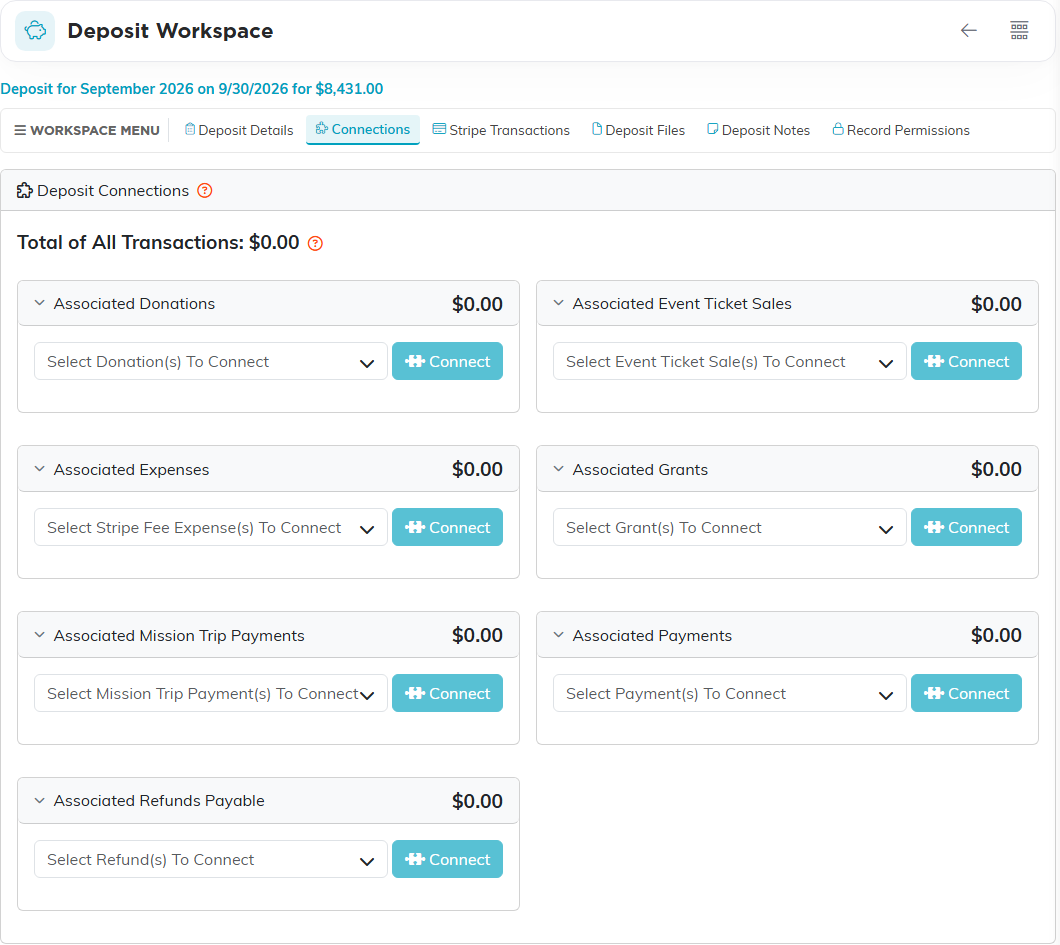
Stripe payouts are booked as deposits for you, and their detail is on the deposit's Stripe Transactions tab.
