Knowledge Base Article
How to Manage Policies and Procedures
Argenta has a dedicated place for organizational policies, with a record per policy and a log of who has opened it.
Adding a policy
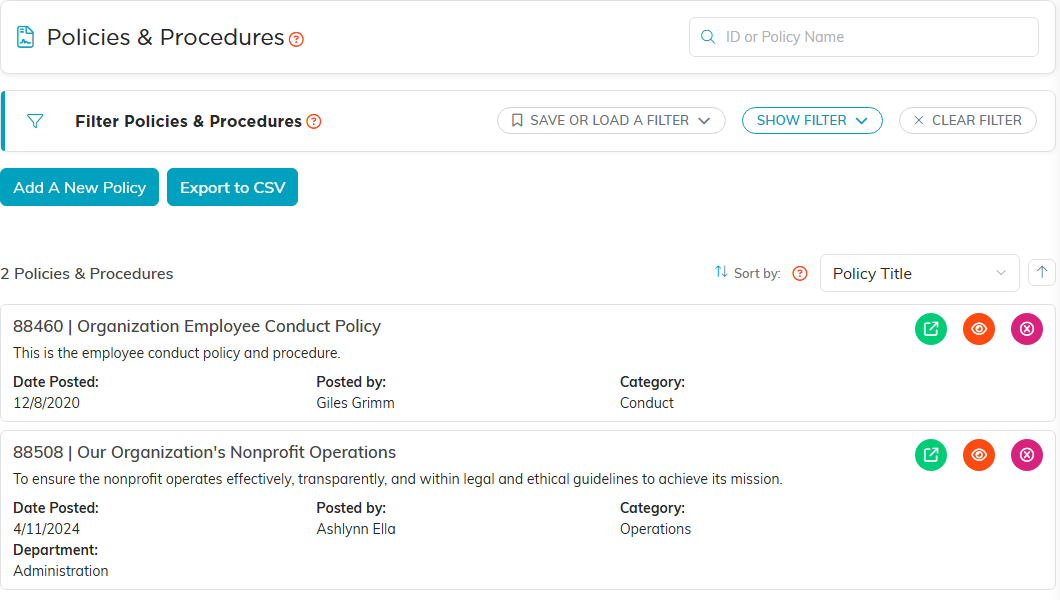
- Go to Our Policies & Procedures in your organization's menu at the top right of the screen.
- Click Add A New Policy.
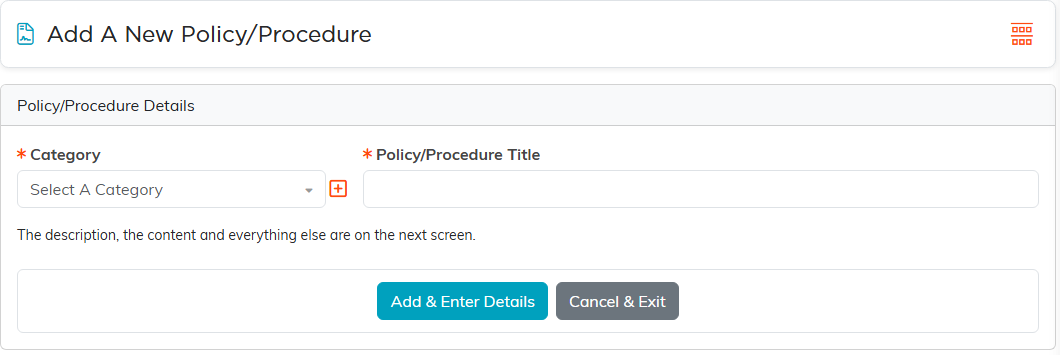
- The Policy/Procedure Details card asks for two things, both required: a Category and a Policy/Procedure Title. The category list has its own add button if the one you want is missing.
- Click Add & Enter Details. The description, the content and everything else come on the next screen. Cancel & Exit backs out.
The rest of the record
Once it exists, the workspace menu carries:
- Policy & Procedure Details - the description, the Set As View Only and Lock This Record switches, and the chapter, division, department, district and precinct it belongs to.
- Policy & Procedure (Text) - the policy itself, written in the editor.
- Policy & Procedure (File(s)) - supporting documents.
- Policy Notes and Record Permissions.
Seeing who has read it
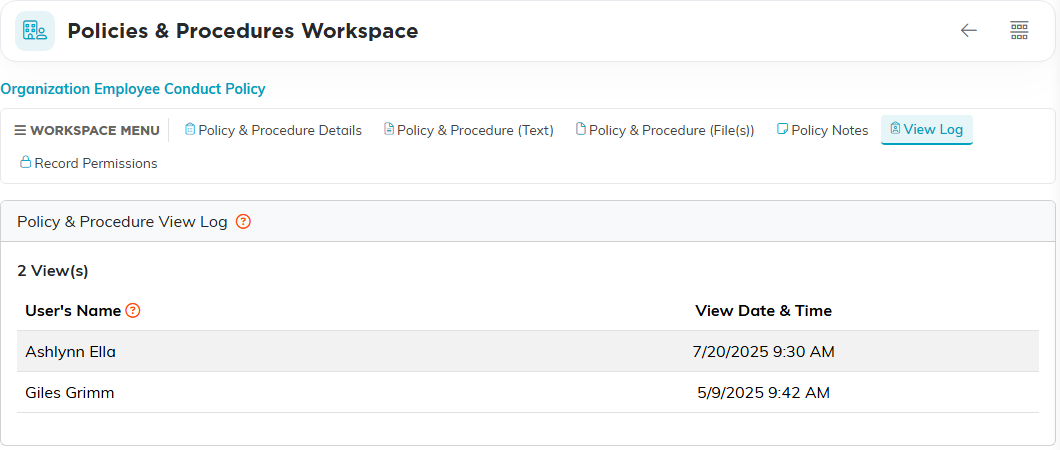
View Log lists everyone who has opened the policy, by User's Name and View Date & Time, the first time they opened it. Each person is listed once. A view is recorded when someone opens the policy to read it, with the eye icon on the list, not when someone opens it to edit. That is a record of who looked, not a sign-off: there is no acknowledgment step for staff to confirm they have read and accepted it, so if you need that, ask for it in writing and note it against the record yourself.
Useful for onboarding and for keeping everyone working from the same version of a policy.
