Knowledge Base Article
How to Use the Ava Grant Writer
Open it from Grant Management > AI Grant Writer. The page is headed Ava Grant Writer.
It works as a conversation rather than a form. A new chat offers nine starters, and the same nine stay on the Actions menu once you are underway:
- Find Grants That Fit Us looks for funders that match your mission and focus areas.
- Search Grants searches for grants by keyword.
- Assess Grant Fit takes a list of grants or funders and rates each one against your profile. Put one per line. Commas inside a line are kept, so Cedar Foundation, Inc. and awards up to $20,000 go through whole.
- Complete a Full Application takes a funder's application and drafts an answer to each question in it. Where the funder states a limit in words, each drafted answer shows its word count against that limit and turns red when it is over, and a red note above Download as Word tells you how many are over before you download. Limits given in pages or characters are shown but not counted, so check those yourself.
- Review My Proposal Draft reads a draft you attach and comments on it.
- Write a Needs Statement, Build a Budget Narrative and Set SMART Objectives each start a conversation that drafts that piece of a proposal with you.
- Make Us More Competitive asks what your organization can do to strengthen its grant applications.
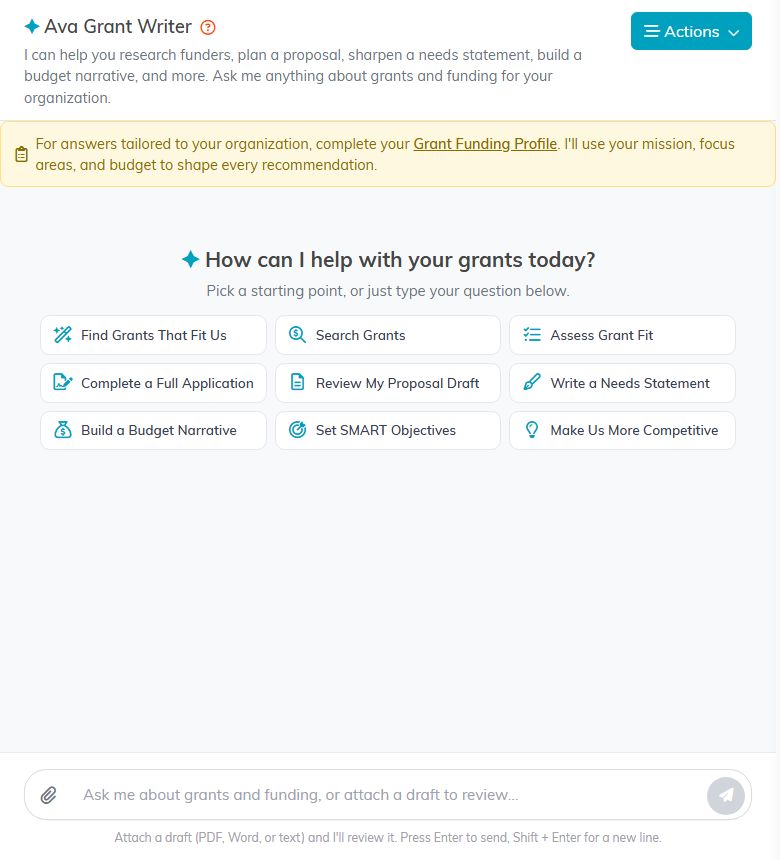
You can also just type. Say which grant you are working on, who the funder is and the deadline, and attach the funder's packet with the paperclip beside the message box.
While it works, a status line says what it is doing. A long answer can take a minute or two, so leave the page alone rather than refreshing.
Any answer can be saved with its own Download as Word button, so you do not have to copy text out by hand.
Your Grant Funding Profile shapes every answer, so fill it in before you start. A thin profile gives thin drafts.
Treat what comes back as a first draft. Read it, correct anything about your organization, and make the wording yours before it goes to a funder.
