Knowledge Base Article
How to Manage Meeting Minutes
Meeting minutes keep a record of what was decided, with the minutes, files and follow-up checklist in one place.
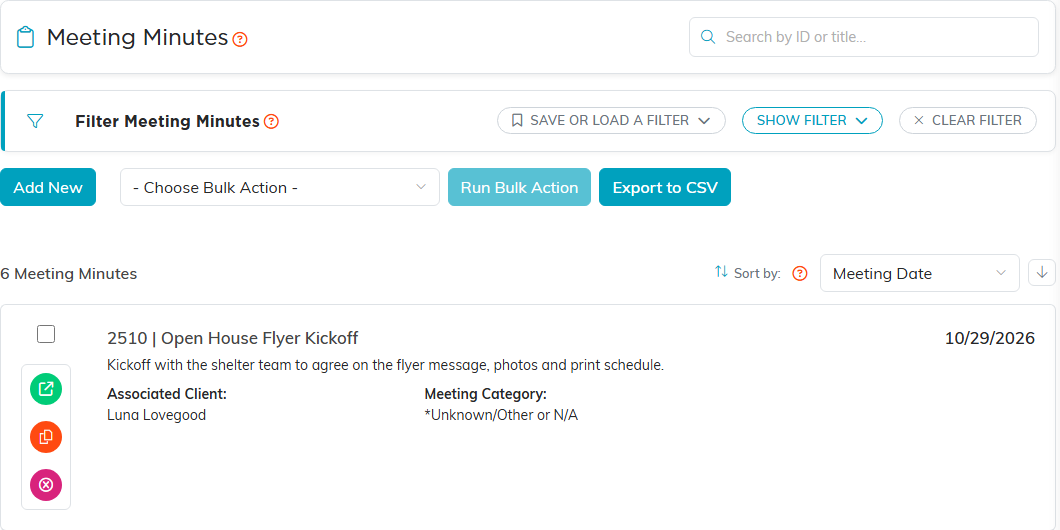
- Go to Workflow & Productivity > Meeting Minutes and click Add New.
- Enter the Meeting Date and the Title of Meeting Minutes. Both are required, and they are the only fields on this form.
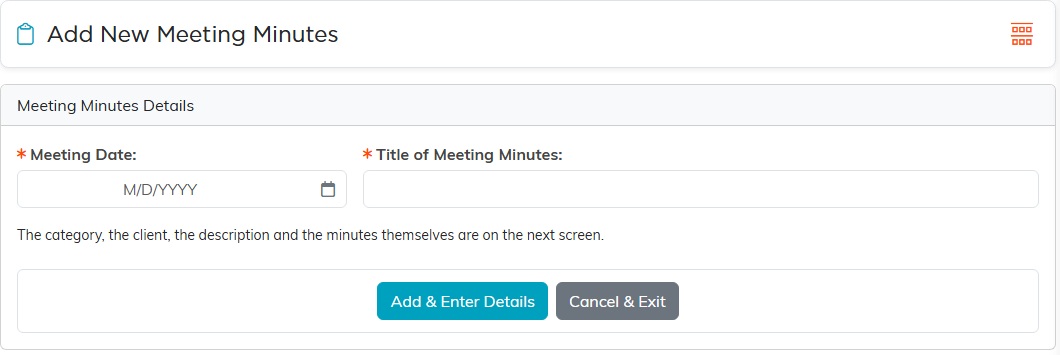
- Click Add & Enter Details. The record opens in its workspace.
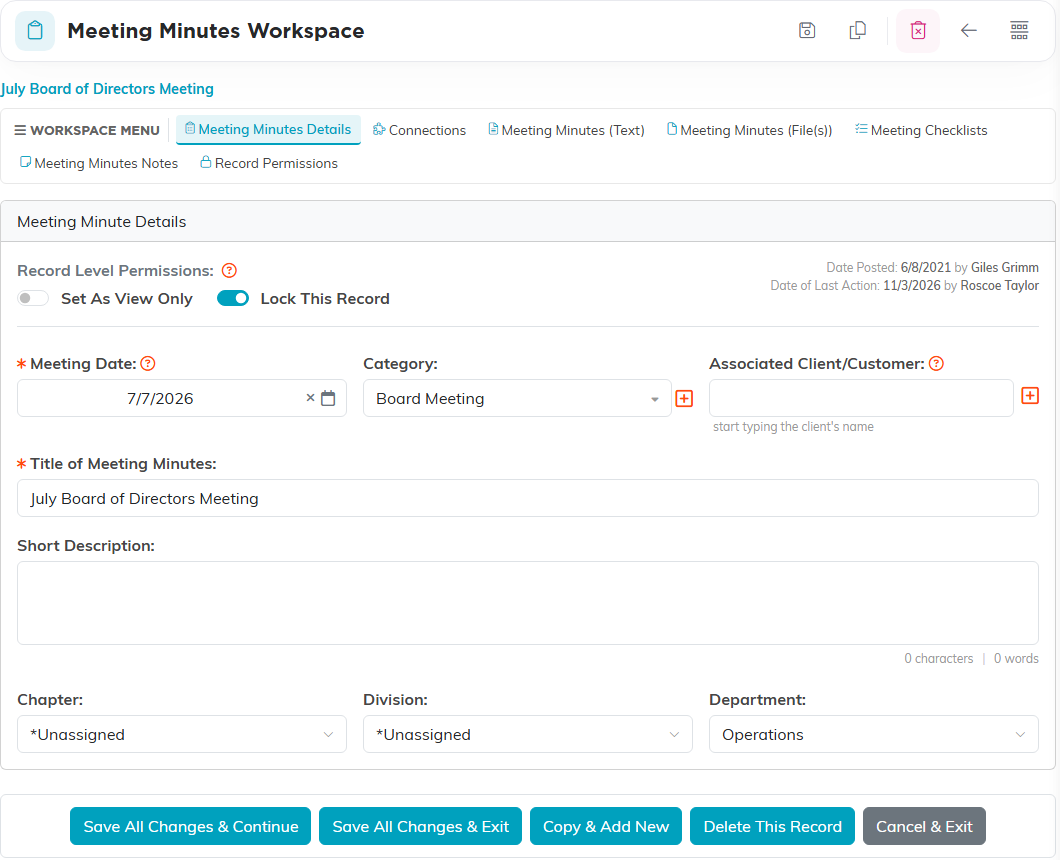
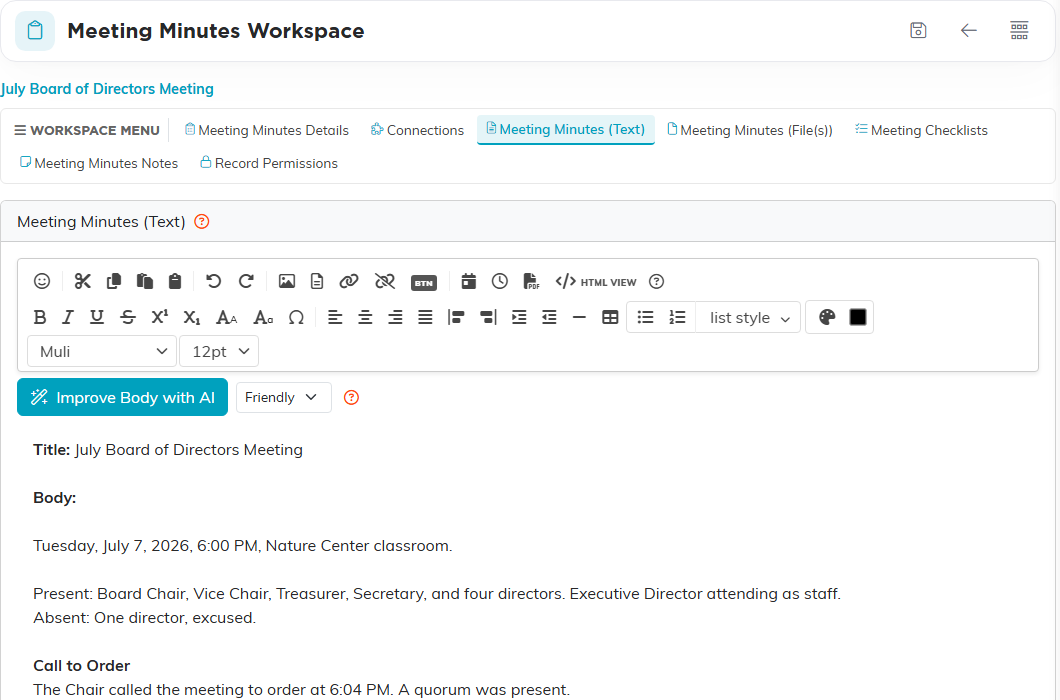
The category, the client and the description go on Meeting Minutes Details. Write the minutes themselves on Meeting Minutes (Text), or attach them on Meeting Minutes (File(s)). Meeting Checklists holds the action items, Meeting Minutes Notes holds notes, and Connections links the meeting to related records such as a project.
This is especially useful for board meetings, committee meetings and project status meetings.
